

 Morris Proctor
On the Tools menu is a feature called Information, which we normally use with interlinear Bibles. Simply by hovering on or clicking a word in the Bible, Information populates with tons of data about that word. This tool, however...

With the somewhat new Logos Bible Software installation process, we now have the option of just downloading some of our resources during the initial installation. In light of that, I recently received this scenario from a fellow Logos user: Now that...

I recently received the following scenario from a fellow Logos user: I’m working on a project for school regarding lexicons and Genesis. Is there a way to highlight all the biblical references to Genesis in a lexicon such as BDB? Currently I’m...

A Logos user contacted me with the following inquiry: I’m in the process of tagging my resources. Since I’m not familiar with some of them, I’m not sure what tags to assign. Is there some assistance available in the software to help me? I really...

A Logos user contacted me with this question: I’m somewhat new to Logos 8, but I remember in previous versions I could get family trees for people in the Bible. How do I find them now? There are several ways to locate what he wants, which is...

A semi-distressed Logos user contacted me with the following situation: I’ve accidently misfiled numerous notes in the wrong notebook. I know how to move one note at a time, but please tell me there’s a way to simultaneously move all of the misfiled...

A fellow Logos user recently submitted this scenario: I enjoy working with Logos 8 Notes. I often copy text from a resource and paste it into a Note. Sometimes, however, the information is too long, so I want to link back to the article rather...

This is the second part of a short blog series addressing this scenario presented to me by a fellow Logos user: The Seminary Guide released from Faithlife for 2020 has an article in it from Mark Ward in which he says Greek students should learn...

A fellow Logos user recently emailed me with basically this scenario: The Seminary Guide, released from Faithlife for 2020, has an article in it from Mark Ward in which he says Greek students should learn vocabulary words appearing more than 100...

As I was reading through 1 Peterin the ESV I paused at 1:2, which states: . . . according to the foreknowledge of God the Father, in the sanctification of the Spirit, for obedience to Jesus Christ and for sprinkling with his blood: May grace and...

A perceptive Logos user presented the following scenario to me: I’m really enjoying the Sidebar in the Logos 8 Library, which makes finding books much easier. Once I locate specific books, however, is there a way to search them while I’m in the...

In keeping with the general theme of launching the new year with an emphasis on Bible reading, I want to remind you of a simple solution to a question I’m often asked: Since the Bible is not arranged in chronological order, how can I create a Bible...
With the dawn of a new year usually comes renewed resolve to read the Bible more. Along with the Bible, most Christians enjoy reading a daily calendar devotional like My Utmost for His Highest. If you fall into that category, then perhaps you...

Since finding information in our resources is so important, the Logos developers are constantly looking for ways to make searching easier for us, the users. A helpful feature in the recent release of Logos 8.10 is no exception. We can now quickly...

With the recent release of Logos 8.10, we can now link a Search panel to a resource and execute a search with a single click! Yes, you read that correctly. Let me show you how it works: Open any resource such as the Lexham English Bible (A) Navigate...
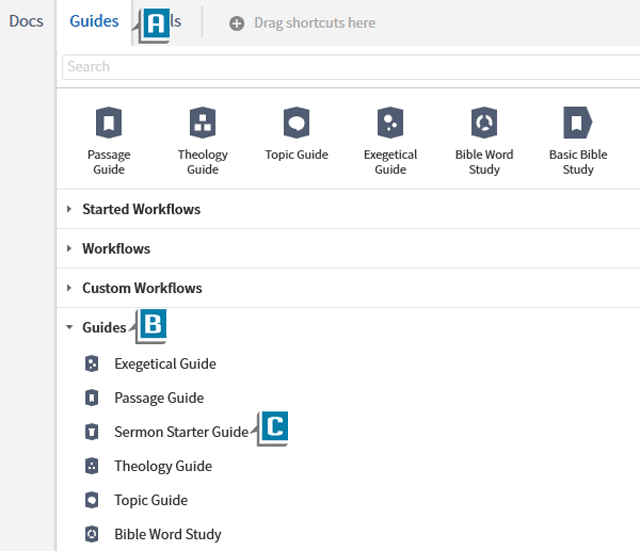
Whether you’re a preacher or not, you can benefit from the Sermon Starter Guide. For example, imagine during this Christmas season you’ve been asked to give a devotional about the birth of Jesus. You’re just not sure, however, where to start in...
As the Christmas season is upon us you’ll no doubt be reading, studying, and/or teaching passages such as Matthew 2 and Luke 2. In light of that, I want to encourage you to use several resources you most likely own: Faithlife Study Bible Lexham...

A Logos user contacted me with the following question: Recent scholarship continues to shed light on challenging passages of Scripture. Is there a way to display my commentaries according to their publication dates? I love questions like this...

Every six weeks or so, the developers of Logos update our software. Some of the changes are major, like the redesigned Context menu, while others are behind the scenes, like bug fixes. A case in point occurred in the recent 8.9 update. A small but...

In preparation for a recent webinar, I was researching the subject of anointing with oil as a part of daily grooming. So I executed a Bible search for any form of the word anoint in the ESV. I then wanted to save some (not all) and create a Passage...

Recently we’ve received several inquiries at MP Seminars asking about the possibility of organizing Documents and Saved Layouts into folders. Currently we can’t create a folder system on the menus, but we can in Favorites...
Imagine this scenario: You highlight important points as you read through a Logos resource. Then after completing the book, you say to yourself, I need to find the highlighted text that discusses the glory of God. With the recent release...
If you’re in the habit of posting images generated through the Logos Media tool to your My Faithlife page, then you may really enjoy this small but helpful tweak made to Logos in the recent 8.8 update. Take this out for a spin: Choose Tools |...

There are certain words I easily know how to spell, but I always seem to mistype them when searching in Logos. For example, I type: prasie for praise fiath for faith saerch for search Until I improve my typing, Logos...
The recent Logos 8.7 update contained a lot of exciting new features. I certainly hope you’re discovering and enjoying them. Today’s blog focuses on one that’s almost hidden but nonetheless can assist us as we’re working with specific Bible verses...

If you work in the original languages of Hebrew and Greek then you may very well appreciate the NEW keyboard selector added to the Search panel in the recent Logos 8.8 update. Check this out: Click the Search icon in...
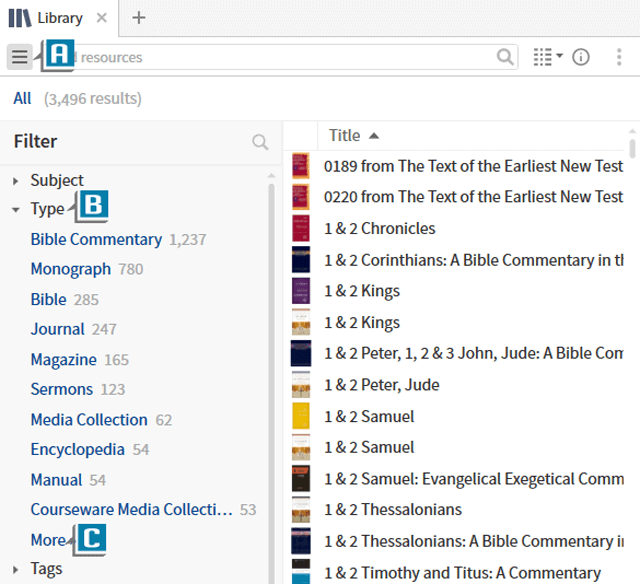
I want to make you aware of a small, but very important tweak made to Logos Bible Software: Study Bible has been added as a Type in the Library. Let’s take a look: Click the Library icon in the upper left of the program Click the Sidebar icon in the...
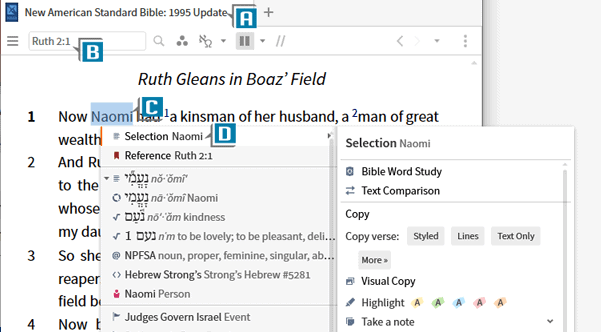
Thinking Look up had been removed from the redesigned 8.7 Context menu, a fellow Logos user emailed me asking, What’s up with Look up? Actually Look up is still on the right-click menu, and it’s better than ever! Let me show you: Open an interlinear...

The recent Logos 8.7 update contained a small, but potentially important tweak to the software that I want to make sure you’re aware of. In a Basic or Bible Search, we can now enable match case and match all word forms at the same time! For example...
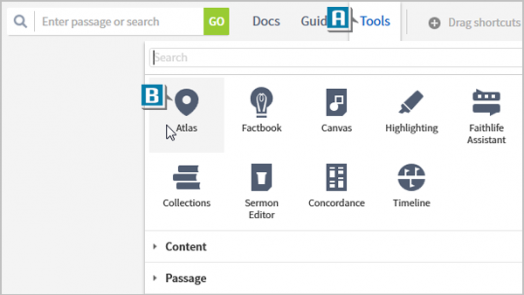
A small, but very helpful change appeared in the recent Logos 8.7 update: we can now drag and drop shortcut menu items to our desired order! Try this: Choose the Guides or Tools menu (A) Click and hold one of the shortcut icons at the top of the...