Recently in Tutorial Category

theFellas.pngPrior to Logos 4 launching, I had the opportunity to sit in a number of meetings where Bob would show us many of the new features and functionality being built into the program. I remember in those meetings hearing people in the room say "wow" over and over again as Bob described all that Logos 4 would do.

One "wow, that's cool!" moment for me was when I first saw the power of the collections tool. Specifically, I was blown away by the ability to enter some simple rules and that Logos 4 would automatically include any new resources I add to my library that meet the criteria. In fact, I think one of the first things I did when I finally got a pre-release version of Logos 4 was to set up a collection that included my favorite authors. Now, not only is it quick and easy for me to search through all my resources written by my favorite authors, but whenever I add a new title (like the upcoming Calvin 500 collection) these resources are automatically added to my collection. I don't have to do anything!

To see the power of dynamic, rule-based collections in action, watch this video:

See more videos at http://www.logos.com/videos.

Already a Logos Bible Software user?
Visit our custom upgrade discount calculator to see what discounts you qualify for on an upgrade to a brand new Logos 4 base package.

Want to be a Logos Bible Software user?
New customers should visit http://www.logos.com/4 to learn more and see what discounts are currently available.


You should follow us on Twitter here.

MacBibleSoftware.com now has 12 new training videos. If you’re looking to get the most out of Logos for Mac, you’ll definitely want to take some time to watch them.

Reuben Evans walks you through first-time installation, adding additional books to your library, and using the basic tools in the software like the Passage Guide, the Exegetical Guide, the Bible Word Study, the Topic Browser, and the Reference Browser.

He also shows you how to edit your preferences, manage your windows, create workspaces, collections, favorites, and bookmarks, type in Greek and Hebrew, and do various kinds of searches.

Check out these new videos to take your Mac Bible study to the next level:

  1. Preferences I
  2. Preferences II
  3. Window Management
  4. Greek and Hebrew Keyboards
  5. Study a Word
  6. Collections, Favorites, and Bookmarks
  7. Topic Browser and Reference Browser
  8. Saving and Loading Workspaces
  9. Information Window and Navigation
  10. Bible Search
  11. Greek Morphological Search
  12. Hebrew Morphological Search
You should follow us on Twitter here.

Most Bible translations have a variety of footnotes throughout the text, giving you instant access to cross references, alternate translations, text-critical notes, and more. These notes are helpful when studying the Bible on your computer, but you may not need them when you copy the text into a sermon or paper.

A fairly common question we hear from new users is how to copy text from a Bible without including the internal footnotes. Let’s take Romans 12:1–2 in the ESV, for example.

You’ll notice 10 notes in these two verses. The superscript letters are for cross references, and the superscript numbers are for alternate translations, comments on manuscripts, etc. Sometimes you may want to include these when copying and pasting, but often you want just the bare Bible text.

There are three ways to accomplish this.

Method 1: Switch to “Bible Text Only” Viewing Mode.

With your Bible open and active, go to the View menu and select “Bible Text Only.” This will strip out all footnotes and allow you to copy only the text with chapter and verse numbers. The downside to this method is that you lose the paragraphing; each verse is formatted as its own paragraph.

Method 2: Uncheck “Include Footnotes When Copying.”

Another option is to go to Tools > Options > General > Interface and uncheck the box “Include Footnotes When Copying.” This will tell Libronix to skip any internal footnotes when copying text from your resources. Formatting and paragraphing will be preserved, but the potential downside to this method is that it applies to all resources and not just Bibles. So if you like having footnotes appear when you copy text from a commentary, for example, then you’ll want to try the next method.

Method 3: Use the “Copy Bible Verses” Tool.

This final method is far and away the best. If you’ve paid careful attention to the icons in your system tray (which is usually in the lower right corner of your screen next to the time), you’ve probably noticed that Libronix adds three icons when it’s open. The black one that looks like a Bible is the Copy Bible Verses tool.

There are two ways to use this powerful tool. You can double-click on the icon in your system tray, type in a passage, and click “Copy” (or “Copy and Paste” to send it directly to your open Word document, for example). Or you can highlight the text you want to copy and select “Copy Romans 12:1-2 to Clipboard” (instead of selecting “Copy” or using Ctrl+c).

One of the cool features of the Copy Bible Verses tool is that you can create as many different styles as you want—one for your sermons, another for your blog posts, another for papers, etc. For additional help creating styles, see the training article “Copy Text without Footnotes and Citations.”

If you copy Bible text frequently, you’ll quickly come to love this very handy little tool. It’s not hard to see why this is some users’ favorite feature.

On Thursday of last week, we looked at how to use Strong’s in Logos Bible Software version 3, but I left out a few things that are worth calling attention to. In addition to accessing Strong’s from the “Other Tools” section of the Bible Speed Search or the regular Bible Search results, you can access it directly from the right-click menu of any Strong’s-tagged Bible or by running advanced Bible searches for particular Strong’s numbers.

Accessing Strong’s from Your Bibles

You can still run the old Englishman’s Concordance report from the right-click menu in Strong’s-enabled Bibles. For example, open the KJV to Romans 8, right-click on a word like condemnation, and select “Englishman’s Concordance.”

Doing so will launch this report, which shows you all of the occurrences of that particular Greek word, which happens to be translated all three times as condemnation.

Another way to do this is to right-click on the word and choose “Selected Reference” > “Speed Search This Resource.”

This will generate a search that gives you the same results as the Englishman’s Concordance report, but provides a few additional options under “Other Tools.”

Searching for a Specific Strong’s Number

You’ll notice that when the previous search generates, it uses the standard Bible Speed Search window and populates the search box with GreekStrongs in G2631. What this means is that you can bypass the right-click menu and do a search directly from the Bible Speed Search if you are starting with the Strong’s number you want to find.

For Greek words, you just need to type in something like GreekStrongs in G2631. Simply replace the Strong’s number with the one you’re looking for. For Hebrew words, you would type in HebrewStrongs in H6942. This allows you to instantly generate a report of all of the occurrences of a given Strong’s number.

Searches like these will show you all of the occurrences of a particular Greek or Hebrew word, regardless of how it is translated in English. If you want to narrow the report to show you only the places where a particular Greek or Hebrew word is (or is not) translated with a particular English word, you would simple add to the search equals or notequals followed by your word. For example, GreekStrongs in G1680 gives you all of the places where this Greek word occurs. It is almost always translated hope. If you wanted to limit it to the places where it is not translated hope, you would search for GreekStrongs in G1680 NOTEQUALS hope. Here’s another one to try: GreekStrongs in G26 NOTEQUALS love, will find all of the places where the main Greek word for love is not translated as love in the KJV.

Many pastors and Bible students who have grown up using Strong’s numbering system for Hebrew and Greek are slow to switch to something unfamiliar like reverse interlinears. We believe that reverse interlinears are a far better technology and superior to the Strong’s system, but we understand that not everyone is ready to completely abandon Strong’s just yet. That’s why we’ve tried to retain our Strong’s functionality as new versions have come out.

James Strong is best known for his Exhaustive Concordance of the Bible in which every Hebrew and Greek word was given a number, all of the references where each word occurred were listed, and brief definitions were given for each word. Strong’s numbering system made it easy for people who couldn’t read Hebrew or Greek to look up words.

Last month we got a call from a customer who has been wanting to upgrade from version 2 of our software to version 3 for a couple of years now. The only thing holding him back was that he thought he’d lose his Strong’s Concordance. After we explained to him that all of his favorite Strong’s resources and reports would still work in version 3, he was overjoyed and quickly upgraded. This post is for anyone out there who might be in the same boat.

Resources and Reports

Sometimes there can be confusion regarding what is a resource or book that can be found in My Library and what is a report or part of the software’s functionality. So let’s start by setting the record straight.

Resources

There are several Strong’s lexicons or dictionaries:

Other lexicons like the Dictionaries of Biblical Languages w/ Semantic Domains include Strong’s numbers and will work as well.

There are a few Bibles with built-in Strong’s numbering both inline and interlinear.

The ESV and NRSV NT reverse interlinears also have Strong’s numbers.

Reports

Version 2 had an Englishman’s Concordance report that produced results like you’d find in Strong’s Concordance. Version 3 has a similar report under a different name.

  • Version 2: Englishman’s Concordance
  • Version 3: Search Analysis by Strong’s

Clarification: You can actually still run the Englishman’s Concordance report in version 3. See Where’d My Strong’s Concordance Go? Part 2 for the details.

Finding the Strong’s Report in Version 3

So where do you find Strong’s Concordance in version 3? If you’re looking for Strong’s Concordance in My Library, you won’t find it because it’s not a book or resource. It’s a report. Concordances (as resources) don’t make a lot of sense in Bible software because you can generate a concordance on any word or phrase by simply running a search.

To get the Strong’s Concordance report in version 2, you’d use the Englishman’s Concordance. The same basic content is still available in version 3. Here’s one way you access it:

1. Do a Bible Speed Search or a regular Bible Search using the KJV or the NASB (or another Bible with Strong’s numbering) on a word like marriage.

2. In the search results window, click “Search Analysis by Strong’s” in the top right hand column at the bottom of “Other Tools.” You’ll see this report.

This will show you all of the underlying Hebrew or Greek words for the English word you searched on. You can arrange the results by root word or by reference. You can also do the reverse of this. See the follow-up post for details.

For more on Strong’s, see:

For more on reverse interlinears, see:

See Where’d My Strong’s Concordance Go? Part 2 for more on using Strong’s in Logos Bible Software 3.

By default, searching a Bible for multiple terms will find those words or phrases only when they occur in the same verse. So a search for grace “in Christ” in the ESV will return all of the verses where the word grace and the phrase in Christ occur in the same verse (i.e., Rom 3:24; 1 Cor 1:4; Eph 2:7; Col 1:2; 1 Tim 1:14; 2 Tim 1:9; 2:1; 1 Pet 5:10), but won’t return the places where one of the search terms occurs in the preceding or following verse, even if that verse is part of the same sentence (e.g., Eph 1:1–2, 3–6, 7–10, etc.). That’s because the default search unit is verses, as you can see in the image below.

Normally you’ll get plenty of targeted search results this way, but sometimes you may want to see results that cross verse boundaries, especially when a sentence spans several verses. Getting more results is as simple as switching the search unit from “Verses” to “Chapters or Sections.”

Our search for grace “in Christ” now turns up 116 occurrences in 28 articles instead of 16 occurrences in 8 verses. But this may be too broad, since it will return chapters where grace and in Christ occur nowhere near each other and are contextually unrelated. To tighten it up a bit, simply add a proximity delimiter like 25 words. So our search would be grace WITHIN 25 WORDS “in Christ”. This search returns 37 occurrences in 16 articles and gives us several additional targeted results to work through.

For more help on searching, be sure to read our training article “Exploring Logos Searching.”

Anchor Yale Bible (84 Vols.)If you purchased the Anchor Yale Bible, by now you’ve probably had a chance to install it and explore a bit. Those of you who are relatively new to Logos may be wondering how to get the most out of your new commentaries. In this post, we’ll share some tips that will help you put your investment to good use.

Setup Tips

1. Copy the resources to your hard drive.

It may go without saying, but be sure to copy all of your resource files to your hard drive rather than running them off the CD. With your CD in your drive, go to Tools > Library Management > Location Manager and follow the instructions. Everything will be much faster with the files on your hard drive. AYB will take up 308 MB of disk space.

2. Create a collection.

While it’s not essential to using your new commentaries, creating a collection can provide some additional benefits that you might find useful (e.g., faster, more target searching and more exhaustive results in the Passage Guide). In my opinion, this is a good thing to do for many new products you purchase.

You can either create your own collection by going to Tools > Define Collections > New (see also this video demonstration) or download the one I already created and put it in C:\Documents and Settings\{UserName}\My Documents\Libronix DLS\Collections on a Windows machine or in Users/{UserProfile}/Library/Application Support/Libronix DLS/Collections on a Mac.

3. Make sure your resource association is installed.

A resource association allows your entire series to function in some ways as a single book. That means that if you’re in the AYB commentary on Romans and want to jump to the commentary on Isaiah to look up a related passage, just type in the reference in the Reference Box at the top left-hand portion of the resource window.

If that doesn’t work, it’s probably because you don’t have the Resource Association installed. On Windows, run Libronix Update to get it (i.e., Tools > Libronix Update). Alternatively, you could create your own resource association. (This feature is currently only in the Windows version.)

Usage Tips

1. Explore AYB in “My Library.”

To see all of your Anchor Yale Bible commentaries in My Library, simply type in the series abbreviation, AYB, and all of your other titles will be filtered out. Alternatively, if you created a collection, you can simply select your collection from the Collection dropdown.

2. Use AYB in the Passage Guide.

Since the files for the Anchor Yale Bible are commentaries, they will instantly just work when you run a Passage Guide on any portion of Scripture covered by the series. If you don’t see the Anchor Yale volume(s) show up in the initial list of 15 that appears, be sure to click “More »” to see the rest of your commentaries that cover your passage. One of the cool features of the Passage Guide in is that it will remember your top five favorites on each book of the Bible. So the next time you study a passage in the same book, the commentaries that you’ve used most will appear at the top.

To get even more out of AYB in the Passage Guide, click on Properties, scroll down to the Collections section, and check the box next to your AYB collection.

This will tell the Passage Guide to search all of the other commentaries in the AYB for any mention of your passage, providing you with even more to dig into.

3. Find even more with advanced searching.

If you created a collection, you can also do some powerful searching by using the Basic Search (Search > Basic Search) or the Reference Browser (Go > Reference Browser). Just be sure to limit your searches to your new collection, and in just a second or two you’ll be able to find all of the occurrences of words, phrases, Bible references, and more in your entire AYB collection.

One of our users from Brazil, Israel Cavalli, has done a great service to Portuguese-speaking Logos users by creating 17 training videos for Logos Bible Software. Israel teaches a free mini course on Logos at his university, and he created these videos in an effort to help even more people learn how to use Logos even better.

All 17 videos are hosted by YouTube and available online at his site Theocnologia.

  1. Libronix 01 – Introdução
  2. Libronix 02 – Instalação
  3. Libronix 03 – Página Inicial
  4. Libronix 04 – Visão Geral sobre o estudo da Bíblia
  5. Libronix 05 – Escolha da Bíblia favorita
  6. Libronix 06 – Opções de Guia de Estudos
  7. Libronix 07 – Outras opções do “Guia de estudos”
  8. Libronix 08 – Guia Exegético
  9. Libronix 09 – Estudo de Palavra
  10. Libronix 10 – Estudo de Tópicos
  11. Libronix 11 – Plano de Leitura
  12. Libronix 12 – Acesso rápido
  13. Libronix 13 – Devocionais
  14. Libronix 14 – Oração
  15. Libronix 15 – Minha Biblioteca
  16. Libronix 16 – Notícias
  17. Libronix 17 – Blog

If you have Portuguese-speaking friends who use Logos or are interested in becoming Logos users, please let them know about Israel’s videos.

See also our Spanish training videos on our Spanish site.

WordPress Logo WordPress is one of the most popular and powerful blogging platforms. It comes in two flavors: the hosted version (i.e., WordPress.com) and the self-hosted version (i.e., WordPress.org). This tutorial addresses how to add RefTagger to a WordPress.org blog since it is currently not possible to add it to a WordPress.com blog. WordPress.com bloggers, jump to the bottom to find out how you can help to change that.

There are two ways to set up RefTagger on your WordPress.org blog: (1) use the plugin or (2) set it up manually. The plugin is the best option since it keeps the code separate from your theme, which allows you to change themes without having to reinstall the code. It also enables you to keep up to date easily with future changes and feature additions to RefTagger with WordPress's simply one-click plugin updates. But some of you may prefer the control of the manual route or may just not know how to find your WordPress files via FTP.

So take your pick with either of the below methods.

Method 1: Using the Plugin

To use the plugin, you need FTP access to your site's files—at least for now. With WordPress 2.7, you will be able to browse and install plugins right from the admin panel!

If you're like me and happen to be using WordPress 2.7 Beta 2, adding a new plugin like RefTagger is amazingly easy.

  1. Simply navigate to Plugins > Add New (i.e., http://yoursite.com/wp-admin/plugin-install.php) and search for RefTagger. RefTagger should show up as the top search result.
  2. Click "Install" on the far right, and then click "Install Now" in the window that opens. It takes just a second or two to install, and then you're taken to a screen where you can activate it.
  3. Click "Activate Plugin," and then navigate to the RefTagger page under the Settings menu to customize it, if you'd like.

If you're playing it safe and running WordPress 2.6.3 or earlier, here's what you need to do to set it up.

  1. Go to http://wordpress.org/extend/plugins/reftagger/, and click "Download." Save the zip folder, and then extract the contents.
  2. Fire up your favorite FTP program. (FileZilla is a nice free option.) Then navigate to the place where you installed WordPress. It's probably in a folder called "public_html" or "www." Locate the "wp-content" folder, and then open it. You'll see a "plugins" folder inside. Open it, and then copy the RefTagger.php file that you extracted from the zip folder into that folder.
  3. Log in to your WordPress admin panel, and then go to your Plugins page. Find RefTagger in the list of inactivate plugins, and then click "Activate."
  4. Navigate to the RefTagger page under the Settings menu to customize it, if you'd like.

Method 2: Adding the Code Manually

  1. Log in to your WordPress admin panel, navigate to the "Design" page, and click on "Theme Editor."
  2. Find your theme's "Footer" template, and click on it to open it.
  3. Scroll to the bottom, paste the customizable RefTagger code immediately before the </body> tag, and click "Update File."
  4. Navigate to the RefTagger page under the Settings menu to customize it, if you'd like.

WordPress.com users, are you feeling a little left out? We want to help, but there's only so much we can do. The good folks at WordPress.com are willing to consider adding built-in support for RefTagger, but they need to see that there is enough interest. One of the things that they look at is the number of times that our plugin has been downloaded and installed. If you have friends using WordPress.org, encourage them to download and use the plugin.

Finally, a word to those of you who create WordPress themes or help churches and ministries get websites set up with WordPress: please consider adding RefTagger as a standard part of your theme or site set-up process. It's a great way to improve the service you provide to people—at no cost to you and with very little effort.

Joomla! is one of the the most popular Content Management System software. It’s a great choice for church and ministry websites, and I’ve seen many build some sharp sites with it.

Setting up RefTagger on a Joomla! site is quite easy.

There are the simple steps to getting it up and running in no time:

  1. Log in to your admin panel (http://yoursite.com/administrator/).
  2. Hover over the “Extensions” tab and click “Template Manager.”
  3. Click on the name of the template that you are using. The default with Joomla! 1.5.2 is “rhuk_milkyway.”
  4. Click the “Edit HTML” button at the top right.
  5. Scroll to the bottom of the code and paste in the customizable RefTagger code from the RefTagger page right before the </body> tag.

That’s it! RefTagger is now working on your entire Joomla! site!

vBulletin Forum Software from JelsoftvBulletin is perhaps the most popular forum software on the market. If you've been to a forum site, chances are you've been to a vBulletin site.

Do you administer or moderate a vBulletin site that has biblical content? Why not add RefTagger? Your site will instantly become much more useful for your readers, and the immediate access to the Bible will no doubt have positive effects on your site.

Here are several possible benefits to consider.

RefTagger . . .

  • promotes citing the Bible more carefully.
  • encourages citing the Bible more frequently.
  • makes reading the Bible easier.
  • keeps people at your site longer.

TheologyOnline is a nice example of how RefTagger can really enhance a forum site.

By following these brief steps, you can have RefTagger up and running on your site in just a couple of minutes.

  1. Log in and navigate to your admin control panel (e.g., http://www.yoursite.com/forums/admin/).
  2. Click on "Styles & Templates" in the left column to expand it, and then click on "Style Manager."
  3. Locate your style in the list (i.e., the one with the checkbox checked), and choose "Edit Templates" from the dropdown box.
  4. Locate the "footer" template in the list on the left, click on it, and then click "Edit" under "Controls."
  5. Scroll to the very bottom, paste in the customizable RefTagger code, and click "Save."

That's it. Your Bible references are now interactive and far more usable for your readers.

If you frequent a forum site that still has plain old bare Bible references, perhaps it's about time to contact a moderator or the site administrator and let them know about RefTagger.

Get more help setting RefTagger up on your site at the tutorial section of the RefTagger page.

I thought that when you were studying a word in BDAG (for instance) and you hit the right arrow your next lexicon would open up to that word, if the lexicon contained it. When I hit the right arrow from BDAG I get another lexicon (TDNT) but it opens up to some random page. Am I doing something wrong or is this not possible? Thanks for any suggestions Sounds like the active index in BDAG is page number, not topic so when you right arrow LDLS goes to the same page in the next resource. The active index icon is near the current reference box on the resource toolbar and looks like a page. -- Clif

Movable Type is probably the most common platform for corporate blogging and happens to be the software that we use to power our blogs. It's also used by many for personal blogging.

Adding RefTagger to a Movable Type blog is can be accomplished in just a few minutes. Here are the steps you need to take to get RefTagger up and running on MT 4.21, which is presently the latest version.

  1. Navigate to your admin panel (http://yoursite.com/cgi-bin/mt/mt.cgi or something similar).
  2. If you have more than one blog, select the blog you want to add RefTagger to first from the main dropdown menu at the top left.
  3. Hover over the "Design" tab, and click on "Templates."
  4. Scroll down to Template Modules, and click on "Footer." (If you don't see anything under Template Modules, then you're probably using an outdated template. Considering updating to a new one, or see the additional instructions below.)
  5. Scroll to the bottom, and then paste the customizable RefTagger code right before the </body> tag.
  6. Click "Save."
  7. If you have more than one blog, repeat steps 2-6.
  8. Publish your changes.

You're good to go. RefTagger is now working on your entire site—no matter how many years you've been blogging.

If you're using MT 3.x or a pre-MT 4 template that lacks built-in support for template modules, you'll need to add the RefTagger code to the following templates. Repeat steps 4-6 above for each of the following templates:

  1. Main Index (under the Index Templates)
  2. Category Archive (under the Archive Templates)
  3. Date-Based Archive (under the Archive Templates)
  4. Individual Entry Archive (under the Archive Templates)

If you need help, don't hesitate to send an email to reftagger@logos.com and let us know.

Over the weekend I got an email from a forum moderator in Australia who convinced the admins to add RefTagger to their site. He requested that we provide some instructions specific to phpBB, which is popular free forum software.

So for all you phpBB forum users out there, here's how to add RefTagger. (You need to be an admin to do this, so if you're not, just pass these instructions on to the guys who control the site.)

  1. Log in and navigate to your admin panel (http://yoursite.com/adm/).
  2. Click on the "Styles" tab at the top, and then click on "Templates" in the left sidebar.
  3. Find your template, and click "Edit."
  4. Click the drop-down and select "overall_footer.html" under the "overall" section.
  5. Scroll down to the bottom of the code and paste the customizable RefTagger code from the RefTagger page right before the </body> tag.
  6. Click "Submit."

You're done. With just a few minutes of work, RefTagger is now doing its thing on your entire site! It doesn't matter if your site is new or 10 years old or whether you have hundreds or millions of Bible references. You'll see the results instantly on any page you navigate to on your site.

If you frequent a forum that has lots of Bible references, why not contact the admins and ask them to add RefTagger? We're happy to provide instructions for other platforms as well. Just let us know: reftagger@logos.com.

Creating collections is essential to getting the most use out of your digital library. They serve two main purposes: organizing My Library and enabling more targeted and faster searching.

I have dozens of collections and use them all the time, especially for searching.

Here are some of the ways I like to group and search my digital library:

  • Author collections
  • Bible dictionaries collection
  • Biblical theology collection
  • Biographical resources collection
  • Book reviews collection
  • Church fathers collection
  • Church history collection
  • Denominational collections
  • Grammar collections
  • Systematic theologies collection
  • Systematic theology collection
  • Theological journals collection

As your number of collections increases, it can start to take longer to find the collection you're looking for, especially if you have several collections that start with the same few letters.

What I like to do is add a unique abbreviation at the end of some of my most frequently used collections to make pulling them up when I'm searching take just a few keystrokes.

  • Barth's Church Dogmatics | CD
  • Bible Dictionaries | BD
  • Biblical Theologies | BTs
  • Biblical Theology Tools | BTT
  • Book Reviews | BR
  • Books on Books | BB
  • Church Fathers | CF
  • Systematic Theologies | STs
  • Systematic Theology Tools | STT
  • Theological Journal Library | TJL
  • Works of John Owen | WJO

As your library continues to grow, you may have to tweak your abbreviations some. But I've found this to shave off a second or two every time I do a search. If you search collections frequently, you may benefit from this as well.

A couple of weeks ago I showed you how to free up some hard drive space by deleting duplicate resources. There's another way to make even more space available: deleting locked resources.

Searching Locked Resources

Now, before I show you how to do that, I should tell you that there is actually a very good reason for keeping locked resources on your hard drive. You may not know this, but you can actually search the contents of locked resources as well. Libronix will even give you the page numbers where the hits for your search occur!

This is helpful for two reasons:

  1. If you have the book in print, you can pull it off your shelf and find exactly what you're looking for—far more powerful and far easier to use than typical indexes, which the print book may not even have.
  2. You may find other resources that you don't have in Libronix or in print that deal with a topic or passage that you're studying that you might want to add to your library.

But if you don't plan to search your locked resources and need to free up some space, you may want to delete them.

Do You Have Locked Resources?

To find out if you have locked resources on your computer, open My Library and select "All Locked Resources" under the "Collection" drop-down.

Locked resources have a yellow padlock over the book icon.

How Can You Delete Them?

There are two methods for deleting locked resources.

Method 1

If you have a smaller number of locked resources, you could run a Bibliography report (Tools > Library Management > Bibliography) and set it to "All Locked Resources" and "Titles and Locations" to find the file names and locations for all of your locked resources. You could then open your resources folder (e.g., C:\Program Files\Libronix DLS\Resources) and manually delete the locked resources you no longer want. (You may need to close Libronix in order to delete them.)

Method 2

If you have a larger number of locked resources, you may want to try this method. It does require that you have some free space, and it does take some time to run.

NOTE: This method is recommended only for advanced users.

  1. Open the Location Manager (Tools > Library Management > Location Manager) and select "Unlocked on Local Drives." Enter a new destination that doesn't have any files in it (e.g., C:\Program Files\Libronix DLS\Resources\Unlocked). If the folder doesn't exist, Libronix will automatically create it. After Libronix is done generating the list of resource, click "Copy Resources." Libronix will copy all unlocked resources to your new folder. Be patient. It may take some time. Wait until it is completely done before proceeding.
  2. Manually delete all of the resources from your original resources folder, since it contains locked and unlocked resources. To do this, open your resources folder in Windows Explorer and select all of the resources. If your new resources folder is a subfolder of your original resources folder, make sure not to delete it or any other folders (e.g., Media). Delete only the .lbxlls files.
  3. Move all of the resources from your new resources folder back to your original resources folder and delete the new resources folder.
  4. Start Libronix and open My Library. If any of your unlocked resources are grayed out, that means that you deleted some unlocked resources as well. Don't worry. You can restore them from your Recycle Bin. If you don't see any grayed out unlocked resources, you can proceed to Refresh Resources (Tools > Option > General > Resource Paths). All locked resources should now be gone.

Enjoy your extra space!

A while back someone sent me a question about how to use the Anchor Yale Bible Dictionary to the fullest.

Any good ideas on where I can go to learn how to most effectively use this dictionary in my study process? Is there a way to integrate it into the Bible Word Study selection?

Any help would be appreciated!

I sent this user some tips, but thought this might be worthy of a blog post—especially since it’s back-to-school time and we are currently offering a 30% discount on this wonderful resource. Just use coupon code YALE to save more than $60!

Setting Up Your Keylink Preferences

First, you should set up your keylink preferences. Go to Tools > Options > Keylinks and select “English” from the “Data Type” drop-down menu. Then find the Anchor Yale Bible Dictionary in the list of resources in the bottom window and “Promote” it to the top. Prioritize it wherever you’d like. If you want it to be the first resource that Libronix looks to, move it to the top of your list.

This allows you to double-click on any English word and have quick access to the AYBD entry, if there is one. (You’ll need to set AYBD as your first keylink destination or set your keylink preferences to open several keylink destinations at a time.)

This also allows you to see AYBD entries in the Bible Word Study report.

By the way, if you don’t have the updated Anchor Yale Bible Dictionary resource (formerly Anchor Bible Dictionary), you can get it by running the resource auto-update script or by downloading it directly from our FTP server.

Creating a Parallel Resource Association

You may also want to set up a custom parallel resource association of all of your Bible dictionaries and encyclopedias. This allows you to jump from the entry on “Jericho,” for example, in the AYBD to the one in other Bible dictionary like ISBE or the New Bible Dictionary by simply hitting the right arrow key. Make sure the active index is set to “Topics.”

By creating a custom parallel resource association, you get to control which resources Libronix looks to and you get to put them in whatever order you’d like.

Watch the Video!

For more tips, see our training video on Using the Anchor Yale Bible Dictionary in Logos Bible Software. It’s embedded below. If you’re reading this in your email inbox or your RSS reader and don’t see the video, visit the blog post to watch it.

To add this resource to your Libronix digital library, visit the product page. And make sure to use coupon code YALE to save 30%!

Pastor and Logos user Mark Barnes blogs about his process for preparing a sermon. His five steps are nicely alliterated:

  1. Divide
  2. Dissect
  3. Discover
  4. Digest
  5. Disseminate

In his very helpful post, he shows how he makes use of Logos both in the dissecting and discovering steps. He uses the sentence diagramming tool to dissect the passage.


He also uses Logos to discover the meaning of the passage. In two very helpful videos (Logos Workspace [5:00] and Logos Workspace Options [4:59]), he shows you his workspace and how he puts it to use. I'd strongly encourage you to take the time to watch them both. They are full of excellent tips and tricks.

Not only does he lay out his process, but he also walks you through it with his sermon on Amos 2:4-16 and shares the final product in both PDF and audio. Be sure to check it out.

Very nice work, Mark. Thanks for sharing!

If you use Logos in your sermon prep and would like to share your process or workspace, drop a note in the comments. We'd love to see it.

The recently-released Lexham Greek-English New Testament Interlinear has, as one of its primary distinguishing features, domain-article references to the Louw-Nida Greek Lexicon (info here, here and here). That's all well and good, but -- beyond keylinking to a specific Louw-Nida article -- what can we do with the references?

One thing that you can do (shown in the below-referenced video) is begin to explore using the concept of "semantic chaining" (also known as "semantic chunks" or "semantic clustering"). The idea is to explore how a section of text (a pericope or chapter or book) uses or repeats ideas found in particular domains or domain-subdomain references.

OK, I'll speak in English this time. You know how repeated words can be important when you're looking at a passage? Well, Louw-Nida references let you expand that notion to repeated concepts. The theoretical backgound for this concept is well-established in the literature* but as of yet has not really been available in a consumer-level Bible study product.

But you can do it with the Lexham Greek-English Interlinear New Testament if you've also got the Louw-Nida lexicon (Greek-English Lexicon of the New Testament Based on Semantic Domains) and are willing to learn how to reference search using the Bible Speed Search dialog.

The video shows you how. Our sample passage is 1Ti 2.1, and our sample concept is prayer.


* Some references include:


  • Reed, Jeffrey T. A Discourse Analysis of Philippians, pp. 296-331. This book will be available in the Studies in New Testament Greek and JSNTS Collection.

  • Porter, Stanley E. and O'Donnell, Matthew Brook. "Semantics and Patterns of Argumentation in Romans: Definitions, Proposals, Data and Experiments", pp. 154-204 in Stanley E. Porter (ed.), Diglossia and Other Topics in New Testament Linguistics. This book will be available in the Studies in New Testament Greek and JSNTS Collection.

  • Guthrie, George, The Structure of Hebrews: A Text-Linguistic Analysis.

  • Van Neste, Ray, Cohesion and Structure in the Pastoral Epistles. This book is available in the Library of NT Studies: JSNTS on Paul collection.

Over on his Exegetica Digita blog, Mike Heiser has been doing some tutorial videos on the Andersen-Forbes syntax resources.

  • The Hebrew Bible: Andersen-Forbes Analyzed Text
  • The Hebrew Bible: Andersen-Forbes Analyzed Phrase Marker Analysis
  • A Systematic Glossary to the Andersen-Forbes Analysis of the Hebrew Bible

These resources are included in the Original Languages Library and higher (Scholar’s, Silver, and Gold). If you don’t have one of these base packages, visit http://www.logos.com/upgrade to see your upgrade options.

If you’re interested in learning how to put these resources to good use, let Mike show you how in these five videos.


For more Andersen-Forbes videos, see the Syntax section on our Videos page.

Hard drive prices continue to plummet. I was surprised to notice a couple of days ago that you can now get a 500 GB Seagate Barracuda 7200.10 desktop hard drive for under $75. The 7200.11 is only $5 more. When I checked a few months ago, they were $110 and $120 respectively.

If you’re like me, though, you still manage to find plenty of things to fill up your hard drive with and want to make sure that you don’t have unnecessary duplicate content taking up precious space.

Cleaning Up Your Libronix Library

It is likely that you have multiple copies of at least some of your resources on your hard drive. Here are three possible scenarios:

  • You have old LLS resources, downloaded the new Libronix ones, and never deleted the old ones.
  • You have more than one resources folder, and the same resources have accidentally ended up in more than one of them.
  • You manually copied resources to your resources folder and had Windows keep both instead of overwriting or skipping.

If you have the Power Tools Addin, you can easily remove these duplicate resources and free up some hard drive space. (If you don’t have it, you can install it by simply running Libronix Update and checking the appropriate box.)

Here are the steps to take for the best experience in removing your duplicate resources:

  1. Refresh Resources: Go to Tools > Options > General > Resource Paths and click “Refresh Resources.” Restart Libronix to start the refreshing process. You’ll see “Discovering Resources” in the bottom right-hand corner. It will disappear once the refreshing process is complete.
  2. Restart Libronix: Once Libronix is done refreshing resources, restart Libronix twice.
  3. Run the Remove Duplicate Resources Tool: Go to Tools > Library Management > Remove Duplicate Resources, and Libronix will begin scanning your resource paths for any duplicate resources files. You can leave it at “Unlocked on Local Drives” unless you keep locked resources on your computer.
  4. Delete the Duplicate Files: When it finishes building the list, you’ll see that at least one box is checked for each duplicate resource. (You shouldn’t need to check any boxes. Libronix will automatically check the boxes for the files that can safely been deleted.) Libronix will keep the newest resource and delete all others. Scan through the list to see what files will be deleted, and then click “Delete Files.”

That’s it. Enjoy that extra space! :)

LogoDrupal is popular open source Content Management System (CMS) software. Many churches and ministries use it.

A few days ago I got a request from an individual who wants to add RefTagger to his Drupal site but isn’t sure how to get it set up, so I thought I’d provide a quick tutorial.

Unfortunately, Drupal doesn’t allow you to edit the code of your themes from the admin panel, at least not that I can see. But if you have access to your site’s files via FTP, you can add RefTagger very easily.

Here are the simple steps you need to follow:

  1. Use an FTP program to navigate to the folder where you installed Drupal.
  2. Open the “themes” subfolder, and then open the folder for the specific theme you are using. (The default theme is Minneli, which is a subtheme of Garland, so you’ll find the file in the “garland” folder.)
  3. Locate the page.tpl.php file, and save a local copy (and a backup copy too).
  4. Open the file in Dreamweaver, WordPad, or your favorite code editor.
  5. Scroll to the bottom and paste the customizable RefTagger code before the </body> tag.
  6. Save the file and upload it back to your server.

That’s it. RefTagger is now transforming the content of your Drupal site!

If you’re using RefTagger on your Drupal site, please let us know. We’d love to see how you are putting it to use.

For help with other sites, see the tutorials section on the RefTagger page.

LogoOver the last couple of months, several people have asked me if it is possible to add RefTagger to a forum site. I’ve set it up on a couple of different test installs, and it works very nicely. Forums are perfect places for RefTagger. If you run a forum site that deals with the Bible—or have plans to start one—I’d encourage you to give RefTagger a try. If you frequent a Christian forum site that has plain old naked Scripture references, why not send the administrators an emails and ask them to look into adding RefTagger?

There are a variety of different forum programs. vBulletin is probably the most popular, but since it's not free, many use Simple Machines Forum (SMF) or phpBB.

Here’s a quick tutorial for adding RefTagger to your SMF site.

You simply need to add the RefTagger code immediately before the closing </body> tag in the index.template.php file in all of your active themes. (There are three installed by default.) You'll find the </body> tag in the fourth section of code.

Here are the steps:

  1. Go to your Admin Center (http://yoursitename.com/index.php?action=admin).
  2. In the left sidebar, click on “Themes and Layout” under “Configuration.”
  3. Click “Modify Themes.”
  4. Select a theme, and click “Browse the templates and files in this theme.”
  5. Click on “index.template.php.”
  6. Navigate to the bottom of the fourth section of code and find the </body> tag (or just use Ctrl + F to find it).
  7. Paste in the RefTagger code immediately above the </body> tag.
  8. Scroll to the bottom of the page, and click “Save Changes.”
  9. Repeat steps 3-8 to add the code to your other theme.

I don’t see how to edit the default theme “SMF Default Theme - Core.” There’s probably a way to do it in the Admin Center, but I don’t see how. There are a couple of workarounds. You can switch your default theme to something else and uncheck the box “Allow members to select the 'Default' them.” If you like the default theme, you can always Create a copy of it and set the copy as your default.

If you have FTP access to your site’s files, it is fairly easily to add the RefTagger code manually. Just navigate to the Themes/default folder, locate the index.template.php file, and save a local copy (and a backup copy, too, just to be safe). Open the file with Dreamweaver or WordPad (or whatever program you like to use to edit code), locate the </body> tag, and paste in the RefTagger code. Save the file. Upload it to your server, overwriting the original file. You’re all set. RefTagger should now be up and running on your SMF site.

A few days ago someone asked if we would make it possible to use RefTagger on a Blogger blog. I was happy to let him know that RefTagger works very well with Blogger, and I explained to him two ways to get it up and running on his blog in just a couple of minutes.

It occurred to me that not everyone who has a blog is used to messing with code and editing template files, so I thought I’d do a brief tutorial here on the blog.

If you use Google’s Blogger and would like to add RefTagger to your site, here are two methods for setting it up.

Method 1: Adding a Page Element

Perhaps the simplest way for beginners to get RefTagger up and running is to add a page element. From your Blogger dashboard, click “Layout.” You’ll be taken by default to the “Page Elements” tab. Click “Add a Page Element” at the bottom of the page (not the one in the sidebar), and choose “HTML/JavaScript.” Leave the title blank, and paste in the customizable code that you get from the RefTagger page. Then click “Save.” Blogger should add the new page element to the bottom of your layout page automatically. If it appears in your sidebar, simply drag it to the very bottom of the footer. If you make any changes, make sure to save it before leaving the page.

When you’re done, your page should look something like this:

Method 2: Modifying Your Template File

The alternate method is to manually add the code before the closing body tag in your template file. From your Blogger dashboard, click “Layout.” Then click “Edit HTML.” Scroll all the way to the bottom of the code and paste in the customizable code that you get from the RefTagger page right before the closing body tag (i.e., right before </body>). Then click “Save Template.”

That’s it. RefTagger should now be up and running on your Blogger blog.

If you have any trouble or would like to see a tutorial for another blogging platform, leave a comment on this post or send an email to reftagger@logos.com.

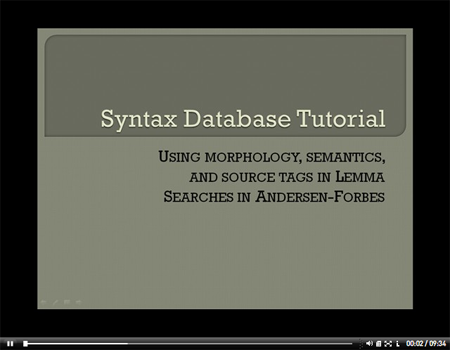
First, a teaser. Here's where we're going:


Mixing syntactic force and lemmas in a Bible Speed Search?!

[Maybe you just want to cut to the chase and watch the video instead of read. That's fine, go right ahead! — RB]

The Lexham Syntactic Greek New Testament comes with two primary views. One is the Syntax Graph, (formal title: The Lexham Syntactic Greek New Testament: Sentence Analysis; shortname is LEXHAMSGNTGRAPH) where the text is in a column on the right, and a graph of arrows and lines shows how the text is structured. Hovering the text brings the Expansions and Annotations data for the word into a popup. If you use the Lexham SGNT, this is probably the view you're most familiar with.

However, there's another view, one I like to call the "running text" view. This has the text of the Greek New Testament (UBS/NA) but it has one clause on each line, with indentations to show the relationships. This view is also an interlinear. The resource is The Lexham Syntactic Greek New Testament, shortname is LEXHAMSGNT. Here's an example, note that I have my interlinear configured to only show the Greek text and the English gloss line (you can control this in View | Interlinear).


James 3 from the Lexham SGNT

Now, what not many people know about this edition of the Lexham SGNT is that it is tagged for Syntactic Force. This is what many people refer to as "syntax" when they talk about the Greek of the New Testament, and it is the sort of thing that many second-year programs at seminaries and colleges dig into. You can see the clause and phrase breaks and the hierarchy implied by indentation; what you can't see is that each word carries a syntactic force annotation. So, in the above example, when I hover over ειδοτες, a popup informs me that this could be either a circumstantial participle or an adverbial participle. Definitions of these terms are given as well.


ειδοτες in James 3.1 from the Lexham SGNT

Did you know that you can search for this kind of thing using the Bible Speed Search report? It's a little verbose, but possible: sgnt-syn = "circumstantial participle" andequals lemma:οιδα In the material covered by the Lexham SGNT, this happens 10 times (I know because I just did the search).

This is just one example; I made a video that explains things a little more. This combines a few different advanced concepts: non-Bible data type searching, the andequals operator (also note the notequals operator) and using the lemma field. But it allows you to find some pretty specific things. Like, copulative conjunctions that aren't και.

To further facilitate this kind of searching, I've also compiled a list of valid syntactic force codes that you can key into the Bible Speed Search dialog. So, instead of having to type "circumstantial participle", you'd know you could instead type "ptc-circum". You can download this file (PDF); hopefully it'll help in your use of the Lexham SGNT.

Lastly, I should note that the Lexham SGNT is a work in progress; at present it includes annotations of Romans-Galatians and Hebrews through Revelation. If you find annotations that you don't agree with or would like to suggest alternate annotations, we want to know about it. Send an email to syntax@logos.com and we'll make sure it gets to the editor.

I often find myself turning to Libronix to learn more about important people from church history—from Augustine to John Owen to Karl Barth. In my last blog post, I included a pretty hefty list of articles on John Owen that I found in my Libronix library. Several people commented to me how helpful they found that list and wished they had something like that for all the "famous" people in the history of the church.

While I can't promise that we'll be able to make lists like that for you, I can give you some pointers on how you can build them for yourself. Here's the process that I took when I looked for articles on John Owen.

Step 1: Browse My Library

First, I looked for any resource titles in My Library that mentioned John Owen. Depending on how common the name is that you're looking for, you may be able to try just the last name. If that's too broad, add the first name, but keep in mind that the individual may have a middle initial or middle name included. Doing this with Owen gave me one good result: John Piper's book Contending for Our All: Defending Truth and Treasuring Christ in the Lives of Athanasius, John Owen, and J. Gresham Machen.

Step 2: Topic Search in Biographies Collection

My second step was to do a topic search for Owen in my biographical collection. One of the first collections I created when I got Logos was a collection of resources with biographical entries. Here are the current contents of my collection:

If you think you'd find this collection helpful, feel free to download it and put it in your My Documents\Libronix DLS\Collections folder.

To do a topic search for Owen, you would type topic(Owen), topic("Owen, John"), or topic("John Owen"). The most comprehensive results were with topic("Owen, John").

But it's probably easier to use the Topic Browser. Typing Owen and clicking Search shows me both "Owen" and "Owen, John" as topics. It takes the guessing out of it and makes it a simpler process.

Step 3: Search in Biographies Collection

Third, I did a search for "John Owen" OR "Owen, John" in my biographical collection. This will give me hits were Owen is mentioned in the content of the article, but may not be in the title.

Step 4: Topic Search in All Available Resources

Fourth, I did a topic search for Owen in All Available Resources. This turned up a number of great hits in the theological journals and a few others from resources that weren't in my biographies collection. I chose to do All Available Resources instead of All Unlocked Resources because I like to know if any of my locked books have relevant material in them. It's good to know what great resources I'm missing out on, and this is one way to find them. Note that you'll need to search for topic(Owen) as well as topic("Owen, John") to get a complete list, since some articles refer to Owen by last name only. As with step two, it's probably better to use the Topic Browser for this.

Step 5: Search in All Available Resources

Finally, I did a search for "John Owen" OR "Owen, John" in All Available Resources to see if I had missed anything significant. Again, this will turn up a lot of hits, but if you want to be comprehensive, this search is essential. I found a couple additional relevant articles this way.

Two tips for working through big lists like this efficiently: (1) when you click the plus sign next to the book title, skim the headings for the name you are looking for (not all headings are necessarily topically tagged), and (2) give attention to the articles with the highest number of hits as they are more likely to be relevant.

Now, if you know you want exhaustive from the start, you could skip right to step five since it should give you all the results from all of the preceding steps. But often you don't know how much information you're going to find—or even how much information you want—until you get into the process, so it's usually good to start out small and work your way up. The most targeted list of hits will probably be step two, which is the method I typically use when I want quick results and don't need to be exhaustive.

What else would you do to find biographical information in your Libronix library? What other resources would you add to a biographies collection? Why not create a list of articles in Libronix about your favorite person from church history and post it on your blog? Let us know if you do.

Awhile back over on the Logos Newsgroup for Greek, someone asked a question:

Someone has commented that there are 484 occurrences of the definite article occurring without a noun introducing a prepositional phrase, such as, "τα επι τοις ουρανοις." I wonder if someone would teach me how to search my GNT (N/A27) to confirm this statement?

The example is (I believe) from Eph 1.10:

εἰς οἰκονομίαν τοῦ πληρώματος τῶν καιρῶν, ἀνακεφαλαιώσασθαι τὰ πάντα ἐν τῷ Χριστῷ, τὰ ἐπὶ τοῖς οὐρανοῖς καὶ τὰ ἐπὶ τῆς γῆς ἐν αὐτῷ. (Eph 1:10, NA27)

as a plan for the fullness of time, to unite all things in him, things in heaven and things on earth. (Eph 1:10, ESV)

Note that the same structure is used in "things on earth" in the same verse.

Anyway, the best way to find stuff like this — where you're really searching for a relationship between words and/or phrases even though it looks like proximity will get you close enough — is a syntax search. In this example, the relationship is between the article and the prepositional phrase. It is more than proximity (occurring close to each other or in sequence); it is functionally that the prepositional phrase in some way further modifies/qualifies/distinguishes the article (which, in cases like these, tends to function like a relative pronoun).

The OpenText.org Syntactically Analyzed Greek New Testament makes this relatively easy to find. Let's look at this portion of Eph 1.10 first to see how it is analyzed:

Here the word group contains a head term; the head term contains a word (τα) and the structure that modifies it. Here the structure is a relator. A relator is basically a prepositional phrase that functions adjectivally, modifying a substantive (instead of functioning adverbially, modifying the primary verb of the clause). So all we need to do is find where a relator modifies a word that that is an article.

There are two basic cases to consider. The first is like Eph 1.10, where the word is the root word of the head term, and the relator modifies it. The second case is where the word is a modifier itself, like in Mt 5.16:

Here note that τον is a definer, and the relator (adjectival prepositional phrase) modifies the definer.

These are the two cases to consider. A syntax search that looks like the following should account for both of them:

You'll notice I've used an unordered group to contain the word+modifier portion of the query. Why did I do this? Because I really want to find where a word and a modifier are siblings (occur at the same 'level' in the annotation) because this implies they are in relationship with each other. The containing structure(s) (here the head term or modifier at the root of the query) constrain the elements to already being in the same unit. The unordered group allows for this, letting you specify the elements you care about (here a word and a modifier), and it will run the permutations, including optional elements occurring between them, while it searches. It makes query specification a whole lot easier.

When the search is run, 298 occurrences are located. Here's a snapshot of the results dialog:

The different colors in the results come in because of the "OR" in the query. In this way you can tell that some results come from one half of the "OR". Here the greenish color represents the top half of the "OR" (word is a direct child of head term); the brown represents the bottom half (word is a direct child of modifier).

So, to answer the question posed on the Greek newsgroup; I'd respond that according to the OpenText.org Syntactically Analyzed Greek New Testament, there are 298 instances of the definite article occurring without a noun introducing a prepositional phrase.

A good friend of mine sent me the following question:

I've been using a Libronix workspace a lot for Bible study, but one feature is annoying me (probably because I'm doing something wrong). If I start out in the OT, the Hebrew texts in one corner are all visible. If I type in a NT reference into the English translations, the corner of Hebrew texts switches to Greek. So far so good. But when I go back to the OT, the Greek stays Greek (i.e., LXX) rather than returning to Hebrew. How can I fix this?

Great question. If you do much work in the original languages and jump back in forth between the Hebrew OT and Greek NT, you've probably experienced this. While it's nice to be able to look at the LXX, most people who know Hebrew usually prefer to see the Hebrew by default rather than the Greek.

So how can you avoid having your Hebrew OT switch to the Greek OT when you jump from the OT to the NT and back again to the OT?

Here are three suggestions on how to avoid this problem:

  1. A simple solution that may work for some is to keep a second English text opened and unlinked for the purpose of jumping to cross references, etc. This will keep the rest of your linked resources from following you from the OT to the NT and then back again. The problem with this option is that you may want the rest of your resources to follow you.
  2. A second option is to have the LXX and the Hebrew open in two separate tabs. Always unlink your Hebrew text from your English text before jumping to the NT. Relink it when you return to the OT. This is okay if you jump back and forth infrequently, but could get rather tedious if you're jumping back and forth often.
  3. The best option—at least that I've been able to think of—is to create a custom serial resource association linking your preferred Hebrew text with your preferred Greek text. This will override the default behavior.

To set up a new serial resource association, go to Tools > Library Management > Define Resource Associations, select Serial, and click New. Name your resource association something like "Hebrew OT with Greek NT" and add your preferred Hebrew OT text and Greek NT text.

Here's a brief video (without sound, 1.01 MB, 51 sec.) showing you how to set up your resource association.

Here's a brief video (without sound, 2.21 MB, 48 sec.) showing the behavior before and after creating the custom serial resource association. You'll notice that before I create the resource association (not shown in this video), it switches me to the LXX when I jump back to the OT. After I create the association, jumping back to the OT keeps me in the Hebrew.

Hope this helps! Feel free to comment if you have a better way to address this issue.

For more information on creating a resource association, see 14:53–18:31 of the "Customize Your New Digital Library" training video.

See also our previous post, "The Value of Custom Resource Associations."

Update: If you want all of your Greek New Testaments to be connected to your preferred Hebrew OT, simply add them all to the resource association putting your default GNT on the top.

[Today's Guest Post is by Dr. Steve Runge, who is a scholar-in-residence here at Logos Bible Software. Steve is working on projects to annotate discourse function in the Greek New Testament and Hebrew Bible. More importantly, he's a really smart guy with a passion for explaining the exegetical significance and importance of discourse functions in language that non-academics can understand — so that sermons and lessons can take such things into account, resulting in better preaching and teaching. Look for more posts from Steve in the future. — RB]

My name is Steve, and I wanted to give you some ideas about how you can use some technology you probably already have to enhance your Bible study. One of the great features of the Biblical Languages Addin is the Morphological Filter (click View | Visual Filters) that lets you markup Greek and Hebrew Bibles based on their morphological coding (Click for video demo; here's a blog post with similar information). And you are probably saying, “Steve, I don’t know Greek. Why would I want such a tool?” I am glad you asked!

One of the basic tenets of Bible study is to identify the main idea of each verse, which in turn allows you to build toward understanding the big idea of a passage, and so on. Believe it or not, the New Testament writers wanted the same thing. Not every action is of equal importance, and so the writers made choices about which actions to make the main idea of a sentence. One of the ways they did this was by using different kinds of verbs for different kinds of actions in order to prioritize them.

If you were to picture a line of soldiers, there are two ways I could make some of them stand out. The first way is to have the important ones take a step forward. This is essentially what emphasis does, it brings something out front. The other way to make something stand out is to have the less-important ones take a step back. By pushing the less-important things into the background (‘backgrounding’ them), I can focus your attention on the ones that are left in their original position. This is exactly what the writers did through the use of participles. Wait, it’s okay, don’t be afraid! Grammar can be a great friend and ally! Let me show you how.

Every sentence in the New Testament required the writer to make decisions. We make them all the time without even thinking about it, whether writing or speaking. We choose wording that fits best with what we want to communicate. The same is true of the NT writers. If they wanted something to be viewed as a main action, they used a main verb form (technically ‘finite’ verbs like the indicative, subjunctive or imperative moods for fellow grammar geeks). If they wanted to describe some action to set that stage for the main action, the writers would use participles before the main action to push the less important action into the background. Here is a quick example from English.

  1. I was writing a blog post this morning. I spilled my coffee on my keyboard.
  2. While writing a blog post this morning, I spilled my coffee on my keyboard.

In the first line, both actions are described as though they were equally important, both use main verbs. The second line backgrounds the first action using a participle in order to set the stage for the main action that follows—spilling my coffee (Don’t worry, Bob. I didn’t really spill, just needed an example).

This same kind of backgrounding happens all the time in the New Testament. And even if you don’t know Greek, you can use the tools available in Logos to find these backgrounded actions. Here’s how.

If you have an ESV English-Greek Reverse Interlinear of the New Testament and the Morphological Filter from the Biblical Languages Addin, you have all that you need to start your study. Open up the ESV English-Greek Reverse Interlinear in Logos Bible Software, and then click View | Visual Filters. This opens up the Visual Filter dialogue. Then click on Morphological Filter in the left pane, then click Add.


Click image for larger version
(works for all images in this post)

Then click Details. This opens up another dialog box that lets you choose the grammatical characteristics that you want to visualize. We want to check Verbs, and then Participles under Verb types. Then click Add on the lower left, and finally pick a how you want to represent it in the text using the Palettes (I chose the Gray highlighter pen). This will identify all of the participles.

Now you need to identify the main verbs. All we have to do is repeat the steps. Click Verbs, and then under the ‘Tense, Voice, Mood’ menu click Finite under ‘Verb types’, then click Add.

Now pick a visualization from the Palettes (I chose green highlighter pen), and finally click Okay. You are ready to look for backgrounded actions!

In your ESV reverse interlinear, go to Matthew 28:19, we can take a look at how Matthew uses a participle to prioritize the actions of the Great Commission. English does not use participles like Greek does, so a lot of them get translated into English as though they were main verbs. This is not incorrect translation, it is just a consequence of Greek not being English. But you can pick out the backgrounded actions from the original Greek using this Visual Filter in the Reverse Interlinear.

In English, there are two main actions of the Great Commission: Go and Make disciples. But if you look at ‘Go’, you’ll see that it is a participle. Does this mean it doesn’t matter at all? No, it does matter. Matthew used a participle to make sure that we got the main idea of the verse: MAKING DISCIPLES. Both actions need to happen, but they are not of equal importance. Using a participle backgrounds the less-important action.

This idea of backgrounding only applies to participles when they precede the main action, not when they follow it. The participles that follow the main action tend to spell out more specifically what the main action looks like. Here, ‘making disciples’ is spelled out as ‘baptizing’ and ‘teaching them to observe all that Jesus commanded’.

Another good example is found in Acts 9:1-2, where Saul is seeking to arrest the believers in order to keep ‘The Way’ from spreading.

In v. 1 there are two actions described: ‘breathing’ and ‘went’. But we can tell from the Morphological Filter that both of these actions are backgrounded. That means that these actions are setting the stage for the main action, and are not the main action themselves. The main action doesn’t come until v. 2; it is Saul ASKING for the letters. ‘Going’ to the high priest was just something that had to happen before he could ‘ask’ them for the letters. Luke’s choice to use a participle reflects how he chose to prioritize the action. Understanding how he prioritized the action will help us better understand the main point of the passage. The other participles in v. 2 function as ‘verbal adjectives’, describing whom Saul is seeking (the ones ‘belonging to the Way’) and how he will bring them (‘having been bound’). The principle of backgrounding only applies to the action participles that precede the main action.

The biggest, hairiest chain of backgrounded actions that I have yet found is in Mark 5:25-27, where SEVEN backgrounded actions before we finally get to the main action. Nearly all of these are translated in the ESV as though they are main verbs. Remember, this is not bad translation, it just reflects that Greek is not English. Take a look!

Look at all of the actions that are backgrounded! The one main action that is left standing is ‘touched’, all of the rest are simply setting the stage for this action. Mark clearly indicates this by using participles instead of main verbs. He could have just as easily chosen to make ALL of the actions main ones, but then ‘touched’ would not have stood out. They would have all been equal. By backgrounding the less-important actions before the main action, the writer lets us know which action we need to focus on. There is good reason to focus on ‘touch’ in this context, because it is the key action that sets off a whole series of events that follows. Touching Jesus is what heals this woman (v. 27). Look at how Jesus’ response is described in v. 30.

Three participles are used to describe the actions that lead to Jesus’ response (‘said’), and what he says is the most important part of the verse: ‘Who touched me?’ Mark has carefully framed his message to make sure that we do not miss the main point of the story!

The gospels and Acts by far make the most use of backgrounding through the use of participles before the main action. Here are a few more examples from Matthew. In Matt 13:46 in the parable about the pearl of great price, look at which actions have been backgrounded.

There are only two main actions in this verse: ‘selling all that he had’ and ‘buying’. The ‘finding’ and ‘going’ set the stage for the main actions. Do you see how the backgrounding fits with the main idea of the passage?

Another example is found in the description of Jesus preparing to feed the 5000 in Matt 14:19.

There are three backgrounded actions leading up to one main action in the first sentence. ‘Ordering the crowds’, ‘taking’ the loaves and fish, and ‘looking up to heaven’ are all backgrounded, keeping attention on the main action: he said a blessing. In the next sentence, ‘breaking’ is backgrounded, keeping attention focused on ‘giving’ it to the disciples who in turn give it to the crowds.

By the way, you do not need to use the visual filter to find out if an action is a participle in Greek or not. If you hover over ‘ordered’ in v. 19 of the reverse interlinear and look at the display in the lower left corner of the main window, you will see some information displayed.

The G2753 is the Strong’s number; the rest is the grammatical information for the Greek word. You can get the same information as what we have visualized using the Visual Filter, but it is does not let you see the big picture, and it is not nearly as cool!

As you may have noticed, not every participle backgrounds an action. Some participles don’t even describe action, but instead function as verbal adjectives to describe a person, place or thing. The participles that follow the main action usually spell out more specifically what the main action looks like (a topic I will take up in a future post). But there is hope!

I have been working for the last year in a super-secret department (next to Rick!) on a project that identifies all of the New Testament occurrences of cool devices like backgrounded actions. There are 15 other devices that are all explained and marked up using something like the visual filter right in the text to help you better understand what the writers were trying to draw your attention to. Stay tuned for more details.

Update: Both products are now available for pre-order:

The Louw-Nida Greek Lexicon (formal title: Greek-English Lexicon of the New Testament Based on Semantic Domains, though henceforth "LN") is a unique and helpful lexicon. It is, however, put together differently than most Greek lexicons.

[OK, this got a little long. If you're more of an I-have-to-see-it-to-understand-it sort of person, cut to the chase and check out the video.— RB]

Instead of being ordered by the Greek alphabet (for easy headword lookup) with one article per headword, the lexicon is ordered by the concept of semantic domain. Even more confusingly, words with multiple major senses have multiple entries. For example, ανθρωπος could be "human being", or more specifically "man", or even more specifically, "husband". In this case, LN has at least three definitions in three different places in the lexicon.

The lexicon has a separate index, ordered by headword, that helps one to navigate the articles and actually use the lexicon. We've had LN (volumes 1 & 2) available in Logos Bible Software for years; it is included in many of our packages (specifically, Original Languages, Scholar's, Scholar's Silver and Scholar's Gold).

So to use LN, you've had to go into the index, pick the likeliest sense from the index list, then go to that entry and see if it is proper.

With the new enhancements we've made to LN, when you keylink in from a Greek New Testament (or a New Testament Reverse Interlinear), you'll go directly to the article representing the sense being used in your current instance instead of the catch-all index entry. How's that for cool? (and time-saving!)

If you still want to go to the index entry in volume 2 after having read the sense-specific article, you can still get there — check the video for the groovy keylink-on-the-lexicon-headword trick I use to do this quickly. (Note that the method is more fully documented here).

Confused? That's OK. I made a video; you can hear me blathering on for almost nine minutes on this book, how it is ordered, how it is used and the significant enhancements we've made to it to support keylinking into this lexicon from the Greek New Testament (or New Testament Reverse Interlinears!) Apologies for the last minute; I sort of ramble on for a bit.

This updated version is available on our FTP site (ftp://ftp.logos.com/lbxbooks, look for LOUWNIDA.lbxlls). You also can download the latest version of LN from the book's page on our web site if you'd like to try this yourself.

Back in December, we put The Lexham Greek-English Interlinear New Testament on Pre-Pub.

Since the early reception to the Pre-Pub was good, we've been doing a little work on the New Testament interlinear and even have some provisional data back from the editor, Hall Harris. So I thought I'd take some time to walk you through some of the features in the hopes that even more of you will pre-order it!

My friend and colleague Johnny recently came up with some pretty cool tricks for using BDAG to help when reading the Apostolic Fathers in Greek.

The trick is pretty simple, but is involved to explain. So I made a video.

Think about other applications of this same technique:

  • Maybe you're interested in where BDAG has cited a particular section of BDF? You could use this same trick. As an example, BDF §260 has to do with how the article is used with personal names. Want to know where BDAG cites or points to this section? Search BDAG for "bdf in 260".
  • Maybe you want to see where BDF has referenced Ignatius to Polycarp. You can do the same search the video demonstrates, only do it in BDF: "af in ipol".
  • You get the gist. I'm sure you can think of others.

How cool is that?

I was hanging out with some Logos users at Camp Logos II, held here in Bellingham on August 27-28, when my friend and colleague Johnny asked me about ways to emulate a "Reader's Greek New Testament" inside of Logos. Johnny is always working on his Greek (and Hebrew) skills as he's pursuing a Masters degree up at Regent College. He wanted to read the Greek NT but only have glosses available for words (lemmas) that occur less than, say, 20 times in the Greek NT.

There is a way to do this, but you might not think of it. It involves paring down your Exegetical Guide preferences and also using the chain link to link your Exegetical Guide with the Greek New Testament.

Don't worry, I recorded a video to explain how you can do this too. Check it out.

I was working my way through the first portion of 1Ti 6.10 the other day. This is the well-known clause, "For the love of money is a root of all kinds of evils" (1Ti 6.10a, ESV).

I was specifically looking at "... of all kinds of evils", and had some ideas on how to use syntax searching to help me examine that portion of the verse. It was too much to write down; at almost 15 minutes it was nearly too long for a video (I ramble a bit at the end, though).

Guest blogger Mark Van Dyke (when does he get promoted to a regular?) writes about typo reporting in Logos Bible Software.

Dr. Daniel Wallace's lecture about preserving the Word of God was a good reminder about the importance of textual accuracy. Just like the ancient manuscripts that are studied in Middle Eastern monasteries, Logos book files have an occasional misspelled word. That's why Libronix has a nice little feature for reporting typographical errors and grammatical glitches. It only takes a moment but helps us out immensely!

You can report a typo by following these three simple steps.

Step One

Highlight the error.

Step Two

On the top task bar select Help | Report Typo.

Step Three

Fill out the form with the typo correction and your email address. Then click "Submit".

Please note that if you are reporting an error with Logos' syntax database you might need to send an email to syntax@logos.com rather than using the internal 'Report Typo' dialog.

When you let us know that there is a misspelled word in one of our book files, that word is put on a list so the next time we update that book file we can fix the problem. This means that the typos aren't always fixed the next day after you tell us, but your message will definitely be read and acted upon.

As always, we love getting feedback. Even in the case where we need to change something about a book. That's because the textual accuracy of every book we create is of the utmost importance – whether it's the Bible itself or the Scripture Alphabet of Animals.

Thanks for helping!

If you keep hearing the acronym "RSS" while waiting in vain for a clear explanation of RSS in non-geek terms...wait no longer.

This video from The Common Craft Show explains the concept simply and memorably.

For a detailed video tutorial on how to set up Google Reader as your RSS reader, see Getting Started with Google Reader.

Why should you care about RSS? Because it's a convenient way to receive information on topics that interest you. Things like the latest prepubs and community pricing titles from Logos, or the latest thoughts on the mind of Bob Pritchett, for example. For a list of all the Logos-related RSS feeds you can subscribe to, see Logos and RSS.

Via: Worlds Apart

I've said it before and I'm sure I'll say it again...Logos users are a very clever bunch. 

One user, John Minter, recently posted a "wouldn't it be nice if..." to the Logos newsgroups. Regarding Kurt Aland's Synopsis of the Four Gospels—a data set within the Parallel Passages and Harmonies tool—he wrote:

I like being able to generate with my desired translation. What would be nice is to generate a table for the given section as a handout...

Six minutes later he posted again to answer his own question:

OK Figured it out. Select a hebrew text like the BHS and all you get is the table. Woo hoo.

I'm not sure whether this little trick should be considered a hack or feature (no doubt my friends in development would take credit for it as the latter) but it does seem to work and strikes me as the kind of thing that could be useful so I'm sharing it with you.

Try It Yourself!

To try it out, open Logos 3 and click Tools | Bible Comparison | Parallel Passages and Harmonies. For Source, choose Synopsis of the Four Gospels (Aland) if you have it. If not, don't worry—it works with other data sets, too. For Bible version, choose BHS or ESV OT Rev. Int (the latter is in more packages).

Now when you drill down into a section of the synopsis, you'll get the report shown below on the left instead of the usual report, shown on the right (click the thumbnail for a full size image):

This references-only table can be printed, or pasted pretty well into a word processor. It's a handy little hack if you want to include just the parallel references in a handout or other document...

Thanks John!

If you've spent time around Logos Bible Software, you probably already know that Bibles such as the ESV, NKJV, and NASB* include cross-reference links right there in the text. They're indicated by the "little letters and numbers" sprinkled throughout most passages.

Just hover the mouse over an indicator and the cross-references pop up in what we call a "tool tip" window. Click the indicator (rather than hovering) and the tool tip will remain in place when you move your mouse away, allowing you to interact with the links inside the tool tip itself. This is a great way to see the cross-references—verses related to these verses—when reading through a passage.

But did you know that Logos also includes a more powerful tool specifically built for working with parallel passages, Gospel synopses/harmonies, and tables of quotations and allusions?

So you could spend thirty bucks to buy a printed "harmonized Gospel" which would give you a harmony in one version (NIV, for example)...or use the tool within Logos and view the harmony in any Bible version you own, in any language!

Parallel Passages & Harmonies

The Parallel Passages & Harmonies tool is included in all the Logos 3 base packages—with increasingly larger data sets available as you move up the product line. If you have a base package you should have at least four parallel passage data sets and maybe more!

To access the tool using Logos 3, click Tools | Bible Comparison | Parallel Passages and Harmonies. Click the Source button to choose a source—"Synopsis of Matthew, Mark, and Luke (Jackson)," for example. Then select a Bible version in the Bible version chooser box to the right.

You will see a table of contents that looks like the image above; click a title to open the report to that section. Here's what it looks like when I clicked "The Calling of Disciples."


Mark, Luke and Matthew contain an account of this event so they all show up here in an easy-to-read columnar alignment...in the Bible version I chose.

Notice the comment in the right-most column, which is supplied by Jeffrey Jackson, the editor of this data. To learn more about the source of each data set, click the first item in the table of contents, which is a description. For this data set, the description explains the approach Jackson used to create this synopsis and the meaning of special formatting used, such as blue or bolded text.

To get back to the table of contents at any time, just click the title of the data set (in this case "Synopsis of Matthew, Mark, etc.").

Navigate to the next or previous section of the synopsis by clicking the down or up arrow (circled in red above). Clicking the hooked up-arrow moves you up one level—that is, it will load the entire chapter into the display.

The left and right arrows work just like the back and forward buttons in your web browser—jumping you back to the previous view or ahead (when applicable).

More is Better

The cool thing about having multiple, overlapping data sets is that each editor follows a slightly different approach when assembling something like a Gospel harmony. All told, Logos packages include no less than six "parallel passages" data sets for the Gospels:

  • Synopsis of the Four Gospels (Aland)
  • A Harmony of the Gospels (Robertson)
  • A Harmony of the Synoptic Gospels (Burton, Goodspeed)
  • Synopsis of Matthew, Mark, and Luke
  • Eusebian Canons (Eusebius)
  • Records of the Life of Jesus (Sharman)

A quick glance at the Burton & Goodspeed harmony description shows that any project like this entails certain editorial choices that others may make differently:

"Our study of the Synoptic Problem, extending now through many years, has led us to certain very definite conclusions respecting the relation of the Synoptic Gospels to one another, and their literary sources. The purpose of this book, however, is not to demonstrate this theory; nor is its construction determined by that theory. It aims rather, as largely as possible in independence of all theories, to set the text of the several gospels in such parallelism as will make the facts themselves tell their own story with the utmost possible fullness and clearness."

Because each data set is compiled by a different editor, each offers a unique perspective on the text. We offer as many as we can license, in hopes that your Bible study will be enriched!

* For the Logos editions of Bibles, we use the cross-reference data supplied by the publisher, which was generated by the publisher's translation/editorial team. For some versions (e.g., NIV, NRSV) this data was not supplied by the publisher and so is not present in the electronic edition.

If you've read this blog for awhile, you know that sometimes I just notice things as I'm reading through the text. This time, it was a syntactic structure used in 1Ti 6.3, shown below in the ESV NT Reverse Interlinear:

The structure that is highlighted is what we're interested in. This is a neat little syntactic structure where the article + substantive (here a noun) combo surrounds a prepositional phrase. Here's the syntax graph of the verse:

I thought it might be interesting and instructive to walk through constructing a search to find this and other instances (over 100 in the NT!). So I created a video.

[Note: I used WMV format because the video as captured was too big for Camtasia to save as Flash format. I'll try to keep it shorter in the future -- RB]

This is the third post in a series of posts having to do with the Apostolic Fathers in Greek and English. (The first post is here, the second is here).

Today's video focuses on different reports and resources that the Apostolic Fathers resources complement through providing text on hover, on how references to Apostolic Fathers within lexicons can be exploited, and also how Apostolic Fathers information can be used in the Bible Word Study report.

Note: The video discusses two resources that do not ship with Apostolic Fathers but can be added to your digital library: NA27 (included in "language" base packages) and the BDAG lexicon.

This is the second post in a series of posts (first post here) having to do with the Apostolic Fathers in Greek and English. Today's video focuses on basic capability of the morphologically annotated Greek texts, including configuring the interlinear lines, keylinking and using visual filters.

In the third and final installment next week, I'll show how to configure linking and hovering preferences related to the Apostolic Fathers and dig into the Bible Word Study report.

Note: The video discusses two items that do not ship with Apostolic Fathers but can be added to your digital library: morphological filter (part of Biblical Languages Addin, which is included in "language" base packages) and theBDAG lexicon.

The long-awaited Apostolic Fathers in Greek and English has shipped! This includes three editions of the writings of the Apostolic Fathers (each edition has both Greek and English text, so six resources in all). More info, of course, is on the product page.

I thought I'd take a few posts and show some of the things you can do with these resources. Today's video has to do with general use of the resources with some ideas of further things you can do to get more from the books as you read them. Today I'll focus on the English, though I'll focus on the Greek editions in future posts.

Future posts will likely include things like keylink preferences, hovering and highlighting and also integration with the Bible Word Study report.

"So you work for that Logos software company..."

With 130+ employees and 5 years in Bellingham, Logos has become a big enough fish in a relatively small pond that I now hear something like this pretty regularly when I meet someone new.

This past weekend, I was at a birthday party for my wife's good friend. My wife's friend's dad (let's call him Bill) heard I worked for Logos and jumped right into a discussion of translation philosophies, the benefit of studying the New Testament in Greek, and the rendering into English of a number of his favorite passages.

It was a fun conversation, but, man, was I ever pining for my Logos Bible Software.

At one point, the discussion turned to Luke 17 and the cleansing of the ten lepers. As you recall, ten were cleansed but only one—a Samaritan—returned to thank Jesus. Jesus tells the man, “Rise and go your way; your faith has made you well.”

Bill observed that the Greek word translated "made you well" in verse 19 is not the same word used for the lepers' cleansing earlier in the passage. In verse 19, the word is a form of σῴζω (rescue, save, heal) while in verses 14 and 17 καθαρίζω (make clean, purify, heal) is used. [My glosses here are from DBL Greek.]

Bill wanted to make a distinction here that the man's faith was instrumental in his salvation, not his healing.

I hadn't studied the passage in enough depth to have an opinion...but the cool thing is that Logos Bible Software makes it very easy to dig in and explore a question like this. A great place to begin is with the ESV English-Greek Reverse Interlinear of the New Testament.

A quick glance shows me that there are actually three different Greek words used in this passage to describe what happened to the lepers. In verse 15, Luke writes that the Samaritan sees that he is healed (ἰάομαι).

To give myself some visual markers, I grabbed the highlighter tool from the main Logos toolbar and applied a different color for each of the three words I was interested in studying (click the image above for a closer look).

From here it was mere child's play to execute the mechanics of word study and dig into these three words. I don't have an answer yet (and I'm holding off on looking at commentaries until I get a little further into the study) but if you are inspired to check it out for yourself here are a couple of pointers:

  • To very quickly find out how the ESV translates each of these words across the New Testament, use either Speed Search or Englishman's Concordance (both available from the right-click menu).
  • If you use Speed Search, you want to right-click a word and choose Selected Text | Lemma | Speed Search This Resource. (Use lemma instead of manuscript form because we want to find all instances of the word in the NT, not only instances that share the form of the word as it appears here in this passage.)
  • Bible Word Study report gives you visualizations that make it easy to see translation frequencies at a glance. Because of the syntactically tagged resources in Logos 3, it also shows syntactical patterns. For example, your faith is the most common subject of clauses where σῴζω (rescue, save, heal) is the verb.

Enjoy!

Last Thursday's post explained how to view all the papyri from Comfort & Barrett's Text of the Earliest New Testament Greek Manuscripts that contain the verse or passage you're studying. We set up the Compare Parallel Bible Versions report to scroll synchronously with Exegetical Guide (or any Bible or other canonically-organized resource or report for that matter) to make it easy to consult the papyri as you study.

Today I want to briefly offer an alternative way to view the manuscripts related to your passage and that is the Passage in All Versions report.

Passage in All Versions does not visually highlight the differences between the manuscripts but it does retain formatting such as brackets and uncertainty dots. 

Here's how to set up the report to show the papyri:

  • Click Tools | Bible Comparison | Passage in All Versions.
  • In the report window, click the Properties button.
  • Set language to Greek and check the boxes next to the Greek texts and manuscripts you want to appear in the report (or Check All and then clear the boxes next to the items you don't want).
  • Click OK.

Now you can enter a passage, click the Go arrow and see eclectic texts, received texts, and manuscripts for that passage. You can also use the "chain link" icon to link this report with other reports or resources so they move synchronously.

Compare Parallel Bible Versions and Passage In All Versions...two options for viewing manuscripts alongside the GNT text.

Update 4-16-07—a bug in the Passage In All Versions report causes some versions that you've deselected to appear in the report. Libronix DLS 3.0d (available as a beta download) fixes this bug.

In the course of working on a review of Ugaritic Library and Logos 3, blogger and pastor Dr. Jim West recently asked me whether Comfort & Barrett's Text of the Earliest New Testament Greek Manuscripts could be made to appear in the Exegetical Guide report. Since that report provides exegetical helps for a given passage of Scripture, wouldn't it be neat if it would automatically discover and link to any papyri that overlap with your passage?

I agreed that this would be grand, but since it's not currently coded into the Exegetical Guide report I wanted to find a way to do something similar.

Rick Brannan reminded me that the Compare Parallel Bible Versions report is a great way to examine and compare manuscript evidence for a given portion of Scripture (as outlined in this article).

Note: If you don't own this addin, you can use the standard Parallel Bible Versions report (sans highlighting of textual differences) or buy it here.

Now if I could only find a way to get the Compare Parallel Bibles report to stay in synch with Exegetical Guide so that they would track together as I move from verse to verse.

Wonderful news: in Logos 3 this is possible. Just set the "chain link" icon in both reports to A.

Now the two reports track together. Whenever I move Exegetical Guide to a new passage of Scripture, the Compare Parallel Bibles report updates itself to show that passage.

Just one problem, though. How do I get the Compare Parallel Bibles report to show not one but all the papyri containing the verses I'm studying? As you may know, a given biblical verse or passage can appear in any number of manuscripts and fragments. For example, John 1:30 is attested in four different papyri: P5, P66, P75, and P106!

If you open My Library and locate Text of the Earliest New Testament Greek Manuscripts you'll see that this single volume contains all the papyri from Comfort & Barrett's book and is, in fact, laid out just like the print edition of that book. It even contains a list of manuscripts in canonical order, which is how I knew that John 1:30 appears in four different manuscripts.

Because this single resource contains all the manuscripts in one place you might think you could specify it in the Compare Parallel Bible Versions report and the report would automatically show you all the manuscripts containing your desired verse. But you'd be wrong...

When you tell the report to compare NA27 and TENTGM (the all-in-one resource), the report only shows the first papyrus that matches the verse selected...in this case John 1:30 from P5. This is because the report is designed to compare Bible versions that are individual resources within the digital library...not multiple "versions" within one book. If only we could split the manuscripts up into individual resources!

Fortunately for us, the Logos book designers anticipated this need and did just that. Each manuscript appears twice in your digital library—once in the all-in-one resource (TENTGM) and once in an individual resource (e.g., TENTP30 which appears in My Library as P30 from The Text of the Earliest New Testament Greek Manuscripts).

So all we have to do is specify each papyrus (P number) individually, putting them all into the Versions box. The report is smart enough to show only manuscripts that contain data for the specified passage.

Since there are 69 different resources, it's a bit of a hassle to type in "P1, P4, P5, P6, etc." But I already endured the hassle, so I'll make it easy on you and share my workspace. Just right-click this file, choose Save Target As, and save it to My Documents\Libronix DLS\Workspaces then open it from within Libronix via File | Load Workspace.

Here's what you'll see, more or less (click the thumbnail for a larger view)...

Starting from the top left and moving clockwise: Exegetical Guide, Compare Parallel Bible Versions, NA27 Apparatus (Tischendorf apparatus on tab), SESB edition of NA27 with apparatus markers (ESV NT Reverse Interlinear on tab). Of course, if you don't own SESB or SESB for Logos Users Special Edition the apparatus and NA27 at the bottom of the workspace will show up as locked. But you can replace them with another book for your own workspace.

Now when you scroll or jump any of these four linked windows to a new verse, all the others will follow. As you can see, the Compare Parallel Bible Versions report is comparing NA27 against Scrivener's TR and all relevant papyri from Comfort & Barrett (in this case, P5, P66, P75 and P106).

Tip: You can either use this workspace "as is" or just add the Compare Parallel Bible Versions report to your Favorites and call it up whenever you want...saving you the trouble of entering all 69 papyri in the Versions box. Once the report is saved to your Favorites, you will be able to easily come back to it later or add it to another workspace.

Caveats and Links

Eli Evans saw what I was doing here and is giving some thought as to how to make this all work a little smoother in the next major version of Logos. He also offered these caveats which I will pass along to you:

Beware that most (all?) of the C&B stuff has chapter-level milestones in it, so you may get a few papyri poking in where they don't have any evidence. Try John 1:1, for example. Neither P5 nor P106 has verse 1, but they both have chapter 1, so they show up with 100% variance from the base. The report asks for "John 1:1" and the resource says, "The closest thing I have is John 1, but it doesn't have any content," to which the report replies, "Close enough, I guess." P5 starts at 1:23, and P106 at 1:29.

Furthermore, it's worth noting that where it looks like there is a significant variant, one really ought to click on the MSS title in the report and look at the resource. Things like brackets and uncertainty dots are stripped in the report, so there's a whole level of detail that isn't represented here. But this is good for finding the drill-down spots.

He's right on both counts, of course. Take a look at the screenshot below and you'll notice that brackets and dots have been stripped out for this report. Also, things like hard returns get flagged as differences (see, for example, blepei in P5 and P106). Since manuscripts may have words missing along the edges these hard returns can actually hold significance but it's always a good idea to open up the actual manuscript for further detail.

All that to say that uncritical use of this report would be unwise but with some discernment as to what it can and cannot do, it's a great way to quickly flag differences between the manuscripts and know where to dig in for further analysis.

Links

John Fallahee, king of Logos video tutorials, just produced a new video on reverse interlinear Bibles.

The video introduces the unique features of reverse interlinear Bibles and, through an extended example, shows how these features solve five common problems that plague the person who studies the Bible in translation:

  1. You can't trust your search results with English only searches.
  2. You can’t see the author’s original word choice.
  3. You can’t see different words functioning differently in the original text.
  4. Meaning can be obscured through the English translation.
  5. Strong's numbers can't reveal how the word is functioning.

Check it out: Better Bible Study Through Reverse Interlinear Bibles (14:21, 21.2MB)

In a previous post, we looked at how English translations delimit the quotation in James 4.5. Do other resources shed any light on this question?

Greek New Testaments

We can examine the formatting of Greek New Testaments much like we examined the formatting of English New Testaments. In Logos Bible Software, the relevant Greek NTs are the NA27 and UBS4 editions along with Westcott & Hort. If you have a product from Thomas Nelson, you may also have the Hodges/Farstad edition of the Majority Text, this is formatted as well.

In the above, you can see that Hodges/Farstad formats v. 6 as a quotation (complete with angle quotes). In v. 5, the relevant portion appears to be treated as a quotation of some sort; this is traditionally what an upper-cased letter after introduction would imply (ἡ Γραφὴ λέγει, Πρὸς φθόνον ἐπιποθεῖ). The upper-case gamma in Γραφὴ also implies the editors see this as referring to the Scriptures, and not to generic writings of some sort.

The NA27 uses italicised text for v. 6, which indicates an Old Testament quotation. But no special formatting or casing appears in v. 5. The UBS4 is similar, only they have no special formatting implying quotation or quotation source.

Westcott and Hort use bold text to indicate some sort of quotation or allusion (not always to the Old Testament). So v. 6 includes a quotation, but no special formatting on v. 5. (note also the placement of the question mark in WH vs. NA27/UBS, that could be significant when translating the verses).

Lexham Syntactic Greek New Testament

The Lexham SGNT marks what the editor considers to be quotations from or allusions to external source with what is called a Quotative Frame.

The Lexham SGNT Glossary defines the Quotative Frame as follows:

Quotative Frame: A frame which contains an explicit quotation, or citation, from an external source. Where allusion occurs or where, as in sections of Hebrews, the text of external sources is woven inextricably into the main text, this is annotated as if it were original on the part of the author.
Lukaszewski, A. L. (2006; 2006). The Lexham Syntactic Greek New Testament Glossary. Logos Research Systems, Inc.

Commentaries

Logos Bible Software has a wide selection of Commentaries. Commentaries focused on working through the Greek text or that are focused on interpretational difficulties will assist one in this verse. I've reviewed a few commentaries on this verse (NIGTC, Hermeneia, ICC, Word Biblical Commentary) and they don't agree any more than the translators do. But the better commentaries will explore the possibilities and explain the positives and negatives of each in some degree of detail before arriving at a conclusion. Comparing these sorts of discussions across commentaries can be enlightening and helpful in sticky situations like this one.

Conclusion

Using resources like these — in ways you may not have thought of — helps in examining the questions we've run into in James 4.5. Hopefully this series of posts has been helpful.

My primary purpose has been to show that when one runs into ambiguities in the text, there are a lot of places one can turn. The options are knowable and explorable, utilizing both textual resources (Bibles and commentaries), databases (morphology and syntactic databases) and reports (like Passage in all Versions). So next time you run into an ambiguity ... have fun digging!

Sometimes you know parts but haven't put together the whole. That happened to me today.

I knew that I could link reports to the active Bible text window.

I knew that I could run a Compare Parallel Bible Versions report to highlight the differences between editions.

I didn't realize that I could link the active window to the report ... so when I scroll in my Bible, the comparison scrolls along. Now that is cool. Here's a video to show you how it works.

Did you notice how I just typed version abbreviations, separated by commas, in the compare report window? Pretty cool, huh? And if you think that's cool ... poke around other reports and see which ones have a link icon. Link up, and see what happens!

I've been blogging about James 4.5-6. In the series I blogged about examining the text using English translations. Then I blogged about the underlying Greek. There are still more questions with James 4.5-6, however. In this post we'll consider the quotation from Scripture mentioned in James 4.5 and how it is represented in the English texts. Is it a quotation, or is it a summary of Scripture? Here's the text:

Or do you suppose it is to no purpose that the Scripture says, “He yearns jealously over the spirit that he has made to dwell in us”?(Jas 4:5, ESV)

Instead of writing ad nauseum about this, I've recorded a video that that compares the quotes in English translations. Examining the way that the major English translations handle this gives us an idea of the options and might even give us help in deciding which option is preferred in this case.

Earlier I blogged on using multiple English translations to see how a passage is translated differently. In passages (such as James 4.5-6) where there are ambiguities, many times comparing English translations can help in understanding the best way to deal with the ambiguity.

With James 4.5, as we saw, translations are fairly evenly split in handling this passage. Recall the issues:

  • Is it 'spirit' or 'Spirit'?
  • Is [Ss]pirit the subject or direct object of its clause?

The first point is determined largely by context and how one reads the text. This means it is important to determine whether [Ss]pirit is the subject or direct object because this may assist in determining whether it is 'spirit' or 'Spirit'. This post digs into the second point above by digging down into the underlying Greek. Of course, this is problematic for the same reason: ambiguity.

I am a contributor at another blog called PastoralEpistles.com. That blog is one outlet where I work specifically with my favorite section of the New Testament, the Pastoral Epistles (1 Timothy, 2 Timothy and Titus).

Over on PastoralEpistles.com, I'm working on a series of posts that combines a few of my loves: The writings of the Apostolic Fathers, Koine Greek, and the Pastoral Epistles. I'm using a book published in 1904 by Oxford titled The New Testament in the Apostolic Fathers (that one is actually a Community Pricing title, check it out!) that provides information on areas in the writings of the Apostolic Fathers that show affinity with areas of the New Testament. These "areas of affinity" may be outright quotes, they may be indirect citations, they may be allusions, or they may simply have topical similarity using similar language for similar topics.

I'm also able to use the shortly-to-be-released Logos Edition of the Apostolic Fathers which makes this sort of work loads easier than it was before. It's true, after long last the work on the Apostolic Fathers is done and it should be released on time — so hurry up and get the pre-pub price while you can!.

Basically, I'm working through where writings of the Apostolic Fathers are noted to have affinity with the Pastoral Epistles. I started in the Epistle of Barnabas. Here's an example of an entry from The New Testament in the Apostolic Fathers:

This short section provides the texts in question and a short (emphasis on short) discussion. But it's a starting point. Basically I'm reviewing the texts and considering the linkages. You can check out my discussion on the Ep.Barn. 1.3-6 || Titus 3.5-7; 1.2 affinities.

I'm not writing this post to discuss linkages between the writings of the Apostolic Fathers and the NT (as cool as that would be). Instead, I'm going to shift to syntax. In looking at the above linkages, one notices the Greek ἐλπίδι ζωῆς (hope of life) prominent in both the Barnabas and Titus passages.

This prompted me to ask a few questions. First, I wondered how prominent this "hope of life" (Titus has "life eternal") is in the NT, and second I wondered what other sorts of "hope" there were in the NT. And these questions can be answered with syntax searches.

I made the below video that sets up the search and shows the results. If one just searches the Greek NT for ἐλπίς, 48 verses (53 instances) are located. But there are 18 instances where "hope" is qualified in some way. There are only two instances where it is qualified by "life" (ζωῆς), and both of them are in Titus (the two examples cited above in relation to Barnabas).

Why do I bring this up? Well, with the advent of the syntactically tagged databases of the Greek New Testament, I find myself asking more and more questions like this. And I'm more and more able to run a syntax query (many of which share the same basic template that this search has) to get a clearer picture of some grammatical phenomenon without having to run a blunt concordance search, and then sift through the hits. I'm able to get more relevant, more meaningful instances of what I'm interested in and sift through less chaff in the process. And this has made my study of the New Testament deeper, which can only help my understanding and application. And to my mind, that's what it's all about.

As I put the finishing touches on the Ugaritic Library, I realized that this was an excellent opportunity to talk about the Logos Bible Software philosophy of data type tagging. After all, there are more than 83,000 Ugaritic data type references tagged so far as part of this project. (83,266 and counting!) Using the Ugaritic Library as a test case, I made a video showing how good data type tagging makes for powerful digital library software, and helps you get the most out of your books.

Check it out!

Flash Video - 11 MB

Note: The Ugaritic Library ships Friday - it's not too late to take advantage of the great pre-publication sale.

In the home group Bible study that I'm in, we're studying the epistle of James. We're currently in James 4. While preparing for this week's study, I noticed some interesting things going on in James 4:5-6. There are some ambiguities in James 4.5. This seemed like a good text to examine a bit further using some of the resources and reports found in Logos Bible Software (things that are in some collections, and some things that are supplemental).

First, the text of the ESV:

Or do you suppose it is to no purpose that the Scripture says, “He yearns jealously over the spirit that he has made to dwell in us”? But he gives more grace. Therefore it says, “God opposes the proud, but gives grace to the humble.”(Jas 4:5-6, ESV)

Seems pretty straightforward, huh? It actually isn't. When reading the Greek in preparation for the study, I noticed a few things that are ambiguous. And these things are pretty noticeable when you compare English translations. So I made a video that shows how to do this.

The basic issues discussed in the video, as a result of examining English translations, set the stage for the balance of posts in this series. At present I hope for two more posts plus a summary/conclusion post, though that may change (likely be extended) as I write further posts.

So what are the issues we'll look at?

  • Is it 'spirit' or 'Spirit' in James 4.5? That is, is it the Holy Spirit, or is it more along the lines of Genesis 2.7, the life breathed within us?
  • What is the subject of the quotation in verse 5? Is it:
    • God (also 'He')
    • Spirit (that is, the Holy Spirit)
    • spirit (that is, the human spirit, that of Ge 2.7)
  • Where does the quotation in v. 5 come from? (I've not discussed this yet, but it will come up in later posts).

Further posts will focus on using syntactic annotations, morphology, critical commentaries and syntax searching to look at this verse further.

All in all, I hope to show that there are features and resources that those who aren't comfy with the original languages can use to think about these things and that there are other features and resources that those comfy with the original languages can use to examine these sorts of issues more fully.

A feature of Logos 3 that still draws the most oohs and aahs when I demo the software for people is also one of the simplest: Bible Speed Search. I think that's because of how quick it is (it finds as you type) and how easy it is to figure out. In fact, many people use it much like they use Google: type one or two words and voila! there's the thing you're looking for.

Type the word "heaven," for example, and Bible Speed Search instantly returns 701 hits in 661 verses in the English Standard Version Bible.

But just like Google's advanced search features, much more is possible using Bible Speed Search. This post will cover a few of the most commonly used search refinements. A more detailed tutorial is available in the training article Exploring Libronix Searching or in the Help file on advanced searching within the software.

You'll notice in the screenshot above that the first result is not heaven but heavens. What's going on here? Bible Speed Search automatically looks for variations of the word you type: plural, -ed, -ing, and so on. Usually, that's fine...but sometimes you really do want to find just the form of the word you typed. In other words, you want to turn off "stemming."

In this case, use the "nostem" modifier to turn off stemming and find only the form you typed. In Logos, term modifiers like "nostem" are used with parentheses surrounding the search term, like this: nostem(heaven).

Now we see that heaven singular is used 491 times in the ESV. But what if I want to isolate instances of Heaven, singular and capitalized? The "exact" modifier comes to the rescue and Bible Speed Search returns only 7 hits. Using exact tells Logos to only return exact matches, no fooling around.

As you can see, only twice—once in Genesis and once in Daniel—is the word heaven capitalized in the ESV when it's not at the beginning of a sentence. Significant? Perhaps not. But it would be interesting to know why translators gave those two instances alone the capital treatment.

What if I told you that Logos could very easily find every statement Jesus made about heaven? In a sense, it can.

When Logos data geeks (I mean, book designers) create an electronic edition of a book, they rarely throw anything away. In fact, they even save the red letters that indicate the words of Christ in many Bible versions. Cooler yet, they encode these red letters as invisible "fields" that can be specified in a search.

Field searches use a colon instead of parentheses to separate the two components of the search. The Words of Christ field is WordsOfChrist or WOC for short. So a speed search to find out what Jesus says about heaven looks like: woc:heaven. Pretty simple, huh?

(For a list of fields available within any given book, open the book and click Help | About This Resource. See the training article Exploring Logos Searching for more details.)

As I look through the search results showing all the verses where Jesus uses the word heaven, I notice that the phrase "kingdom of heaven" appears rather frequently. I'll go ahead and type kingdom of heaven in the search box.

OK, clearly this is not what I want. When I type more than one word in the search box, Logos looks for verses that contain all the words I typed. It's as if I said, "Find verses that contain kingdom and of and heaven...in any order."

This is called "natural language syntax" and mimics the behavior of the web search engines we use everyday. Again, much like a web search engine, if you want to search for a phrase use quotes.

Here's what a search for "kingdom of heaven" returns:

As it turns out, the phrase "kingdom of heaven" appears only in Matthew, appears 32 times, and appears twice in one verse: Matthew 5:19.

We've really only touched the tip of the iceberg. To find out more about advanced searching, including lists of available modifiers and operators, see the Advanced Searching section of the Libronix DLS help file.

A record number of customers took advantage of the insanely great "Library Builder" Christmas special this year and added 330+ books to their library in one fell swoop, so we're taking a look at how to maximize the value of those new books. Even if you don't own the Library Builder product, this series will help you get the most from the books in your electronic library.

Part 1 introduced some tools and techniques for exploring your new books, while Part 2 focused on commentaries.

This post will review some of the other categories of books that are part of Library Builder, introduce some individual titles, and show where to look for them in your digital library.

Illustrations

Pastors and teachers love illustrations...readers and listeners love them, too. They're the raisins in the toast, the strawberries in the fruit salad.

Library Builder adds a new book of illustrations: Illustrations for Biblical Preaching , with fresh material to help you enliven your teaching or your own study.

Your digital library knows that this is a book of illustrations so it will automatically show up in the Illustrations section of Passage Guide. When you run Passage Guide, the system figures out all the topics related to your passage, then scours your books of illustrations to find illustrations on those topics. Like magic.

Music

Library Builder adds five new books on music:

  • 101 Hymn Stories
  • 101 More Hymn Stories
  • Hymns and Scripture Selection Guide
  • Hymns of Ter Steegen, Suso, and Others
  • The Psalms and Hymns of Isaac Watts

You're probably familiar with the 101 Hymn Stories books that give the history of various hymns and their composers, but some of the others may be new to you.

Hymn and Scripture Selection Guide is great because, while it does not contain hymn texts, each hymn is tagged with numerous Bible references. That increases the odds you'll find a song relating to the Bible passage you're studying or preaching!

Hymns of Ter Steegen, Suso, and Others  and The Psalms and Hymns of Isaac Watts open a window on the poetical voice of those who contributed greatly to the hymnody of the Christian church in bygone days. Sometimes one of these classic hymns, read as a poem, is just the thing to illustrate a biblical truth.

Again, Logos Bible Software knows that these are books dealing with music, so they show up in the Music section of Passage Guide. When you run Passage Guide on a passage of Scripture, the guide finds any hymns or songs that relate to the passage you're studying.

What you see above are the Music results I get for a Passage Guide on Psalm 4:8, "In peace I will both lie down and sleep; for you alone, O Lord, make me dwell in safety." (ESV)

Books on Prayer

Library Builder adds quite a number of books on prayer. It's easy to locate them all in your library: just click My Library, arrange by subject, then type prayer.

You'll notice a bunch of books by E.M. Bounds, one by Tom Elliff, one by P.T. Forsyth, and one by Oswald Chambers...all new with Library Builder.

Because prayer is such a vital discipline in the Christian's life, Logos Bible Software also includes a feature right on the homepage that introduces you to books on prayer within your library. Your new books on prayer show up here automatically.

Just click any of the links in the list to open that book to its table of contents and begin exploring.

(Note: the Prayer section of the Logos Bible Software homepage can be turned off or on via the "Customize View" link at the top of the homepage. The Prayer section is only available if you have the Personal Bible Study Addin, included with Logos Bible Software base libraries or available as a separate purchase but not included with Library Builder.)

Devotionals

Devotionals, structured around daily readings and meditations, are a great way to get into the Word every day. The Devotions section on the Logos Bible Software homepage makes it easy to start every day with the devotional of your choice.

Here I've selected two of the devotionals that are new in Library Builder. 

Take Heart is a very cool concept—it offers daily snippets from sermons by great preachers of the past such as C.H. Spurgeon, G. Campbell Morgan, and John Ker. As the editor writes in the preface, "These preached words are a part of our Christian heritage, and you will find the power of God in them still. I want to preserve them not because they are old but because they are true. It is our loss if we allow this part of our heritage to crumble to dust, forgotten, on out-of-the-way shelves."

Drawing Near  by John MacArthur reflects that teacher's emphasis on in-depth Bible exposition study. As MacArthur states in the introduction: "As you use this book daily, you will learn how to approach Scripture on your own, developing the study skills you need to open up the Bible and discover its rich and marvelous truths for yourself. Such repeated exposure to God’s Word trains you to think Biblically, and that’s what ultimately makes a difference in your spiritual life."

Choosing Devotionals for Your Homepage

To choose the devotional that gets displayed on your homepage every day, click the Customize View link at the top right corner of the Logos homepage.

Then scroll down to the Devotions section and choose as many of the devotionals as you'd like to see on the homepage every day. Put a check in the boxes for those you choose, make sure there's a check next to "Devotions," then scroll back up to the top of the page and click Save Changes.

Note: the version of Take Heart that shipped on the Library Builder disc will not show up in the list of devotions; in order to make this devotional show up as an option, download an updated version of the book. Here's how: close Libronix DLS, then click this link and choose to save the file to your resources folder (for most users, C:\Program Files\Libronix DLS\Resources). When prompted, overwrite the file that's already there.

Looking Ahead...

In the next installment of this series, we'll take a look at some of the books that don't fall into any of the categories we've covered thus far. You'll definitely want to take some steps to ensure you're incorporating these "ordinary" books into your Bible study workflow.

A recent commenter here on the blog expressed frustration at having duplicate books that clutter up My Library and hog space on his hard drive. Jonathan Pratt wrote,

One problem is that every series that I install comes with its own set of reference materials - typically a few versions of the Bible and a single volume commentary or two, perhaps some other stuff. Well I have lots of copies of (say) the authorized version of the Bible. Because each has a slightly different name [e.g "Authorized version", or "Bible - AV"] they are all installed (copied to my hard drive) and show up all over the place in My Library.

Last time I checked the Libronix repository was nearly 6GB in size - I know because I tried to back it up but I can't fit it all on a single (single layer) DVD. I don't know for sure, but maybe I could if I could somehow choose to delete/expunge books that I know are duplicates. Libronix itself doesn't seem to be able to do that...

Let's address these in order. First, you can rest easy knowing that it's extremely unlikely that you have multiple copies of the same book.

Say you buy two products that both contain the KJV Bible. Fortunately, that doesn't mean two copies of the KJV book file will end up on your drive. During installation, Libronix DLS compares the files on your hard drive with what's on the disc you're installing. If a file on disc is newer, it will overwrite what's on your hard drive. If not, Libronix skips it and moves on.

A couple of caveats are worthy of mention, however, and one of them is to blame for making Jonathan think there are duplicate files all over his hard drive.

Eliminate Duplicate Titles in My Library

When you open My Library, you may notice that many books are listed multiple times.


Titles 2, 3, 4 and 6 in this screenshot are all the same book. Why this duplication? Many books include multiple titles to allow for different ways of finding the book (e.g., AV, authorized, king james, kjv, etc).

Admittedly, with all these duplicate and sometimes triplicate titles it can be hard to find what you are looking for...and confusing to know when items with similar titles really are different books. The Cambridge Paragraph Bible of the Authorized English Version really is a different version of the KJV...not the same file at all! 

To help reduce this confusion, we give you the option to display only the primary title of each book in My Library. Here's how to set your preference:

  1. Go to Tools | Options | General
  2. On the left side of the Options window, click the Interface tab.
  3. Check the option "Use Only Primary Resource Titles in My Library" and click OK

Now go back to My Library and you will only see one title for each book.

Ahhh...much better. Truth is, this is one of the first preferences I set when I install Logos on a new machine. And there's really no downside...I can still type KJV in the find box and the King James Version will appear in the list.

Eliminate Duplicate Files from Your Hard Drive(s)

Most users copy all their Libronix book files to the default location on their hard drive and so never accumulate duplicate files. But the intrepid user among us may have set up multiple book caches, perhaps on more than one hard drive, and maybe even a network drive. As a result, this user—let's call him a "Power User"—may have built up some duplicate book files on his hard drives.

If you fall into this category and feel the need to identify and eliminate those pesky dupes, you'll want to install the free Power Tools Addin and use the Remove Duplicate Resources report therein.

After installing the addin, read through the help file just to make sure you understand how the tool works and what it's doing. The process is mostly automated and deleted book files end up in your Recycle Bin, so the damage can be undone at any rate.

Wrapping It Up

To wrap things up in a neat little bundle...Libronix is probably not junking up your hard drive with duplicate book files. But you can always run the Remove Duplicate Resources report just to be sure. And by telling My Library to show only primary book titles, you can eliminate any remaining feelings of clutter that may still disturb your tranquility.

If you shared some of Jonathan's questions and concerns at the beginning of this post, you should now sleep a little better tonight.

In a post awhile back, I mentioned something called the Active Bible Reference visual filter.

This is one of those things best seen. So I made a video to show how it works. Check it out.

As you may already know, the Morris Proctor Tips & Tricks Blog offers two new tips every week for getting the most out of Logos Bible Software (learn more).

User David Bergquist posed the following question on a recent post at the Tips blog:

Is there a way to have one note show up in two places, for instance at a Bible verse and also in another book? I know one could make two copies of the same note, but is there a way to avoid making duplicate notes to have it show up in different books?

Here's my response, with the addition of a couple of illustrative screenshots:

David, you can create a system-wide note that's attached to a Bible verse. Then your note will show up in any book organized by Bible verse (e.g., Bibles and commentaries)!

To do this, right-click in a Bible or commentary and choose Add a Note | [desired note file] | Add a Note to [verse].

Voila! Now when you're reading any Bible version, commentary, or other book organized by verse (e.g., The New Manners and Customs of the Bible) you can just click the yellow note icon to open and edit the note. Or hover the mouse over the note icon to preview your note right where you are.

Yep, that post title is correct.

Lord willing, my wife Amy is due to deliver our first child in mid-May.** (Insert applause here, Amy really is fantastic!) As many first-time parents-to-be, we're reading a lot and researching the whole process. We've got books on all sorts of stuff, which is par for the course for this bibliophile Daddy-to-be.

One very helpful book has been The Christian Woman's Guide to Childbirth by Debra Evans and Ingrid Trobisch. It was published by Crossway Books (which is where the link goes) but it is unfortunately out of print, so you'll have to find a used copy somewhere. We found ours on Amazon for five bucks.

One of the things that Amy and I love about The Christian Woman's Guide to Childbirth is that it has a great Scripture reference index, and each chapter also lists a number of references having to do, in one way or another, with the basic content or thoughts in the chapter. Good stuff for focusing our minds on our Lord and Saviour and his gracious provision and comfort through the traumatic and uncertain (yet joyous!) time before us.

So to take those references into the hospital with us, we're starting to use the Verse List feature in Logos Bible Software. We're making a verse list for each topic, then we'll just print them out so we'll have ready-reference during labor and delivery.

How do you make a verse list, you ask?

  • File | New
  • Select Verse List from the New Document dialog
  • Click Add button. Use the dialog or point to proper source.
  • Voila! Use the Preferences button to give the file a name, but the system will prompt for that if you close the document without providing a name.

Printing is pretty easy too. Just open the verse list (either through File | Open or through the Open Document button on the toolbar), then export or print.


** We've decided to be surprised, so we don't know the sex of the baby and don't plan on finding out before the big day! At the time of this post, Mom thinks it's a boy and Dad thinks it's a girl. Either way, we're greatly blessed!

A record number of customers took advantage of the insanely great "Library Builder" Christmas special this year and added 330+ books to their library in one fell swoop, so we're taking a look at how to maximize the value of those new books. Even if you don't own the Library Builder product, this series will help you get the most from the books in your electronic library.

In Part 1, I encouraged you to begin exploring the new books added to your library and pointed you to a few tools that assist in said exploration. We also paused to think about some of the helpful things you didn't have to do...because the digital library did them for you!

Now I want to focus on a few different categories of book that arrived in your library via Library Builder, and consider how you will encounter individual books within those categories in the course of your study.

VIP Books

Some categories of book enjoy a "privileged" status within the Libronix DLS. They are privileged because we have built special features or tools that help you get the most value from them. A few examples are commentaries, sermon illustrations, music, maps, and devotionals.

Today I'll focus on commentaries. The Logos Bible Software homepage has a feature that enables you to open a favorite commentary and Bible directly to your desired passage. And Passage Guide is programmed to find all the commentaries that address your passage. We'll look at how these features work, a few tweaks to optimize things for your owen preferences, and pause to discuss a few individual books along the way...

Commentaries on the Homepage

Remember the list of Library Builder contents on the wiki mentioned in Part 1? A quick glance at the list shows that Library Builder included three single-volume commentaries:

  • Evangelical Commentary on the Bible
  • Matthew Henry’s Concise Commentary on the Bible
  • The 365 Day Devotional Commentary

I like to specify a single-volume commentary as my preferred commentary on the homepage. To change your preferred commentary to one of the new commentaries in Library Builder, just click "Customize View" on the homepage, then select from the list. Walter Elwell's Evangelical Commentary on the Bible would be a fine option.

If you also check the box next to "Show Study Options" you will now have a "Bible and Commentary" option on the homepage, in the Study Passage section.

Now when you select Bible and Commentary, enter a passage, and click "Go!", your favorite Bible version and Evangelical Commentary on the Bible will open straight to your passage. Simple. Quick. Smooth.

Commentaries in Passage Guide

Commentaries also show up at the top of the Passage Guide report. Library Builder included one OT commentary series (Wiersbe) and four NT series: College Press NIV Commentary Series, IVP New Testament Commentary Series, Crossway Classic Commentary Series, and Classic Commentaries on the Greek New Testament.

You would expect these commentaries to automatically appear when you run Passage Guide, and they do. But you may notice some pleasant surprises as well...

The pastor of the church I attend is currently preaching through Revelation, a book that could be described in terms borrowed from Winston Churchill: "a riddle wrapped in a mystery inside an enigma."

When I run a Passage Guide report on Revelation 2:13, in addition to all the expected commentaries that appear, two in-depth studies on the book of Revelation show up: Back to the Future - A Study of the Book of Revelation by Ralph Bass and Revelation Explained by Lerry W. Fogle. I'm grateful that my digital library summoned these books in response to my passage search, because I might never have thought to look for them.

Passage Guide was smart enough to find two other books that are not traditional commentaries but rather brief surveys, organized by passage, and intended to provide "helps" to the ordinary reader or the pastor who needs information fast.

The People's New Testament , written in 1891, provides a sentence or two for each verse...like a margin note to provide background on people and places, or help interpret easily misunderstood phrases.

The Bible Guide , published in 2001 by Augsburg, is a fantastic resource for concise comments on a given passage of Scripture. Its commentary on the letter to church in Pergamum in Revelation 2 begins with a description of the city that makes it seem like an actual, living place:

Pergamum is an important city — not for trade or beauty, but as a seat of government (2:12–17). It has been the capital of Asia for nearly 400 years — ever since the break-up of Alexander the Great’s empire, when it became the centre of the Seleucid kingdom.

Pergamum has a famous library of parchment scrolls, and parchment gets its name from the ‘Pergamene sheet’. The culture and religion is strongly Greek, with an emphasis on the worship of Asklepios, a god of healing. His temples are something like hospitals. For many people Asklepios is the saviour. Also at Pergamum is a huge temple dedicated to Zeus. It is built on three sides of a square, to make a giant chair or throne.

Andrew Knowles, The Bible Guide, Includes index., 1st Augsburg books ed., 697 (Minneapolis, MN: Augsburg, 2001).

You can be sure that I'll be returning to The Bible Guide as my small group works through Revelation.

Bonus Tip #1: Show More Commentaries

In Logos 3, Passage Guide lists only 15 commentaries when the report is first run. To see more commentaries, click the "More >>" link.

Bonus Tip #2: Cream the Commentary Crop 

Sometimes you want to see fewer commentaries in the Passage Guide report rather than more. Or more precisely...you want to see more of the commentaries you use most and fewer of the ones you use least.

Logos 3 has a nifty feature that keeps track of how many times you use each commentary and promotes the most used commentaries to the top of the list. Notice in the screenshot below the space between A Commentary, Critical and Explanatory... and The Apocalypse of St. John. The Passage Guide report has grown smarter over time and now reserves the top 5 slots for my most-used commentaries. Honestly, how cool is that?

If you prefer your own smarts over the built-in smarts, you can always create a defined collection of your favorite commentaries (learn how!) and then limit Passage Guide to searching those commentaries. Once the collection is created, simply click the Properties button in the Passage Guide report, and select your collection from the list.

Looking Ahead

Today we focused on your new commentaries to see where they show up in the library, get some pointers on how to promote the ones you like best, and introduce a few of the new titles on a first-name basis. The next post in the series will look at books in other categories such as illustrations, music and devotionals. In the meantime...happy exploring!

One feature I use frequently is right-click reference searching within a lexicon (specifically, within BDAG). I typically keylink into BDAG and note the sense under discussion, usually by a reference citation (which in my setup is highlighted by the Active Bible Reference visual filter, which maybe I'll blog about in the future). From there, I right-click on the reference and search the active resource for more instances of that reference.

In lexicons, this generates a list of all articles that contain a direct citation of that reference, which can come in handy when working through a reference. Since this is hard to convey in writing, I made a video.

Oh, yeah. This works for all reference citations, not just Bible references. So you can right-click on an Apostolic Fathers reference, do the same exact right-click functions, and find all the places that the Apostolic Fathers reference is cited as well.

Or a Josephus reference. Or a Philo reference. In any resource. At any time.

How cool is that?!

If you woke up on Christmas morning to find Library Builder volumes 1-3 in your stocking (even if you had to put it there)...this article is for you.

Like a lot of users, you may have started out December owning only the Logos 3 version of Scholar's Library. Adding the Library Builder Christmas special literally doubled the number of books on your digital bookshelf. Wow. Start off by congratulating yourself on not having to clear out furniture to make space for more shelving!

Now we want to help you maximize the value of those additional books. This is the first in a short series of blog posts that will help acquaint you with what, specifically, you've added to your library (knowledge is power) and then provide some tips for deriving ultimate benefit from those new books.

The Things You Don't Have to Do

Not only did you not have to build shelving to accommodate doubling the number of books in your library...there are lots of other things you didn't have to do!

Indeed, the developers of Logos Bible Software have taken great pains to ensure that new books merge seamlessly, painlessly, and optimally into your digital library. That means you're probably already enjoying many of the benefits of a larger library without having to do a thing. Let's hear it for not having to do a thing!

  • My Library automatically discovered and categorized your new books by title, author and subject.
  • The bibliography report (Tools | Library Management | Bibliography) was updated to include your new titles.
  • Passage Guide has identified your new commentaries, illustrations, devotionals and books on music and will include them in searches whenever there's relevant data inside.
  • Your new books are indexed, topically tagged, and ready to be instantly and thoroughly searched.

Whew, I'm going to step out for a glass of iced tea and be back in a moment.

Hello Books

The next step is to get to know some of your books on first name basis. The more you know about an individual title or series the better you can evaluate how much you plan to use it, in what contexts you're likely to use it, and whether you'll want to add it to any special collections or otherwise promote its status in your library.

So how do you identify all your new books? The Library Builder product didn't ship in a fancy box with a contents list on the back, and since it was a limited special the webpage has been removed from Logos.com.

But I've posted to the Logos wiki a list, by category, of all the books that are in the Library Builder product. You may want to bookmark the link and keep it handy as you spend time with your new books. And you may fairly ask, "What's the Logos wiki?".

For now, start by taking a look at the list and identifying the books you're most interested in based on title. Then spend a few minutes with My Library, opening and browsing those books to become familiar with their structure and contents.

A couple of articles may be helpful in this area:

Next up: Part 2

Here's a fun syntax search. For some reason I thought of searching the New Testament for places where body parts — hands, feet, heads, etc. — served as the subject of a clause.

You know, things like Mt 17.2:

And he was transfigured before them, and his face shone like the sun, and his clothes became white as light.(Mt 17:2, ESV)

As seems to be my habit, I constructed the search and made a video of the process so I could share it with y'all. Enjoy!

Owning a large digital library is great when you can consult precisely the book you need at the moment you need it. But a vast digital holding can present challenges when deciding whether to buy a new collection, such as the 2006 Christmas Special, Library Builder: Volumes 1-3 (available through December 31).

At present, there is no magical tool that can analyze your licenses, compare them against the product you're thinking of buying, then spit out a report showing you duplicated books, new books, books you'd like, books you'll never use, and books you think you'll never use until late on a certain desperate Saturday night in February 2008.

But a couple of features in the Libronix DLS can come in handy when evaluating a purchase, or simply getting to know your books.

(I apologize if this seems obvious to our seasoned users but I recently came across two users in one day who were not aware of this information and realized that I take it for granted.)

Calling Marian...the Librarian

Everyone probably knows about My Library since there's a big button for it right in the main toolbar. So I'll just do a quick refresher... 

My Library is the card catalog of Libronix—the library-ish way to see what digital books you own. It's built on library standards and the "metadata" about each book—stuff like subject classifications—come from the Library of Congress. Yeah, the whole "library" thing is more than a metaphor with us.

In My Library, you can type in the title of a book to find specific volume, or see what you have from a particular author like A.W. Pink or Oswald Chambers. Viewing your books by subject can help you get a handle on the depth of your library in a subject like creeds, for example.

Just the List, Ma'am

If list-making, rather than browsing, is what you're after...the Bibliography report is the tool to use. Click Tools | Library Management | Bibliography, then customize the report to show the contents of various collections you may have built or all the resources you own. You can also customize the display to suit the task at hand.

"Catalog style with covers" generates the colorful display shown below, which is great for getting to know your books. If you're making a standard bibliography, you may choose something more utilitarian like "APA Style (4th ed.)".

For this screenshot, I chose to run the bibliography report on the "Biblical Counseling Library" collection: a user-defined collection I created earlier. User-defined means the list of books in this collection can be completely arbitrary. The metadata shown in the report comes from the Library of Congress, except for the brief descriptions which our book designers edit together from the book jacket or preface.

Follow the Money Trail

When you want to view the Libronix-based products you've purchased and activated, My Library is no help and Bibliography is only helpful if you've manually created collections. What you need is the Account Summary, a new tool in Logos Bible Software 3.

(OK, you really must at least download the free update if you haven't already!)

Account Summary gives you a handle on the product collections in your digital library, as opposed to the individual books.

To open Account Summary, click Tools | Library Management | Account Summary and you'll see something like this, but with fewer 0s.

Here is a record of the licenses for all the products or collections unlocked on this system. A product like Scholar's Library will be in this list. At the bottom of the report is a list of the books and resources you have unlocked individually, such as Scripture Alphabet of Animals.

Tip: If you suspect that something you own is missing from this list...click Tools | Library Management | Synchronize Licenses (available only in Logos 3) to make sure you're utterly up to date.

So What Have We Learned Today?

Account Summary can be the most useful tool when trying to decide whether to purchase a product such as The Complete Theological Journal Library Bundle, for example. You may recall having purchased a couple of journals discs in the past, but can't remember which ones exactly.

After reading this post you now know that resources like journals don't show up as product collections in My Library; they show up as individual journals. But you also know that Account Summary is the place to turn for a list of the products you've activated, which makes comparison easier.

On the other hand, My Library is the ideal tool for locating an individual resource or browing books by subject. And the Bibliography tool can generate either a standard bibliography or a more detail-rich list with bookcovers and descriptions.

Perhaps a corollary of the dictum "Know Thy Books" is "Know Thy Book-Knowing Tools."

(Note: Before anyone writes in to ask...if you see an item in your account summary that simply reads "Theological Journal Library" that corresponds to what we now call "Theological Journal Library Volumes 1-5" to distinguish it from the journal collections that came after.)

For further reading see "Getting to Know Your Books," a web article written by Rick Brannan that offers some additional suggestions for familiarizing yourself with the contents of your digital library.

I received an email from one of y'all with some further questions about word groups, head terms, clausal hierarchy and syntax searching.

Rather than writing something, it was easier to make a video to point out some of the different ways one can structure a syntax search — particularly if you've wondered what "Must be an immediate child of parent" does.

I'll warn you that I rambled a bit, the video is almost 13 minutes. Hopefully the information therein is usable.

Read the first five posts in this series: Intro | 1 | 2 | 3 | 4.

2Ti 4.1 offers an example of the Charge Form.


Charge Form in 2Ti 4.1

The discussion of this form is very much preliminary because Smith's recent book, Timothy's Task, Paul's Prospect is the first to propose this form. If Smith is right, it could affect how one interprets the whole book of Second Timothy. One should at least weigh this when working through the book of Second Timothy.

Description of Form

Smith defines the form as follows:

My research has identified four basic elements which comprise the charge: the Charge Verb, Person/s Charged, Authority Phrase, and Content of the Charge. A fifth element sometimes present in a charge is the Implications of the Charge, though this is not a necessary component.[1]

Smith provides more explanation of each of these elements:

  • The Charge Verb: Could be διαμαρτύρομαι, παραγγέλλω, μαρτύρομαι, ἐνορκίζω, εχορκίζω, ὁρκίζω, κελεύω, παρακαλέω, ἐντέλλομαι.[2] Smith notes these are to be active apart from deponents, which will occur in the middle.[3]
  • The Person Charged: A second person singular or plural, though third person singular or plural are possible. The case of the noun is either accusative or dative. This item is not always a part of the charge, sometimes it may be implied from context.[4]
  • The Authority Phrase: Typically following the verb, it may or may not use a preposition. When no preposition is present, the phrase uses the accusative case.[5]
  • The Content of the Charge: Typically in a ἵνα clause and a verb second or third person subjunctive, though it may be an infinitival clause or perhaps even a series of imperatives.

Because the charge verb and authority phrase are always present, those will be used as the basis of the query.

The Form in OpenText.org SAGNT

Smith reports the following instances of the charge form: Mt 26.63; Mk 5.7; Ac 16.18; Ro 12.1-2; 15.30-32; 1Co 1.10; Eph 4.17; 1Th 4.1; 5.27; 2Th 3.6; 2Th 3.12; 1Ti 5.21; 1Ti 6.13-14; 2Ti 4.1-8.[6] The query follows:


Charge Form
  • A primary clause with a first-person indicative charge verb as predicator. A second clause component, either an adjunct or a complement contains:
    • “supernatural being or power” (Louw-Nida domain 12) as head term, or
    • οικτιρμος, οικτιρμων or ονομα as the head term

This query, when run, returns 29 instances. Some are duplications based on the “OR” criteria in the word group of the second clause component.

  • Instances from Smith located by the query: Mt 26.63; Mk 5.7; Ac 16.18; 15.30-32; 1Co 1.10; Eph 4.17; 1Th 4.1; 5.27; 2Th 3.6; 2Th 3.12; 1Ti 5.21; 1Ti 6.13-14; 2Ti 4.1-8
  • Extras located by the query: Jn 14.16; 16.26; Ac 19.13.
  • Instances from Smith missed by the query: Ro 12.1-2. This is due to a discrepancy in the annotation of Ro 12.1, where the prepositional phrase that functions as the authority phrase is annotated as modifying the following infinitive verb instead of the preceding indicative verb (the charge verb).

Bibliography

Smith, Craig A. Timothy’s Task, Paul’s Prospect: A New Reading of 2 Timothy (Sheffield: The Sheffield Phoenix Press, 2006).

Notes

[1] Smith, p. 27.

[2] Smith, p. 27, 29.

[3] Smith, p. 29.

[4] Smith, p. 30.

[5] Smith, p. 30

[6] Smith, p. 231-233

Read the first four posts in this series: Intro | 1 | 2 | 3.

Php 4.10 offers an example of the Joy Expression.


Joy Expression in Php 4.10


Description of Form

As with the Request/Petition form, Mullins has questioned if such a thing as the “Joy Expression” exists as a form in the New Testament. White describes the form as follows:

Five formal items may appear in joy expressions: (i) either the verb χαίρω (“I rejoice”) in the aorist tense (cf. Phil 4:10 and P.Giss. 21 in type 3), or the noun χάρις (“joy”) in the accusative case as the object of the verb ἔχω (cf. Philemon 7 in type 3); (ii) an adverb denoting magnitude (πολλήν, μεγάλως, λίαν in the examples diagrammed on p. 94); (iii) either a statement regarding the arrival of a letter or a statement concerning something which was heard; (iv) the object which was heard, introduced by ὅτι; and (v) the vocative.[1]

Mullins rightly takes issue with this based on White’s own examples. Mullins writes:

For the joy expression, [White] indicates five elements without saying which are essential and which are optional; he says they “may appear” in the form. Now, if a form is to be a form, there must be something about it which is basic. Presumably in the joy expression two elements are basic: first “either the verb χαίρω (“I rejoice”) in the aorist tense (cf. Phil 4:10 and P.Giss. 21 in type 3), or the noun χάρις (“joy”) in the accusative case as the object of the verb ἔχω (cf. Philemon 7 in type 3)” and, second, “the object which was heard, introduced by ὅτι”.[2]

To isolate instances of this potential form,[3] the two items Mullins understands as basic are used as search criteria.

The Form in OpenText.org SAGNT

Because Mullins’ first basic item has two relatively different options, two queries are necessary.

First Query[4]


Joy Expression, First Query
  • A primary clause with a first person aorist instance of χαίρω as the predicator.
  • A secondary clause with the conjunction ὅτι.

Second Query


Joy Expression, Second Query
  • A primary clause with a first-person instance of ἔχω as predicator and χάρις (or χαρά) as complement. The order may be predicator-complement or complement-predicator.

No comprehensive list of instances of the joy expression are given by either White or Mullins. Their own examples list Php 4.10 (exemplary of first query) and Phm 7 (exemplary of second query) among the NT instances. The following are located with the queries:

  • Instances located by the First Query: 2Co 7.13; Php 4.10; 2Jn 4
  • Instances located by the Second Query: 1Ti 1.11-12; 2Ti 1.3; Phm 7; Heb 12.28; 3Jn 4.

Bibliography

Mullins, T.Y., “Formulas in the New Testament Epistles”, JBL 91 (1972), pp. 380-390.
White, J.L., “Introductory Formulae in the Body of the Pauline Letter”, JBL 90 (1971), pp. 91-97.

Notes

[1] White, pp. 95-96.

[2] Mullins, p. 384.

[3] For the very reasons Mullins states, existence of this structure as a literary form are doubtful. At the very least, the definition needs to be worked over and supplemented with non-canonical examples from the papyri.

[4] Instead of two queries, the form could be located with a single query that uses OR to join the two separate queries. They are presented separately to isolate the differences in each portion of the overall query.

Read the first three posts in this series: 1 | 2 | 3.

1Co 1.10 offers an example of the Request/Petition form.


Request/Petition Form in 1Co 1.10

Description of Form

There is much debate between White and Mullins on this form. Smith, as the latest writer to review the debate, gets the last word. He sides with Mullins, thus Mullins’ formulation (as described by Smith) will be evaluated here. Smith writes:

According to Mullins, the petition form has three basic elements: the background, the petition verb, and the desired action and optionally the address (i.e. to whom the petition is directed) and the courtesy phrase (i.e. a form of ἔαν σοι δόξη, ‘if it seems good to you’). The background includes the recital of information which the petitioner deems necessary for the official to know so that the official will decide in the petitioner’s favour. The petition verb, which is always in the first person and the present tense, reflects the petitioner’s concern that the official act on his behalf. the typical verbs used are ἀξιοῦν, δεῖσθαι, ἐρωτᾶν and παρακαλεῖν. The desired action outlines the request of the petitioner, that is, what he wants the official to do on his behalf. [1]

No specific structural information is given regarding the “background” section, so this cannot be included in a structural search. The other “basic elements”, the petition verb and the desired action, can be structurally quantified.

The Form in OpenText.org SAGNT

The request/petition form involves consecutive clauses, each with different characteristics.

First Query


Structure of First Query

  • A primary clause that has either ἀξιοῦν, δεῖσθαι, ἐρωτᾶν or παρακαλεῖν as its predicator in the first person and present tense. The verb is a first-person present indicative. This clause has a complement (or perhaps an adjunct) with an embedded clause. The predicator of the embedded clause is an infinitive verb. An example is found in Lu 9.38.

Second Query


Structure of Second Query
  • A primary clause that has either ἀξιοῦν, δεῖσθαι, ἐρωτᾶν or παρακαλεῖν as its predicator in the first person and present tense. The verb is to be a first-person present active indicative.
  • A primary or secondary clause follows. This primary clause has an second person verb in the indicative, imperative or subjunctive mood as its predicator. An example is found in Ac 21.39.

Third Query


Structure of Third Query

  • A primary clause that has either ἀξιοῦν, δεῖσθαι, ἐρωτᾶν or παρακαλεῖν as its predicator in the first person and present tense. The verb is to be a first-person present active indicative.
  • A secondary clause follows. This clause contains a subordinate clause indicated by the conjunctions ἵνα, γὰρ or ὅπως.[2] An example is found in 2Th 3.12. Note that other secondary clauses may intervene between the primary clause and the subordinate clause (e.g. Phm 10).

Mullins reports the following instances of the Petition Form: Lu 8.28; 9.38; 14.18-19; 16.27; Ac 8.34; 21.39; 26.3; 28.22; Ro 12.1; 16.17; 1Co 1.10; 16.15; 2Co 2.8; 6.1; 10.1, 2; Ga 4.12; Eph 4.1; Php 4.2, 3; 1Th 4.1, 10; 5.12; 2Th 2.1; 3.12; 1Ti 2.1; Phm 9, 10; Heb 13.19; 22; 1Pe 2.11; 5.1.[3]

  • Instances from Mullins located by the First Query: Lu 9.38; Ac 26.3; 28.22; Ro 12.1; 16.17; 2Co 2.8; 6.1; 10.2; Eph 4.1-3; Php .4.2; 1Th 4.10-11; 5.12-13; 2Th 2.1; 1Ti 2.1-2; 1Pe 2.11-12.
  • Extras located in First Query: Ac 24.4; 27.34; Ro 15.30.
  • Instances from Mullins located by the Second Query:[4] Lu 8.28; Lu 14.18-19; Lu 16.27; Ac 21.39; Ro 12.1-2; 16.17; 1Co 1.10; 16.15; 2Co 5.20; Ga 4.12; Php 4.3; 1Th 4.1; 5.12-13, 14; Heb 13.22
  • Extras located in Second Query: Jn 17.15
  • Instances from Mullins located by the Third Query: Lu 16.27; 1Co 1.10; 1Th 4.1, 10-12; 2Th 3.12; 1Ti 2.1-2; Phm 10-13; Heb 13.19; 1Pe 2.11-12.
  • Extras located in Third Query: Jn 17.15; Ro 15.30-32; 2Jn 5
  • Instances missed by all three queries: Ac 8.34; 1Pe 5.1.

In the instances missed by the queries, the syntax is not as easily ascertained as in the others. In Ac 8.34, the substance of the desired action is not stated at all; it is implied by asking a question—a question that is formally three short clauses. The petition, then, is to answer the question; it is not explicitly stated at all. In 1Pe 5.1, a complex verbless clause consisting of a subject with embedded participles intervenes between the petition verb and the desired action (stated in a primary clause with an imperative verb).

Alternate Query


Structure of Alternate Query

An alternate method would be to simply find where a present tense, singular form of the petition verb occurs as the predicator of a primary clause. These would logically have a high probability of being examples of the petition form.

This method, completed in a single search, locates all of the instances supplied by Mullins. The query additionally locates the following false positives: Jn 17.9, 15, 20; Ac 24.4; Ro 15.30; 1Co 4.13, 16; 1Th 5.14.

Bibliography

Mullins, T.Y., “Formulas in the New Testament Epistles”, JBL 91 (1972), pp. 380-390.
———, “Petition as a Literary Form”, NovT 5 (1962), pp. 46-52.
Smith, C.A., Timothy’s Task, Paul’s Prospect: A New Reading of 2 Timothy (Sheffield: Sheffield Phoenix Press, 2006). pp. 10,
White, J.L., “Introductory Formulae in the Body of the Pauline Letter”, JBL 90 (1971), pp. 91-97.
———, The Form and Structure of the Official Petition (Missoula, MT: Society of Biblical Literature, 1972).

Notes

[1] Smith, 47.

[2] White 1971, p. 93.

[3] Mullins 1962, p. 54. Note that Mullins has two typos. “2 Corinthians XX 2” should be “2 Corinthians X 2” and “2 Corinthians V 20; V 1” should be “2 Corinthians V 20; VI 1”.

[4] These instances include overlapping matches between all three queries; this is not a unique list.

A recent post on Morris Proctor's Tips & Tricks Blog prompted the following comment from user Aaron Cantrell:

...What I would like to do is choose a book of the bible, or a section of a book (for example Gen 12-22), and have the program give me a complete list of all the words in that book, or section, and show me where they are found in that section. It would be extremely helpful if it could be limited to words that occur a specific number of times. For example, "Show me all the words that occur in Genesis 12-22, occuring 50 times or less." Then a list comes up which shows all these words and where they are found.

That would be a very helpful concordance feature.

In the print world, this kind of thing is often called a "vocabulary guide" or "lexical aid" and a number of excellent tools are available in this category.

What our users may not know is that all Logos Bible Software 3 "language" collections* include a feature that can create a frequency-sorted vocabulary list from lemmatized Bibles in Greek, Hebrew, Syriac, or Aramaic. What's great about doing this digitally rather than in print is that you can break down your lists by pericope, chapter, book, or however you like; you can add, subtract, or edit individual words; and you don't have to spend a dime on another book because the capability is built into Logos Bible Software!

Vocabulary Lists

Vocabulary lists are helpful when learning a biblical language, because you can start learning the most common words and work your way down to the least common. Or filter out the most common words you probably already know and focus on the less common words. Flash cards are great for drilling the language (through my thick skull, I could add).

The Vocabulary List feature in Logos 3 makes it easy to produce a list of words within a passage or biblical book—with word frequencies—and sort the list either by frequency or alphabetically. At that point, printing flash cards is just a few clicks away.

Due to the highly flexible nature of this tool, you could do all sorts of cool things... You could build vocabulary lists by author, combining, say, all Johannine material into one list. Or you could build a vocabulary list for a parallel passage in both the Septuagint and Greek NT. Go wild.

Vincent recently created a training article that walks you through the steps of creating a vocabulary list manually or by importing words from a passage. His article also includes links to free, pre-built vocabulary lists that go along with the most popular Greek, Hebrew and Aramaic grammars. Be sure to check it out.

DIY Vocab List

Here are the steps for making a vocabulary list for Genesis 12-22, as Mr. Cantrell requests.

  1. Click the black triangle next to the New File icon on the toolbar and choose Vocabulary List.
  2. In the Properties dialog that opens, select Hebrew for the language.
  3. Click the Add button on the Vocabulary List toolbar and select Add Bible Passage...
  4. Select the BHS Bible and enter Gen 12-22 for the reference. Click OK.

Voila! Like magic, you have a vocabulary list. (Think for a moment about what we just did and how little effort it took...and I think you'll see why I call it magic.)

We're close to the desired goal...now we just need to re-sort the list by frequency. Right-click on the section header and select Sort by Frequency (Descending).


Now the list is sorted by frequency and we can delete the words with a frequency over 50, if desired. Click once on the top row, then hold down Shift and click on the last row with a 50+ frequency, and hit the Delete key.


Everything highlighted in gray above gets cut and you're left with a list of words used 50 times or fewer in Genesis 12-22...with glosses included!

By the way, you can edit anything you see here, including the Hebrew words, frequencies (maybe you want to use that column for something idosyncratic like difficulty level, then sort by difficulty!), and glosses. And, as mentioned previously, you can print these words as flash cards and use them to master the vocabulary in this passage.

All this with just a few clicks, and available from the software you already own...no need to go out and buy a separate vocabulary guide!


* How come I don't have the Vocabulary Lists feature? Vocabulary Lists are part of the Original Languages Addin, included in the following Logos 3 collections: Original Languages Library, Scholar's Library, Scholar's Library: Silver, and Scholar's Library: Gold. If you own the Original Languages Addin as part of an older collection but have not updated to Libronix DLS v3.0 or greater, you can get Vocabulary Lists for free: open Libronix DLS and click Tools | Libronix Update. If you own a collection like Bible Study Library or don't own a base collection, you can get the Original Languages Addin by upgrading to a Logos 3 collection that includes the addin or purchasing it individually.

Read the first two posts in this series: 1 | 2.

Romans 16 has several examples of this form. Verse 3 offers a good sample:


Greeting Form in Ro 16.3

Description of Form

Mullins describes the components of the greeting form as follows:

The elements of the greeting are: 1. the greeting verb (some form of ἀσπάζεσθαι); 2. indication of the person who is to do the greeting; 3. indication of the person who is being greeted; 4. elaborating phrases. The first three are the basic elements of the greeting. The fourth is optional. These elements may be expressed differently in the three types of greeting. In the first-person and second-person type of greeting, elements one and two are accomplished at the same time by the verb.[1]

As noted in the above quotation, Mullins identifies three different types of the form, one for each grammatical person of the greeter. Thus there are first-person, second-person and third-person forms. Because component 2 can be done with either grammatical person of the verb (first and second person) or a pronoun (third person), the pronoun is essentially optional when considering a syntax-based query. Therefore a syntactic search only need attend to two criteria:

  • The greeting verb (ἀσπάζομαι)
  • Indication of the person being greeted.

Mullins does not provide a definitive list of New Testament instances, but he does mention epistles that contain instances of the greeting form: “It appears in the letters of Paul, extensively, and in the Pastorals, Hebrews, I Peter, and II and III John.”[2]

The Form in OpenText.org SAGNT

Locating the greeting form involves searching for clause-initial instances of ἀσπάζομαι (as a predicator component) that also have a complement clause component. The complement denotes what completes the predication, thus direct objects are included in the sorts of things that complements encode.[3] Including the complement therefore includes an “indication of the person being greeted”.


Structure of Greeting Form

This query returns 69 instances, though the results are not perfect. Instances in Mark (15.18) and Acts (21.7, 19; 25.13) are returned in addition to hits in Paul, Pastorals, Hebrews, First Peter, Second John and Third John.[4] Romans, with an extensive greeting section in chapter 16, contains the bulk of the matches.

Bibliography

Mullins, T.Y., “Greeting as a New Testament Form”, JBL 87 (1968), pp. 418-426.

Endnotes

[1] Mullins, p. 419.

[2] Mullins, p. 424.

[3] An aside: One could limit greetings to those that list personal names in the complement by restricting the complement to containing a head term word that is also tagged as Louw-Nida domain 93, the “personal name” domain. But this would skip over other valid instances of greetings like Php 4.22, “All the saints greet you”.

[4] Based on Mullins’ article, my guess is that only the Mark and Acts references are extraneous; the rest are valid.

Read the first post in this series...

An example of the disclosure form is found in 1Th 4.13:


1Th 4.13, Disclosure Form

Description of Form

Smith provides a concise summary of the structure of the disclosure form as identified by Mullins:

Mullins has isolated the disclosure form, as a distinct literary form which is used in the NT. He examined the form in terms of structure first. By doing so he observes that this form has four constituent elements: verb of wishing, infinitive of a noetic verb, person addressed and information disclosed. Next he examined the form in terms of content and observed that the verb of wishing is typically θέλω, the infinitive of a noetic verb used is typically γινώσκειν (the tense varies) or ἀγνοεῖν, the person addressed is either second person singular or plural and the content of the information disclosed is diverse and usually found within a ὅτι clause.[1]

White discusses the form briefly in his article:

This form may be delineated in terms of its three principal elements: (i) the verb of disclosure, often a two-membered unit consisting of a verb of desiring (θέλω or βούλομαι) in the first person indicative, and the verb of knowing (γινώσκω) in the infinitive form; (ii) the vocative of address (ἀδελφοί, “brothers,” in the five examples from Paul); and (iii) the subject to be disclosed introduced by ὅτι.[2]

The common points of these descriptions include:

  • verb of wishing/desiring
  • verb of knowing, in the infinitive mood
  • a ὅτι or ἵνα clause further explicating the subject to be disclosed.

Smith reports Mullins determines the following references as containing instances of the disclosure formula: Ro 1.13; 11.25; 1Co 10.1; 11.3; 12.1; 2Co 1.8; Col 2.1; 1Th 4.13.[3]

Because the third item (ὅτι or ἵνα clause) is variable as Mullins’ reported instances demonstrate, candidate instances of the disclosure formula can be located simply taking the first two items into account.

The Form in OpenText.org SAGNT

Locating the disclosure form in the OpenText.org SAGNT involves searching for clauses that contain a Predicator with θέλω and that also contain an embedded clause (infinives are typically encoded as embedded clauses) with lexical forms of either αγνοεω or οιδα.[4] Below is the query that will find Smith and Mullins’ reported instances.[5]


Structure of the Disclosure Form
Search results in Logos Bible Software are presented in both Greek and English, with respective structures highlighted in each language. In this particular search, the silver background represents the content of the clause; the orange represents each clause component.

Syntax Search Results — Disclosure Form Instances
Bibliography
Mullins, T. Y., “Disclosure: a Literary Form in the New Testament”, NovT 7 (1964), pp. 44-50.
White, J.L., “Introductory Formulae in the Body of the Pauline Letter”, JBL 90 (1971), pp. 91-97.
Smith, C.A., Timothy’s Task, Paul’s Prospect: A New Reading of 2 Timothy (Sheffield: Sheffield Phoenix Press, 2006). pp. 10,

Endnotes

[1] Smith, 10.

[2] White, 93.

[3] Smith, 11.

[4] Andrew Pitts, in a forthcoming review of Logos Bible Software 3.0 to be published in the Journal of Greco-Roman Judaism and Christianity, uses a similar search with similar results as an example of the capability of the OpenText.org SAGNT.

[5] As of November, 2006, this is not strictly true. 1Co 12.1 is erroneously tagged in the current version of the OpenText.org SAGNT. This error has been flagged for correction and should be updated in a future release of the database.

We've devoted a lot of words on this blog to persuading you to upgrade to Logos Bible Software 3. While it's true that many of the features we talk about most often (reverse interlinear Bibles, syntactically tagged Bibles) are only available with a paid upgrade it's also the case that we're giving away a ton of amazing functionality at no cost! That's right...

FREE STUFF

One of the cool, new features in Logos 3 that you can take advantage of right now, just by downloading the free update, is the SermonCentral.com search built into Passage Guide. This is just one free feature among many, but the one I want to highlight today.

Caveat: This feature is only free if you already own a product, such as any base collection (e.g., Bible Study Library), that comes with the Logos Bible Software homepage.

What is the SermonCentral.com search?

Logos has partnered with SermonCentral, a website that offers a massive database of sermons uploaded by users of the site. In Logos 3, when you enter a passage—say 2 Corinthians 9:1-5—and click "Go!" the Passage Guide report includes not only links to commentaries, dictionaries, maps, and reports...but it also shows you links to freely available sermons at SermonCentral!

These sermons were preached by people just like you—if you're a pastor—then uploaded to the SermonCentral database to share with others. They're great for inspiration, to get some ideas for organizing your material, gleaning illustrations, and to see how other preachers have treated the same material you're working through.

(We encourage responsible use of others' sermons, including citing sources where appropriate. For an excellent and practical discussion of these issues, see the article Plagiarism in the Pulpit from Preaching magazine.)

SermonCentral Results in Passage Guide

Let's take a closer look at one of the SermonCentral results that shows up in Passage Guide.

On the left you see the sermon title, the Scripture passage that it covers, a brief description of the sermon, and a rating that indicates how many people found the sermon to be helpful. 

On the right is the contributor, date the sermon was preached, intended audience type (e.g., Believer, Seeker, etc.), and intended audience age range. Obviously, most sermons are preached to the entire congregation so many results will show "General, Adults".

Blue text indicates links; clicking the sermon title opens SermonCentral to that sermon, clicking the Bible passage opens your preferred Bible to the beginning of that range, and clicking the contributor name opens a page at SermonCentral.com giving some information about the contributor such as denominational affiliation, church name, education, family, and other biographical details.

Click here to see the page that would open at SermonCentral.com if you clicked the link to the sermon displayed above.

So here you have a huge source of additional content, integrated right into your normal workflow within Logos Bible Software. Just a click and you're looking at instantly relevant material that you didn't pay a red cent to acquire!

Go Pro!

As with any useful, free service there's a way to get even more from SermonCentral.com by upgrading to a paid account. Upgrading to SermonCentral.com PRO provides a whole slew of additional features and benefits. They even offer a free 30-day trial to the PRO version so you can check it all out before committing the funds.

For details on updating Logos for free, and a comparison chart showing all you get with a SermonCentral PRO subscription, see our special SermonCentral page at Logos.com.


You're reading a post on the Logos Blog, which is updated (nearly) every weekday with news, how-to's, and other information pertinent to Logos Bible Software. Did you know that you can "subscribe" to this blog and receive an alert every time we add new content? It's super easy...just click one of the links below to get started or read our overview of blog technology.

OK, bonanza might be a bit of an overstatement...but the good doctor has done some "hard time" in our video production studio so that you might reap the benefit.

As part of our ETS/SBL marketing materials, Dr. Heiser, academic editor for Logos, created a number of videos demonstrating the syntax tools and resources in Logos 3.

Crafting these videos can be a painstaking process and, wow, that small room can get hot...but I hope you'll agree that it was worth the effort. We've posted a few of the syntax videos to our Video Tutorials page and I've included direct links to each video below.

How do these differ from the other videos we've done on syntax?

Here Mike takes the gloves off and pits morphology vs. syntax to show some very specific things you can do with syntax searching that are simply not possible with morphological tagging alone.

Mike calls syntax the "new frontier" in Bible software and says, "These video presentations show searches that are well beyond the reach of Bible software as you've known it."

Or in the words of Walt Disney, "It's kind of fun to do the impossible."

Greek & Hebrew Syntax Videos

  The Case for Syntax Searching

Syntax Search vs. Morphological Search (17:33, 17.5MB)

What syntax gives you that morphology alone cannot: better precision in your language research and refined demonstration for teaching.

Hebrew

  Search Video #1:

Andersen-Forbes Analyzed Text of the Hebrew Bible
(8:10, 9MB)

Compound subject in agreement with a singular verb across verse boundaries.

  Search Video #2:

Andersen-Forbes Analyzed Text of the Hebrew Bible
(5:55, 4MB)

Verb-Subject-Object (VSO) order vs. Subject-Verb-Object (SVO) order in clauses in the Pentateuch generally, and by Eissfeldt source (P, J).

Greek

  Search Video #1:

OpenText.org Syntactically Analyzed Greek New Testament
(15:23, 14MB)

Accusative noun or pronoun as subject of an infinitive, when the infinitive also takes an accusative object.

  Search Video #1:

Lexham Syntactic Greek New Testament
(4:25, 3MB)

Finding double accusatives in the Catholic Epistles.

Update 11/10, 11:05am - If you have limited access to the Internet, you can download the syntax videos as a zip file (46MB). Save the zip file to your hard drive, CD-ROM or other media. To run the videos, unzip all contents to a single folder, then launch each HTML file in turn to view the Flash videos.

I'm in a small group home Bible study, and we're studying Colossians. My Father-in-Law leads the study, but he and Mom were on a short vacation last week so that means I got to sit in the hotseat. Our text was Col 2.1-7.

So Col 2.2 was one of the verses we looked at. Here it is, in the ESV:

that their hearts may be encouraged, being knit together in love, to reach all the riches of full assurance of understanding and the knowledge of God’s mystery, which is Christ, (Col 2:2, ESV)

The text has the words "God's mystery". One of the first things I wondered about had to do with what other types of "mysteries" are mentioned in the New Testament. In OpenText.org-speak, what this means is that I wanted to find what sorts of things qualify the word translated "mystery" (μυστήριον).

I've detailed this sort of search before (see blog post Syntax Search Example: What "Qualifies" another Word?), complete with video.

That's cool and all ... but what if I didn't want to go to the trouble of creating a syntax search? Well, I could just run the Bible Word Study (BWS) report. One of the Grammatical Relationships examined for the OpenText.org Syntactically Annotated Greek New Testament involves qualifiers.

Specifically, it is the "Words and phrases used to further qualify (word)" relationship.

So I just ran the BWS by right-clicking μυστήριον and selecting the Bible Word Study option. Of course, if I was in a reverse interlinear, I could've just right-clicked. Here's the list I retrieved:

Now, assuming you have Logos 3 and the syntax databases, you try it. Here's my question for you: What kinds of "Kingdoms" are mentioned in the New Testament?

Go to Mt 13.11 in your ESV New Testament Reverse Interlinear, which mentions "the mystery of the kingdom of heaven", right-click on "kingdom", and run the right-click option for Bible Word Study.

When it's done, scroll down to the Words and phrases used to further qualify βασιλεία. It should look something like this:

Watch out ... now you're using syntax in your study of the New Testament!

If you've studied NT Greek, you've likely heard of something called the "Granville Sharp Rule".

If you've been around Bible software, you know that many folks use "finding Granville Sharp" as a sort of litmus test for the capabilities of their Bible software.

The OpenText.org Syntactically Analyzed Greek New Testament gives us an opportunity to examine what the Granville Sharp rule really is and to think about new ways to find instances of it.

Awhile back I wrote a paper for internal use here at Logos examining what "Granville Sharp" is and how to find it using the traditional "morphology+proximity+agreement" approach. This approach has problems because one must approximate relationships between words using morphological criteria (i.e. part-of-speech data), morphological agreement (i.e. terms 'agree' in their specified case), and word proximity (i.e. words are within N words of each other).

Then I examined finding Granville Sharp using the OpenText.org SAGNT. With the syntax annotation, you're freed from approximating relationships with morphology+proximity+agreement and empowered to actually specify relationships that the syntax annotation encodes.

The 17-page PDF document linked below is that paper. It has explanation and screen shots of the queries, graphs and whatnot so it should help in thinking about how to go about isolating syntactic structures via searching the OpenText.org SAGNT. It might even help get the juices flowing for those considering the Logos/SBL Technology Paper Awards.

I've also included the two syntax queries discussed in the paper. I just tested them on 3.0b Beta 2, so if you have that version installed, you should be fine. I would think it would work on any flavor of 3.0, but why not upgrade if you're not up to date?

Copy the queries to your My Documents\Libronix DLS\Syntax Queries folder and then load them as you would any other syntax search, from the Load ... button in the Syntax Search dialogue.

Some syntax graphs are small. Others (e.g. Rom 1.1-6; Titus 1.1-4; Col 1.3-8) are huge.

Sometimes it's nice to zoom in and out to get a picture of the whole structure, or the extent of the clause. And that can be hard to do using the zoom button in the toolbar.

But if you have a mouse with a scroll wheel and a control key ... well, it's pretty easy. And this video shows you how.

Now try it yourself: click here to open the OpenText.org Syntactically Analyzed GNT: Clause Analysis and get your zoom on.

Most folks are very familiar with the first part of John 3.16, "For God so loved the world". In the OpenText.org Clause Analysis, that phrase is a Primary Clause (PC), and the word translated "loved" (ἀγαπάω) is the Predicator (P) of the Primary Clause.

Now, if you wanted to find other situations where the underlying Greek word (ἀγαπάω) is used similarly, you could search the New Testament for all instances of ἀγαπάω. You'd find over 100 of them. Perhaps (as the below video assumes) you're only interested in ἀγαπάω as it is used in the writings traditionally ascribed to John. You could search all of those out too; there are 72 of them (in 51 verses).

But if you did a syntax search and just looked for where a Primary Clause has ἀγαπάω as its predicator, you'd narrow your list down to 18 hits, and you'd know they're used as the main verb in the primary clause.

Confused? That's OK. I recorded a video showing all of this. It's just under nine minutes long and is about 10.6 megs. Watch out, though, I'm getting over a cold so I'm a little congested.

Today's guest blogger is John Fallahee, who works in our ministry relations department and produces free tutorial videos.

Your purchase of Logos Bible Software is essential for studying the Bible. You are saving countless hours in study time; you are going further in biblical research due to our easy two-step automation of “Enter Passage, Click Go”. You are adding more books to grow and customize your library and therefore have robust search results. However, at times, there is the need to narrow your search results to find very specific information.

Let's say you own Scholar's Library, have created a custom collection of books on theology, and include that collection in Passage Guide. When running Passage Guide on Ephesians 2:1, you get 22 hits within your collection of theologies. Alternatively, the reference browser returns 26, 22, or 12 hits depending on your search selections.

With the following “Power Search” example, we will reduce the number of hits even more in order to target very specific and relevant information.

The “Power Search” is like a laser targeting system, which can search through shelves of books, turn pages faster than any band-aid supplied librarian (paper cuts stain pages!), and can read faster than the best graduate of “Speed-Reader University”!

All you need for the “Power Search” are 3 things:

  1. a key Bible verse
  2. a key word
  3. a key book

Open Libronix DLS, click Search | Basic Search and type the following:

bible=“eph 2:1” within 1 sentence sin

Next, select a theology collection that you previously created or downloaded (see below) from the “in” drop down box.

Then click the search button. Your hits are now reduced to just 2 relevant hits. You see, when your search specifies a collection of books plus a particular verse plus your keyword in close proximity—your hits are reduced. Note: The closer the proximity ("within 3 words" vs "within 1 sentence") the greater will be the reduction of the number of hits. Also, a Greek or Hebrew word as a keyword will also narrow your results significantly.

As an added bonus, since we searched our theology books, we can determine the theology of this passage with this method. If you click on the search results, and locate your position in the book, you will discover the category of theology for this passage. For example, Charles Hodge’s Systematic Theology includes a discussion on original sin under the theological category of Anthropology (The Study of Man).

I made a video that walks you through each step so that you can add “Power Search” to Your Study Tool Belt.


Flash Video, 2:50, 2.8MB

By the way, to satisfy your hunger for more “Power Search” meals, simply add a book to your banquet...buffet style: Logos.com offers more than 100 books on theology and doctrine, many of which are not included in the base packages.

Collection Files to Download

Right-click the file that matches the product you own, choose "Save Target As..." and save the file to My Documents\Libronix DLS\Collections (create the folder if it doesn't exist).

Note: “locked books” can be searched but not viewed; add theological books to your library here.

I blogged about the new Favorites feature in Logos 3 here and here. Today I want to take a quick look at Workspaces—a feature that's been part of Logos Bible Software since at least 2001—and think about when to use a Workspace and when to use Favorites.

When working on research papers in grad school, I'd go to the library, locate and pull a bunch of books I thought would be helpful, then sort them into piles, sticking slips of paper in some to mark articles, leaving others open, but always arranging them according to a logic known only to me.

Similarly, the Workspace feature of Logos Bible Software allows you to set up any number of desktop configurations that reflect the way you work.

If you have a large monitor and like to keep four Bibles open across the bottom of the screen with four commentaries across the top…you can save that as a workspace.

Or if you want to create a custom workspace for each project you've got going, you can do that, too. Last year, Rick Brannan wrote about his personal workspace and showed a screenshot at Ricoblog. Workspaces maximize your efficiency and make the software work the way you work.

(For step-by-step instructions on how to set up a workspace, view the tutorial video.)

This leads us to the question...

When should I use Favorites and when should I use Workspaces?

If the layout of the windows and resources—their placement on the screen—is important to you...then save as a workspace. All your visible windows, tabs, even minimized windows in the background, are preserved.

Workspaces are ideal when you have a long and fairly focused project that you'll be working on over time, using many of the same resources and reports. They are also great for taking a "snapshot" of your Logos desktop at the end of the day so you can pick up at the same spot tomorrow.

In Logos 3, there are buttons right on the toolbar for loading and saving a workspace so this is very quick and easy.

The limiting factor with a workspace is that it's an all-or-nothing approach. You can't load just part of a workspace.

Favorites, on the other hand, are much more granular. They don't preserve the placement on the screen, but they are a great way to flag a specific location in a specific resource. Or to save a single search, as I showed in an earlier post.

The good news is that Workspaces and Favorites can work in tandem, to really supercharge your study. You can save a workspace that puts all your resources and reports just where you want them. Then use Favorites to load varying information into those "slots." So if New American Commentary is one window in your workspace and you have a saved Favorite for Matt. 7:28 in NAC, clicking that Favorite will jump the commentary to that spot while leaving your screen layout intact. (Note: This seems to work best with resources; launching a report from Favorites will open it in a new window).

So there you have it, some tips on when to use workspaces, when to use favorites, and how they can complement one another. I exhort you to go forth and experiment to get comfortable with both features and figure out how they can most effectively support you in the way you study.

Last week I answered the question "Can I save searches in Logos?" by taking a look at Favorites, one of the new features in Logos 3.

If you looked carefully at the screenshot I used to illustrate Favorites you may have noticed some interesting things in the "Crowds" folder. Take another look…

Notice that the Crowds folder contains not only searches, but also dictionary articles, notes, and even a Bible Word Study report.

Follow the Crowds

In college, I took part in a manuscript study of the book of Mark. We dug deep into the text using little more than a double-spaced printout of the gospel, lots of colored pencils, and hours of poring over the text and group discussion. (To read about the manuscript study method, check out the PDFs on StudentJourney.org, a cool new site from InterVarsity Christian Fellowship).

When reading through Mark's gospel this way, one thing you can't miss are the crowds. Everywhere you look, Jesus seems to be surrounded by a mob. At the time, we made a number of interesting observations concerning the ebb and flow of these crowds, and the Savior's interaction with them...and now I'm doing some research into the topic using Logos Bible Software.

Playing Favorites

The Favorites feature in Logos 3 enables me to save and organize each step of my research by placing Favorites in my "Crowds" folder. As my study progresses (or is interrupted and resumed later), I can refer back to this folder to pull up and review any component of my research.

Just about any resource, report, or document within Logos Bible Software can be saved as a Favorite. Resources are Bibles, books or journals; reports are things like Bible Word Study, Exegetical Guide, or Compare Parallel Bible Versions; documents include notes, sentence diagrams, lists (word/vocabulary/reference/verse), or even remote library searches.

So next time you're investigating a particular research topic or Bible passage, organize your work using Favorites folders.

Another great use of Favorites: flag stuff for later investigation. Instead of following a rabbit trail right now, make a Later folder and pop that juicy tidbit in there with a descriptive title so you can stay on track. Or when you see something that relates to a different project or research interest, pause only long enough to bookmark it to that folder. If you often find yourself wandering in your digital library, Favorites can help you stay focused.

Just think about all that Favorites can do to assist your study, and you'll want to start using them right now!

  • Save time and frustration trying to recall later what you did
  • Instantly get back to that key resource or note file
  • Keep a commonly-used text or search at your fingertips
  • Defer your bunny trails and keep focused on the task at hand

Next in series: Favorites vs. Workspaces

If you have other ways you're using Favorites, leave a comment here or drop me a line at daniel@logos.com...I'd love to hear about it and, who knows, it might make for an interesting follow-up blog post!

Morris Proctor says he gets the question a lot: "Does Logos let me save my searches?"

The answer to that is…"it depends."

Before you start throwing things, like accusations of being a weaselly marketer, let me explain. It depends on what question you're really asking:

Can I pull up a previous search to tweak it and try it again?

Yes, absolutely! (Lob me another softball, c'mon.) When you bring up a search dialog, it automatically displays the last search you ran. But maybe you want the search you ran last week. No problem, open the search dialog and click the button labelled "Previous" to see the last 50 searches you ran from that dialog. Select one and click "OK" to load it into the search dialog.

If you're working with graphical queries, you can use File | New, Save, Open to create and recall searches. For syntax searches, there are Load, Save and Previous buttons right in the search dialog.

What about the search results, can I save those?

Yes, but not as a search results window. Results of a Bible Search can be exported to a Verse List, where you can do cool manipulations like sort the verses, show them in a few different styles, or add more verses either manually or from a web page, file, clipboard, or Word document.

You can also use File | Export to save search results as HTML or plain text. Or just copy and paste the results into a document of your choosing. And of course you can also click the Graph Bible Search Results link in the results window and export the data to Excel.

Neato, but what I really want to do is save all my favorite searches, give them names, talk to them when I'm lonely, er, I mean organize them into groups, that kind of thing.

Great news! In Logos 3 you can do precisely that using the new "Favorites" feature. Here's how...

After running a search, with the Search Results window as the active window, just click Favorites | Add to Favorites. Sound familiar? It should…it works just like Favorites in your web browser.

You can give your search any name you choose. You can use Greek characters in the name. You can create an unlimited number of folders and subfolders to hold all your favorites.

When you want to launch one of your saved searches, just click Favorites and click your saved search. Then click the Continue Search button to run the search. The button looks like the Play button on your VCR remote.

Voila! Your search results are there, just like you remember them.

Next in series: Get Organized with Research Folders

In Logos Bible Software, context-sensitive help is available from dialogs or reports just by pressing the help button.

But sometimes you might just want to read the manual. And you can do that too, because the manual is a book in the system.

That's right. Just go to My Library. Type in "help manual". Hit enter or click on the title.

This is what is known as a non-scrolling book. It is a series of articles, each article is a separate "scrolling" region of text. Sort of like a series of web pages.

On books like this, it is handy to open up the Table of Contents Pane in the book window. Like below.

Just click the button, and the TOC Pane opens up. You can navigate the book this way. Or search it with the LDLS search engine. Set bookmarks so you can remember where you left off. It's your choice.

Another Hint: Try the Locator Pane by clicking the button next to the TOC Pane button.

Awhile back, I blogged on Sleepy Disciples. That blog post looked at the predicator (verb) προσεύχομαι and the different adjuncts that modified each of its occurrences in Matthew 26.

Looking at that passage again, I noticed the following embedded clause in the last adjunct in Mt 26.44:

In this embedded clause, the complement is the first thing in the clause. Some would say this is an instance of fronting, where there is non-standard (for narrative, anyway) component order.

It occurred to me that this sort of thing is now searchable, given a syntactic analysis of the text. So I created the below video which explains things a bit more and walks through setting up a syntax search that will locate fronted complements with a headword of λόγος — much like what occurs here in Mt 26.44.

A user commented on a recent post:

On the OpenText site, http://divinity.mcmaster.ca/OpenText/resources/articles/a8, Matthew Brook O'Donnell mentions the ability to find THEOS and AGAPE within the same word group. I have not been able to do that yet, probably because I can't yet figure out the nesting structure I need in my search.
I wonder if you might demonstrate that or point me to one of your earlier tutorials where you have done something similar.

Since I haven't blogged about syntax searches like this, and since there is a very cool technique using the Agreement dialogue that makes this sort of search (find two words in any order) fairly simple, I figured I'd do a screen recording video to show y'all how it works.

There are two searches detailed in the video. One answers the question with a very general search, the other searches a bit more specifically.

Daniel Foster just came to me and said, "Hey, I didn't know that the Andersen-Forbes Analyzed Text has two resource-specific visual filters!" I said, "Sure, I thought everybody knew that."

Well, if Daniel doesn't know ... okay, I guess almost nobody knows.

Visual What?

"Visual filter" may sound like something you do to a photograph to reduce red eye, but in fact it's a simple and flexible feature that the Libronix DLS can use to modify a book's formatting or content on the fly — that is, right when it's being displayed. A simple visual filter is the Page Numbers visual filter, which shows page numbers inline (for resources that have page number tagging).

An earlier post on the Bible Word Study Grammatical Relationships feature garnered the following comment. I inserted the referenced graphic as well.

When I do what you did, I get everything except the side by side translations of the passage as you show above (where you made the notes in red). For instance, I just show the cite Matt 13:14, but not the translations with the colored keys to the study word and the subject. What am I missing?

Yes, this isn't exactly obvious. Grammatical Relationships mirrors the preferences you have set for syntax search results. So try creating a basic syntax search — such as searching for all primary clauses with the word ἀγαπάω as the predicator (verb) in the OpenText.org database. You know, like we find in John 3.16. Here's a short video to show you how: Flash, 9:20, 11 megs, with sound. [NB: When I recorded the video, my computer was in the midst of a massive process that took some significant processor cycles. So it's a little slow in some areas.]

Then modify the search results. Note the "Current View" drop-down in the results menubar. This controls the columns. Also note the Bible button. This is where the English will come in. If your preferred Bible is the ESV, then toggling the button on should cause the ESV to display with proper highlighting in the search results window. Again, the video shows you how this works.

These preferences will then be mirrored in Grammatical Relationships.

Hi folks, I'm back after an extended holiday. And for an upcoming home group study, I'm starting to work through the epistle to the Colossians. So I've been reading it recently. In reading, I came across Colossians 1.9, which has the phrase "we have not ceased to pray for you". In looking at the word "pray", I noticed this is a predicator ("pray", in an embedded clause) with an adjunct ("for you"). At least, that's how the ESV translates it. So I wondered what other sorts of adjuncts modify the word used here for "pray" (προσεύχομαι).

This was the beginning of a rabbit trail, but a fun one. I won't detail the syntax search (I've done similar searches before, check the syntax archives) but I would like to poke around a bit in one area where some interesting hits were grouped together.

In searching for adjuncts that modify προσεύχομαι, I happened across Matthew 26.36-46. In those 10 verses, there are three instances of προσεύχομαι. The first (v. 36) has two adjuncts, the second (v. 42) has three adjuncts, and the third (v. 44) has four adjuncts.

This concentration seemed interesting, so I poked through the text further. I spent all of 15 minutes or so thinking about this before I recorded the one-take video below, but it is an example of the kinds of thoughts that slowing down and examining the clause structure through the syntax graph can generate.

Serendipitous discovery facilitated.

When studying Greek words, it is sometimes fun and beneficial to see how the words are used outside of the New Testament. One of the features of Logos Bible Software, version 3 is the ability to look up Greek words in the online Perseus database, which includes a wide variety of classical Greek texts, many with morphological and lexical tags, and some with English translations.

Let’s say you wanted to see references to crucifixion outside the New Testament. In this screenshot, I’ve right-clicked on σταυρόω - the verb form of ‘to crucify’ - in my lexicon (in this case BDAG), chosen ‘Selected Text’ and ‘Perseus Greek Word Lookup’. I could also have right-clicked the word in a Greek Bible and chosen ‘Selected Text’ and the ‘(Lemma)’ form instead. Of course, I may also want to run this lookup on related words, such as σταυρός - ‘cross’.

Here Perseus has provided some analysis of the word. Note the link to ‘Configure display’. Use this link to choose between displaying texts in transliteration or Unicode or some other Greek encoding. After some initial analysis, you can see hit counts by genre – in this case 92 hits in prose and 1 hit in poetry. Clicking on 'Greek Word Search' will generate a concordance of the 93 hits of this word in the database, as seen below.

You can see hits in authors such as Josephus, Xenophon, Epictetus, Thucydides, and Appian. Clicking on the first line of each hit will open the Greek text to the larger context of the hit. Clicking on individual words will provide analysis to help you translate the passage. Sometimes a link to an English translation or Latin version is available as well.

In a recent article on Hebrew KeyLinking, I mentioned that using the arrow keys to scroll between lexicons isn’t always the best way to survey all the articles on the word you are studying, because the arrow key navigation is based on how a lexicon spells a word, not on the KeyLink look-up tables Logos Bible Software 3 supports for navigating from the Bible directly and accurately to the lexicons. I mentioned that you can more accurately get to all your lexicons using the Bible Word Study report or the Exegetical Guide, or you can use the right-click menu to select a specific lexicon as a KeyLink destination if you want to consult a resource other than your default lexicon.

I’m sticking with my story; it’s all true. But I over-looked a new feature in version 3. Sometimes I want to do a quick survey of my lexicons on a given word, but I don’t need all the other searches and features of the Bible Word Study report. Of course, I could manage my preferences and turn off most of the sections of the Bible Word Study report until I stream-lined it for the task at hand, but then I’d have to reset my preferences the next time I wanted to dig deeper. As it turns out, there is a fast way to execute all my KeyLinks on a given word while making use of the KeyLink look-up tables for increased accuracy: the KeyLink Summary report.

As an example, open one of the newer Hebrew Bibles (such as the Westminster 4.2 morphology or the Andersen-Forbes Analyzed Text) and go to Psalm 19:9. Let’s say we wanted to check out what our lexicons had to say about the word ‘pure’ (bar in Hebrew). We only care about the entries for bar that mean 'pure'; we don’t want to read about when it means ‘son’ or ‘grain’ or 'field' or a 'soothsayer' or a 'cargo ship'. Right click the word and choose ‘Selected Text’ and then select the Hebrew word with the term ‘(Lemma)’ after it. (‘Lemma’ indicates that you are working with the dictionary form of the word. Selecting this form also makes use of the KeyLink look-up tables, if they are present.) Now click on ‘KeyLink Summary’.

Your exact results will vary depending on what lexicons you own, the order of your KeyLink preferences and whether or not you’ve downloaded the new texts and lexicons that are part of version 3.0 or, even better, the beta version 3.0a. But you should see something like this:

In the screenshot, I’ve clicked the plus signs next to the top three articles in order to be able to read their articles right in the summary report. You can see that we’ve landed on the correct homograph on the expanded examples. (Some of the other lexicons don’t have look-up tables yet, so they still link on spelling alone. Most of the prestigious lexicons have completed look-up tables for version 3.0a, but other lexicons are still works in progress.) You can navigate directly to the lexicon articles themselves just by clicking on the title of the lexicon. That way you can follow any links in the lexicon, or read surrounding articles, or execute searches against the lexicon.

Clicking the word 'More' will expand the report to execute more KeyLinks further down your list of KeyLink preferences.

That's it: the KeyLink Summary is a simple, one-purpose tool for quickly surveying your lexicons.

One of the features of Libronix DLS that was completely redesigned for version 3.0 was the weights and measures calculator.

Click on the thumbnail to take a look at an example. This example was taken from Revelation 14:20, where we’re given an image of a horse-high river of blood running 1,600 stadia. Ick, right? But enquiring minds want to know, just how icky are we talking about here? So I click ‘Tools | Bible Data | Weights and Measures’ and enter ‘1,600 stadia’. I could have used ‘stade’, ‘stades’, ‘stadion’, ‘stadioi’ or ‘furlong’ if I wanted. A stade is an eighth of a mile, but the length of a mile in Roman times was different than today’s standard mile. One of the really cool features of the new calculator is that it doesn’t assume it knows which stade length you want, nor does it assume you know that there are two lengths to choose from. Instead, it displays both.

Note the second line of the results: 1.00 stades (Roman) = 0.92 furlongs (modern). (A furlong is another name for an eighth of a mile, the report just happens to call the modern measurement a furlong, though as you can see, it is savvy enough to show furlongs when you ask for stades.) So right away you are informed that the measurement for a stade will be different depending on which stade you are interested in (Roman or modern), even if you didn’t know there was a choice!

Beneath the conversion formula between the related measurements, the report is split into columns, one column for each measurement that 1,600 stadioi might be referring to. From here, it is easy to look up conversions to other measurements of length, such as kilometers or miles. Again, each list shows ‘miles (Roman)’ as distinct from the modern standard ‘mile’. 1,600 Roman Stadioi equals 200 Roman miles, but only 183.93 modern standard miles.

Take a look at the next example. Here I entered 1 shekel, but a shekel can be a measurement of weight or of money. And when it is money, it might be gold or silver. (The modern Israeli shekel is not listed here, though that would have been an interesting addition to this table.) Note how two different charts of two different colors make it easy to separate out the different kinds of shekels. Again, you didn’t need to know that there are three different things a shekel could refer to in order to see the conversion charts.

Trying to fathom (pun intended) modern equivalents to ancient measurements is always a bit difficult, and exact precision often eludes us. But with Logos Bible Software, getting to reasonable estimates just got easier than ever.

In yesterday’s post, Dr. Heiser demonstrated a simple example of using the Bible Word Study report with the syntax databases to get answers to syntax questions without ever learning how to write a syntax query manually, showing how even people who don’t know Greek or Hebrew can use these databases to make connections between verses. However, if you learn how to compose your own syntax queries, you can learn to ask a wider range of questions about the Bible. In today’s example, Michael uses the syntax databases to find hits that would take hours to sort through with the older generation of tools.

One of the Hebrew terms for God is Elohim. The ‘im’ ending is morphologically plural, but almost everywhere in the Hebrew bible, the verbs associated with Elohim are singular in number, making it clear that these are references to God, not the plural ‘gods’. Dr. Heiser has done a lot of research in the field of Israelite religion, so when he was learning about syntax databases, one of the first questions he asked was: where does Elohim appear as the subject of a plural verb? He knew that instances of this phenomenon might be theologically or exegetically significant and was quite familiar with several examples, but had never encountered a published list of every time this happens.

Knowing if ‘Elohim’ is the subject of a verb in a given sentence, rather than an object for example, is a syntax question. Without access to syntax tags, one could search for every plural verb that occurs in the same verse as the word Elohim. One would get over 3400 hits (i.e. words returned) in 1057 verses. Only a small fraction of those verses are useful, though, and wading through 1057 verses isn’t a small chore. One might be able to get really creative with filters, and start ruling out verses where certain words occur immediately before Elohim that would typically indicate that Elohim is something other than the subject of the sentence. This approach of simulating syntax using only morphological or lexical form tags is a rather blunt instrument, but I’ve used it in the past to narrow my search results. In capable hands, this blunt instrument can save time over manually checking thousands of hits, but there is now a better way.

Click here to watch the video.

Today's guest blogger is Dr. Michael Heiser, our Academic Editor.

In a previous posting, I shared some thoughts on what syntax databases mean for the English-only reader, stressing that the new syntax databases in several Libronix 3.0 collections are hardly the exclusive domain of scholars. I want to offer a short illustration of the kinds of observations that can be made by the “non-scholar” who utilizes the syntactical information produced by the Bible Word Study report. With a simple right click, the user can get on the path of “doing biblical theology” and make amazing discoveries.


Click here to see a Topical Sermon Using Syntax (Flash, 10:02).

Today's guest blogger is Dr. Michael Heiser, our Academic Editor.

In a previous posting, I shared some thoughts on what syntax databases mean for the English-only reader, stressing that the new syntax databases in several Libronix 3.0 collections are hardly the exclusive domain of scholars.

Here I want to offer a practical illustration of their value for coming up with topical sermons that are rooted in grammatical relationships (believe it or not!). Anyone interested in relationships between words (i.e., syntax) understands that just knowing that God is the subject of a certain verb that has a certain object can yield some penetrating insights for sermon material and Bible study.

The video linked below illustrates this simple, down-to-earth benefit of tapping into our revolutionary syntactical resources for those outside the scholarly fraternity.

Click here to see a Topical Sermon Using Syntax (Flash, 12:52).

Several readers have requested that we produce more examples of syntax searching. Your wish is my command — at least in this case. I made a video that shows how to make a syntax search to find all the places in the Hebrew Bible where an animal speaks, or more specifically, where a clause has a verb of speaking with a “creature” in the subject. The query uses the semantic categories present in the A-F markup to narrow the hits down to only verbs of speaking with “creature” subjects.

One thing I use the Bible Speed Search feature for is to do quick searches of the New Testament for a Greek word, but display my hits in English.

Huh?

Yes, I type in a Greek lemma, but the results are provided in English with the proper English word highlighted. Rather than explain it all, I figured I'd put a quick video together to show you.

Note in the video that I use the F2 key to cycle between English, Hebrew and Greek keyboards (in that order) in order to type in English and Greek on the same line. I probably should've mentioned that, but it's too late now.

Remember, you can do this with right-clicks too. See this previous entry for more details (with a video).

It seems a good thing to have one place we can point to for a listing of all of the posts on the Bible Word Study report. So here it is.

If you've recently stumbled across the Logos Bible Software Blog, then you've likely missed some of these posts. Check 'em out!

This is the seventh and final portion of my series on the Bible Word Study (BWS) report. It's been a few weeks since I've blogged on this topic, but it is time to wrap up the thread.

Since we've only discussed how the Bible Word Study report deals with Greek text, we'll limit this discussion to the options for Greek words inside of the report.

The report properties are broken up in sections—the same sections that are included in the BWS report itself. So the Lemma properties have to do with the Lemma, etc. So we'll refer back to earlier posts as we step through each section's properties.

Logos Bible Software 3 offers syntactic databases for the Hebrew Bible and for the Greek New Testament. Some of these resources (the Andersen-Forbes Analyzed Text and Phrase Marker Analysis and also the OpenText.org Syntactically Analyzed Greek New Testament) are informed to one degree or another by linguistics.

I can hear the feedback now: "Huh? Linguistics? Why? Isn't syntax just syntax? You mean I need to learn about linguistics too?!"

David Alan Black, in his helpful book Linguistics for Students of New Testament Greek, describes the importance of linguistics for students of New Testament Greek in this way:

When we study linguistics we are learning how to put the Greek language in its rightful place as a part — perhaps the most technical part — of our work in the text of the New Testament. Through exposure and practice, we can acquire a broader, more confident command of New Testament Greek. ...

But more importantly, the study of linguistics can contribute a great deal to our understanding of the meaning of the New Testament. It can help us become more aware of why we understand a text the way we do when we read it, and it can help us talk about the text more precisely, by providing us with a methodology through which we can show how interpretation is in part derived from grammatical considerations. Linguistics may also help solve problems of interpretation by showing us why one meaning is possible but not another. Above all, however, linguistics can give us a point of view, a way of looking at a text that will help us develop a consistent analysis, and prompt us to ask questions about the language of the text that we might have otherwise overlooked. (Black 3, emphasis mine)

I've highlighted the final portion of the quote because it describes so well one of the primary ways in which the syntax graphs (more on graphs here, here and here) for both the Hebrew Bible (more here) and the Greek New Testament (more here and here) can be used in one's study.

Much of the information about linguistics is already dealt with in the encoding of the databases. The syntax graphs merely make the underlying information explicit. They give you a picture to visualize the linguistic goings-on, here described mostly in terms of syntax.

The bottom line is if you start to read the text using the syntax graphs, a few things will happen.

  • First, you'll slow down and take a look at the bigger picture.
  • Second, you'll see clause structure (verbs, subjects, objects, etc.) that you likely would not have seen just reading through a paragraph of original language text.
  • Third, you'll begin to look across passages for, say, what sorts of things (objects/complements/adjuncts/adverbs/prepositional phrases) further modify verbs (predicators) to track action through a passage. You'll start to look at subjects to see if the subject is the same, or if it changes.
  • Fourth, as you begin to look at the text in this different way, you'll have different cues to remind you of things you've seen before.
  • Fifth, as Black notes, you'll start to develop the basis on which to ask further questions of the text. You'll notice new, different things. And those new, different things will complement your study of the text.

All of it will help you draw connections — here formulated on the basis of syntax and linguistics — to complement other connections you've already made based on other reading, morphology, commentary, text-critical aspects, and the like. In short, slowly reading through the syntax graph (by all means read the normal text first, and read translations too!), keeping track of the text at a syntactic level as opposed to just words on a page draws on other influences and helps with developing a larger picture of what's going on in a particular passage.

Once again, in the home group study, I ran across a phrase that caused me to ask a question. This time I'm in First Thessalonians 5.2 and the phrase is "day of the Lord".

Earlier, I'd searched for "What other things qualify παρουσία?" (see post here). In this example, I use that same search as a starting point (sort of like a template) to search for "What other things qualify ἡμέρα ('day')?"

So this video (Flash, 11 megs, with sound) shows how to load the old query (which was saved) and modify it.

But as I was making the video, I had a flash of insight: I could use the OpenText.org semantic domain tagging to search for something similar but not constrain myself to vocabulary. I could search for where references to deity qualified words in the time domain. So I run through that aspect of modifying the search as well.

Awhile back, I blogged on how syntax graphs aren't just helpful when it comes to searching. They can be very helpful when reading through the text as well. And they can help one organize thoughts and approach when teaching or preaching on a passage.

A case in point is First Thessalonians 5.12-13. I dug into this passage in preparation for a home group Bible study. The OpenText.org Syntactically Analyzed Greek New Testament: Clause Analysis helped me to organize my thoughts on how this passage is structured, therefore it helped in thinking how this passage should be understood.

As folks who have followed these syntax search examples know, I've been in a home group Bible study that is going over First Thessalonians. This has served as the background for many of these syntax search examples. In the process of doing this, I've noticed that I've begun to ask different questions of the text.

So when the study group was in 1Th 4.15, and when the word παρουσία occurs (yet again), I asked myself, "What other things qualify παρουσία?" Why did I ask that question? First, we need to define Qualifier:

Qualifier: A Qualifier is a modifier that in some way limits or constrains the scope of the word it modifies. Common examples of qualifiers are words in the genitive and dative case, and also negative particles functioning at the word group level.
Porter, S., O'Donnell, M. B., Reed, J. T., Tan, R., & OpenText.org. (2006; 2006). The OpenText.org Syntactically Analyzed Greek New Testament Glossary. Logos Research Systems, Inc.

So a Qualifier limits scope. In terms of παρουσία, which can be translated "return" or perhaps "coming", when it occurs with a qualifier the qualifier limits the scope of the coming. Thus in phrases like "coming of the Lord", the phrase "of the Lord" acts as the qualifier. It's not just any "coming" or "return", it is the return of the Lord. Just like in 1Th 4.15:

So when I ask the question "What other things qualify παρουσία?" I"m really asking "Are there any other similar sorts of 'return' or 'coming' phrases in the New Testament?" After all, to understand more how the word παρουσία is functioning here, it could help to see it operating in similar syntactic contexts — to see how παρουσία stands in relationship with other instances of words that modify it.

So I put together this video (Flash, 8.5 megs, with sound) to show how I constructed the query to find qualifiers of παρουσία.

After searching, ask yourself the question again: "What other things qualify παρουσία?" Now you have data to use when considering this question. As you evaluate the hits, you can ask further questions:

  • Are there any qualifiers that seem to repeat (hint: "his", "of the Lord", "of the son of man", "of the Lord Jesus Christ")?
  • What are the unique qualifiers (hint: 1Co 16.17; 2Co 7.6; Php 2.12, etc.)?
  • Is there anything that would allow one to say that the use of παρουσία in 1Th 4.15 is the same as or different from other syntactic usages?
  • If so, is 1Th 4.15 the use typical or non-typical?
  • How does the general understanding of the use of παρουσία with a qualifier in the New Testament affect how we look at the specific use of παρουσία in 1Th 4.15 (or does it)?

Here's a link to the video: Flash, 8.5 megs, with sound

But note well: If you'd rather not go through the hoops of constructing the search as described in the video ... just right-click the Greek word and run the Bible Word Study report. Check out the Grammatical Relationships section. One of the standard word relationships searched for is that of qualification. So this search is done automatically for you in the Bible Word Study report! No assembly required! And it even groups like qualifiers together, so you can see what repeats and what is unique just by looking at the result section.

Also note: A future post will show how to make this query even more generic and search for some things a little differently. So keep comin' back!

There are more than 100 new features in Logos Bible Software 3. One of the smallest is becoming a favorite of many users.

The Edit > Find Dialog has been replaced with a Find Bar. You can open it on a report or resource by selecting Edit > Find from the menus, or pressing Ctrl+F. This opens a small toolbar at the bottom of the window where you can immediately start typing. It then searches the text in that window as you type, putting a little starburst on the first occurrence.

FindBarCloseup.jpg

The Find Next button (or Enter key) moves to the next occurrence. Find Previous (or Shift+Enter) moves back to the previous occurrence.

The Find feature is not a replacement for searching, but it’s very helpful when you know you’re in the right place, but want to quickly jump to a specific word or phrase. For example, you might open a very long article on Moses in the Anchor Yale Bible Dictionary and want to find where in the article Moses’ sister Miriam is mentioned. The Find feature takes you right there, without launching a whole-book or whole-library search.

In previous blog posts, I've focused on how the syntax databases we offer are used when searching, when asking questions of the text. But this is not the only use. I don't even know if it will end up being the primary use. I was reminded about this with a recent comment on one of my posts:

These blogs are extremely helpful for things like [structure searching], but make it difficult for an average joe like me to get a search result and have confidence that all the cases of what I'm looking for would be covered. . .I'd think "what kind of clause component will this show up in that I'll miss with this search". Certainly, I'll get some results I'd want, but will I get them all?

Instead of focusing more on searching, I figured I'd step back and show another use that doesn't require any searching knowledge at all. Just being able to see the structure of the text in a different way is helpful when reading through the text.

We read through the text in translations with paragraphs/etc frequently. Reading through a syntax graph in addition to reading the text in modern translation can help us slow down when we read, and take note of not simply each word but also the things going on around each word at the clause level.

Ephesians 5.18b-21 offers a good example. I'll give you two hints: Look only at the clauses (primary and embedded) and the verbs in those clauses, and the relationship between these things. No searching necessary. Just reading slowly paying attention to the annotated syntax.

And there's a video (Flash, 3 megs, with sound) that provides a little more information to help in seeing how this can be done.

Here's Eph 5.18b-21 in the ESV, just plain text. Read it in this form and try to think about the underlying structure of the text:

18 And do not get drunk with wine, for that is debauchery, but be filled with the Spirit, 19 addressing one another in psalms and hymns and spiritual songs, singing and making melody to the Lord with all your heart, 20 giving thanks always and for everything to God the Father in the name of our Lord Jesus Christ, 21 submitting to one another out of reverence for Christ. (Eph 5.18-21, ESV)

What can we see from just looking at the syntax here? Check out the video for more explanation, but in short, you'll see how to:

  • View only clause information in your graph, removing some of the word group annotation since we're just looking at clause level data here
  • Find verbs in the annotation
  • Show why this is relevant when looking at the annotation for Ephesians 5.18b-21 (which is a whole primary clause)

Update: If you're interested in using the Lexham Syntactic Greek New Testament to assist as you're reading through the text, check out this post from May 2006. It's a handy way to work through the Greek text of, say, First John and beef up your knowledge of the syntactic goings-on at the same time!

Update II: Note that I've blogged again about how reading the syntax graph can help when analyzing or outlining a particular passage: Organizing an Outline with Syntax Graphs.

This is the sixth post in my on-going series on the Bible Word Study (BWS) report.

This post will look into the Lemma Report sections of the BWS report.

To refresh our collective memories, we're looking at 1Th 2.16. Here it is in the reverse interlinear, with the phrase in question marked up using new Visual Markup features.

The Lemma Report sections have to do with understanding how the study word (ἀναπληρόω) is used both inside of the Greek New Testament and in other Greek literature, like the LXX (Greek Old Testament) and the Works of Philo.

On the Logos Newsgroups, a user asked a question about syntax searching:

I'd like to search for every instance of the construction in Heb 1:2 — ἐν υἱῷ - i.e. ἐν followed by noun without article ... Also (I think) in 1 Thess 1:5 - ἐν λόγῳ — our gospel did not come to you not simply "by means of word\speech"

I could do a normal search, but is this a category of construction that I could find with a syntax search? If so, could someone perhaps suggest how to go about it?

The answer is a resounding "YES!" It was like a slow-pitch softball that I couldn't resist swinging at. So I did. You can watch the video now (Flash, 9 megs, with sound) but be sure to read the rest of the post too.

I should note that I'm running 3.0a beta 2, and you may see some visual changes inside of the Syntax Search Dialog.

One feature request that we've had a lot in the past 10 years or so runs something like this:

So, I have this Greek word. I want to know all the ways it is translated in the New Testament. How do I do that?

Another similar question is frequently asked as well:

What are the different Greek words that get translated as this English word in the New Testament?

We couldn't always answer these questions before. In some ways, we could use Strong's numbers as a bridge, but it wasn't one-click easy to search the text to answer these sorts of questions.

With Reverse Interlinears, answering these questions is quick, easy, and elegant.

You're using Logos 3 and hadn't realized this yet? That's OK, there is a lot of new stuff in Logos 3.

I figured I'd make a video to run you through how to use Reverse Interlinears to start to answer these questions as you study the Bible.

For those of you who haven't upgraded and added Reverse Interlinears yet ... you can do that on our upgrade page.

This is the fifth post in my on-going series on the Bible Word Study (BWS) report.

This post will look into the Translation section of the BWS report.

To refresh our collective memories, we're looking at 1Th 2.16. Here it is in the reverse interlinear, with the phrase in question marked up using new Visual Markup features.

The other day I was listening to a song that was repeating the phrase "in the name" in the context of the name of Christ. I wondered: What sorts of things in the New Testament are done "in the name"?

To OpenText.org-ify it a little more: Not just where a prepositional phrase with ὄνομα may occur, but what are the verbs connected with instances of a prepositional phrase that has ὄνομα as the prepositional object?

I'm sure, by now, you know the answer. It is a syntax search. And based on the response to my last syntax search example, I've provided another video (Flash, 10 megs, with sound), narrated by yours truly, along with further written description below. Be sure to check out the description, I tell you how to generate some nifty graphs from search results (this isn't in the video!)

Also note that the approach used in this syntax search is incredibly similar to the one discussed in a previous blog article about syntax and morphology searching.

This is the second part of the fourth post in my on-going series on the Bible Word Study report.

This post will look a little further into the Grammatical Relationships section. Our previous foray into the Grammatical Relationships section is here.

To refresh our collective memories, we're looking at 1Th 2.16. Here it is in the reverse interlinear, with the phrase in question marked up using new Visual Markup features.

We left off the last post by saying:

So ἀναπληρόω means something like "make complete" or "fulfill" or "replace". We begin to understand the nuance of each of those senses by considering who or what is doing ἀναπληρόω, and to whom or to what ἀναπληρόω is being done. Grammatical Relationships does all of the heavy lifting for you in searching out these usages, categorizing them, and returning them to us grouped by usage context.

So let's examine the results and see what we can learn about the word ἀναπληρόω.

I was reading in 1Th 3.5 the other day and came across the phrase "for fear that somehow the tempter had tempted you" (ESV). Here it is in the ESV NT Reverse Interlinear:

You can see the phrase highlighted using some of our new Visual Markup features. If you click and view the larger picture, you'll see that the same lexical form (πειράζω) is repeated in the verse. Not only is it repeated, but one instance is the subject of the clause, the other is the predicator (verb) of the clause. The syntax graph from the OpenText.org Syntactically Annotated Greek New Testament shows this a little better:

Is this exegetically significant? Perhaps. But I also had the question — how many other times is the same word used as both subject and verb in the New Testament?

With syntax searching and Logos Bible Software 3, it is a relatively easy question to answer.

As an added bonus, I've even included a video of setting up the search. This video is the first in which you'll hear my "smooth dulcet tones" (as the colleague sitting next to me describes it) narrating the action. You can try the video (Flash, 12 megs, with audio) but be sure to read the description below the fold as well.

(See also: RevInt I: Reverse Interlinears as Books and RevInt II: Reverse Interlinear Lines and RevInt III: Reverse Interlinear Symbols)

Occasionally, when I assemble a piece of furniture — say for instance a “Jerker” desk from Ikea, like the one that I sit at — I am left with a few odds and ends lying on the floor. Then I scratch my head and wonder, “Do I really need that lock washer?” The real question, of course, is: Do I really want to take the whole thing apart again to figure out where it goes?

Occasionally, when you are reading along in a reverse interlinear, you will encounter some of the nuts and bolts that are left over in the process of assembling the alignment. Here and there will be a round dot (bullet point) in either the original language line or the translation line of a reverse interlinear, indicating that no reasonable equivalent for that word could be found in the other text.

For the most part, our editorial philosophy for making these reverse interlinear alignments has been optimistic. That is, we assume that if the translation committee thinks they’ve translated the original language words of a particular verse, then we assume that they are. The goal, then, is to account for the translation, not to demonstrate elementary principles of Greek/Hebrew/Aramaic grammar. As a result, we give the benefit of the doubt in making links between the words of the original text and the translation. Our editors try — sometimes quite creatively — to account for all of the words in the translation. All of which tends, we hope, to minimize the presence of bullets in the text.

But they do happen, for various reasons.

Does this mean the translation is “bad” where you see bullets? Not necessarily.

It is time for the third installment in our series about the Bible Word Study Report (BWS). Parts 1-3 involved:

To refresh our collective memories, we're looking at 1Th 2.16. So here it is in the reverse interlinear, with the phrase in question marked up using new Visual Markup features.

The information inside Grammatical Relationships allows you to see the different sorts of words or larger clausal units that are commonly (or uncommonly) used with the study word (in our case, ἀναπληρόω).

Word study isn't only about what the word means, it is also about how the word is used. The Grammatical Relationships section is the only place, apart from your own syntactic searches and study, where this information is presented to you. And it is done automatically, both in the original language and also, through the bridge of Reverse Interlinears, in English.

So let's begin our look at the Grammatical Relationships section of the report. There is a lot of information here, so we'll take two articles to work through it.

(See also: RevInt I: Reverse Interlinears as Books and RevInt II: Reverse Interlinear Lines)

There are quite a lot of symbols that you need to master in order to read a reverse interlinear alignment. Each of the symbols is has a popup definition in the Libronix resource, so you won’t have to memorize what they mean, but understanding them in the first place will help you with reverse interlinear fluency.

Nearly all of these symbols are in the original language line; it was decided early on in the reverse interlinear design process that we would try to keep the translation text as uncluttered as possible. After all, it is the top line.

So, let's take a look at those symbols, shall we?

We've talked about how to start up the report with a Greek word from the ESV English-Greek Reverse Interlinear, and we've talked about the report header. Today we talk about the KeyLink section of the Bible Word Study report.

To refresh our collective memories, we're looking at 1Th 2.16. So here it is in the reverse interlinear, with the phrase in question marked up using new Visual Markup features.

So let's look at KeyLinks.

(See also: RevInt I: Reverse Interlinear Resources)

You can profitably use a reverse interlinear by just reading it. I’ll look into some of the ways that Reverse Interlinears can be used in later posts, but first let’s just look at all the lines of information that are available in the two ESV reverse interlinears.

A few days back, I blogged about the Bible Word Study report. There I talked about how to run the Bible Word Study report on the underlying Greek word from an English text. In that post, we started the process of running a Bible Word Study on the word translated "to fill up the measure of" in the ESV, ἀναπληρόω. For a refresher, here's the text of 1Th 2.16 in the ESV English-Greek Reverse Interlinear New Testament:

The next posts in this series will walk through each of the major sections of the Bible Word Study report. Today we start with the Report header section. I know I said last time that we'd dig into KeyLinks, but there's so much happening in just the report header that it merits its own discussion.

This is more than just an attractive header, it conveys a lot of information and leads to more information that you might not necessarily think to examine. Check out the image below to see the different parts of the header.

(Yes, we'll get into the Properties and the other icons on the toolbar in later posts)

In the above image you can see five primary pieces that form the header. Some of this content is static, other content is dynamic. Portions of the header include:

  • Lexical Form
  • Pronunciation (optional, not installed on the machine I'm using for this post)
  • Gloss from Preferred KeyLink
  • Horizontal Ellipsis (...) indicating further glosses are available
  • Gloss Source
  • Lemma Density Chart, also known as a sparkline

I'll discuss each of these in turn.

Some of my favorite new Logos Bible Software 3 (LBS3) resources are the new reverse interlinear Bibles (after Hebrew Syntax, of course) — and not just because I worked on them.

A reverse interlinear in LBS3 is many things: It’s a Bible version that shows the original language words behind the translation; it’s a Bible with stronger-than-Strong’s tagging; but most importantly, it’s a bridge from here to there, from a translation back to the original language text that lies beneath. Furthermore, it’s a bridge that anyone can cross.

I'm in a home Bible study group that is studying First Thessalonians. So I was reading it the other morning, working through the second half of chapter 2. I stumbled across the following. Note the italicised phrase:

14 For you, brothers, became imitators of the churches of God in Christ Jesus that are in Judea. For you suffered the same things from your own countrymen as they did from the Jews, 15 who killed both the Lord Jesus and the prophets, and drove us out, and displease God and oppose all mankind 16 by hindering us from speaking to the Gentiles that they might be saved—so as always to fill up the measure of their sins. But God’s wrath has come upon them at last! (1Th 2.14-16, ESV)

The phrase "so as to always fill up the measure of their sins" didn't make much sense to me. I can figure out what it might mean based on contextual clues in the ESV, but it still seems weird. So I thought I'd use Logos Bible Software 3 and the The ESV English-Greek Reverse Interlinear New Testament to get from the English to the Greek, and then the Bible Word Study report to understand more about the contexts in which the underlying Greek appears in the New Testament. This series of posts will hopefully help in illustrating some of these features.

First we'll look into how to run the Bible Word Study report from the Greek if our starting point is an English text.

Rubén Gómez, in his Bible Software Review Weblog, gives us an example of Graphical Searches in different software applications.

He uses H. Van Dyke Parunak's article on "Computers and Biblical Studies" in Anchor Yale Bible Dictionary as a basis. The article (Vol 1 p. 1118) says:

Particularly powerful patterns are possible in a language that allows one to ask (for example) for all verbs that occur within three words of the phrase “in Christ,” without intervening verbs. A high proportion of the targets matching such a pattern will be clauses in which the prepositional phrase in fact modifies the verb.
Freedman, D. N. (1996, c2008). The Anchor Yale Bible Dictionary (1:1118). New Haven, CT: Yale.

The Anchor Yale Bible Dictionary (ABD) was published in 1992. At that time, Parunak's underlying target result — clauses in which the prepositional phrase translated "in Christ" modifies the verb of the clause (or, better stated, locating references to the kinds of action done "in Christ") — could only be approximated using morphological searching criteria: "for all verbs that occur within three words of the phrase 'in Christ,' without intervening verbs".

But what Parunak's target result really demands is a search that is sensitive to syntax, not just morphology and word proximity. What about when more than three words occur between the verb and the preposition? What if the prepositional phrase isn't contiguous?

Syntax searches in Logos Bible Software 3 have no such limitations.

(Note: this post has been updated, see the bottom Update section and, of course, comments for further thoughts on syntax and morphology)

The ink-on-pressed-tree-pulp-wrapped-in-calfskin one, that is. Nowadays, I take my laptop with Logos Bible Software 3 instead. Sure, I raise a few eyebrows, but most everyone at church knows I work for Logos, and so they know (I hope) that I'm not surfing the internet or playing a first-person shooter game during the sermon. I do have to remember to turn the mute button on, though. The Libronix startup sound is nice enough, but not during the opening prayer.

I don't know about you, but I just can't turn my dead-tree version fast enough to find Scripture citations when they come fast and furious from the pulpit. If the sermon jumps around a lot, I'm lost pretty quickly. I find myself singing the Bible books song to myself to remember where the books are. Even then it's tough, because I usually work on original language versions of the Old Testament, so I get messed up by the differences between the "English" and the Hebrew ordering of the Tanakh. (Ruth isn't after Judges, it's after Proverbs, which is closer to the end than it is to the middle. And the last book isn't Malachi, it's 1 and 2 Chronicles, which are after Ezra and Nehemiah ... well, you get the picture.)

But with Logos on my lap, I can keep up pretty well. I can better than just keep up, in fact.

I've blogged a bit about the Lexham Syntactic Greek New Testament before. Sure, it's syntax, and that's important. But how can it be used?

One way is very simple: Use hover popups to show the syntactic force of any word as you read the text, or as you're brought into the text from searches. The syntactic force annotation is a note as to the role that the word plays in the current syntactic context. It isn't about morphological form, it is about syntactic function.

Hover on the inflected word in the Lexham SGNT running text, and see the syntactic force annotation (with definition!) pop up. How cool is that?

Pictures are always good at conveying this sort of thing; moving pictures are even better. The video uses James 1.27 as an example: "Religion that is pure and undefiled before God, the Father, is this: to visit orphans and widows in their affliction, and to keep oneself unstained from the world." (ESV).

Note that all I did here was move the mouse. Also, when multiple notes of force occur on a word this displays what could be multiple possibilities in a given context or a mixture of possibilities acting together. The Expansions and Annotations resource further spells out those complex relationships.

So if your knowledge of Greek syntax is rusty (or even non-existent) you can still work through the text looking into the structure of the text and the syntactic function of words in the text — just by moving your mouse through the passage you're studying.

Earlier I blogged about Highlighting English based on Greek Morphology. This involved using Logos Bible Software 3 and a Reverse Interlinear of the New Testament to highlight words based on the underlying language's morphology (word form, part-of-speech type information).

Over the past weekend I was thinking that this would be perfect to use when working through a text doing something like participant analysis. One thing that I find handy when working through a text at a paragraph/sentence level is to stop at each finite verb (verbs that aren't participles or infinitives) and determine who is taking part in the action. I also like to see if there is someone or something that the action is being done to, or if there are other circumstances to the action.

Using Logos Bible Software 3, the Morphology Filter applied to a Reverse Interlinear makes this easy — particularly if you don't know Greek. Here's what you do.

  • First, check out the video on how to specify a morphology filter in a reverse interlinear.
  • Second, once your Logos Bible Software 3 is fired up, specify a morphology filter for the ESV New Testament Reverse Interlinear. Your Part of Speech should be Verb, the Verb Type should be Finite.
  • Third, specify the style of highlighting you'd like. I just specified yellow highlighting.
  • Fourth, go to your passage and stop at the highlights. Ask yourself questions like:
    • Who or what is doing this action? That is, who is the actor?
    • Who or what is the action being done to? That is, is there an object?
    • Are there additional circumstances to the action? Clarifying adverbs or prepositional phrases?
    • Is the same person/thing doing action here that was doing the action with the previous verb? Or has there been a shift?
    • [whatever other questions you think appropriate]

When examining the text at this level, you should keep track of where the same party (or parties) is doing the action, and where the actor changes. This may indicate secondary action (e.g., "Jim said, 'When I was with Dorothy, she decided we'd have dinner at the Olive Garden' ".) or it may indicate a larger shift at, say, a paragraph level.

Stopping at verbs and examining the flow of action in the passage is one very useful way to work through a passage at a high level. Using reverse interlinears to combine the underlying original language part-of-speech information with highlighted English makes it much easier for those with no knowledge of the original languages to start to consider these issues in their study.

Users on the always-active Logos newsgroups often amaze me with their ingenuity. They come up with some very inventive uses of Logos Bible Software, not to mention creating scripts and custom toolbars to tweak the application in various ways.

I was recently impressed by a very simple but useful idea that had never occurred to me: a newsgroup user* created a collection of books that he owns in print but doesn't yet own electronically. When he wants to locate a phrase or word in one of those print books, he simply searches the collection of locked books to get the page number or section title. After that, it's a matter of walking to the shelf, pulling down the print book, and opening it to the right place.

That's right...Libronix DLS can provide a full-text, searchable index to some of your print books, too!

This works because 1) we let you search inside locked books and 2) we have some 5,000+ books to search. I'm sure you can think of how you might find it useful to search print books, but let's look at an example.

Just the other day, you were reading along in one of your print books (if you're like me, you can't recall now which one) and happened across a great illustration of the satisfaction found in Christ. You remember that it was a quotation from Malcolm Muggeridge but that's about it.

Libronix DLS makes it a 10-second task to run a search for "muggeridge" in the "My Print Books" collection you created, which points you to the R. Kent Hughes Preaching the Word commentary on Ephesians. Specifically, Hughes' commentary on Ephesians 1:13.

A moment later, you have the print book in hand and are reading this quotation from Muggeridge:

I may, I suppose, regard myself, or pass for being, a relatively successful man. People occasionally stare at me in the streets — that’s fame. I can fairly easily earn enough to qualify for admission to the higher slopes of the Inland Revenue — that’s success. Furnished with money and a little fame even the elderly, if they care to, may partake of trendy diversions — that’s pleasure. It might happen once in a while that something I said or wrote was sufficiently heeded for me to persuade myself that it represented a serious impact on our time — that’s fulfillment. Yet I say to you, and I beg you to believe me, multiply these tiny triumphs by a million, add them all together, and they are nothing — less than nothing — a positive impediment — measured against one draught of that living water Christ offers to the spiritually thirsty — irrespective of who or what they are. What, I ask myself, does life hold, what is there in the works of time, in the past, now and to come, which could possibly be put in the balance against the refreshment of drinking that water?

Searching the full text of your print books is a great way to re-locate that half-forgotton passage or track down a place name or topic that might not appear in the printed book's index. It's not a substitute for owning the electronic edition, but it's a nice added perk of the digital library system.

As a caveat, I should point out that not all locked books return equally useful search results. Depending on the structure of the book, the search results window may return chapter titles or section titles. This is especially true of older books that were not coded with page numbers.

If you're convinced of the utility of this, you might be asking "How do I begin?"

It's pretty simple, really. Just create a new collection (Tools | Define Collection) and when you do, uncheck the "Unlocked Resources Only" box. The titles accompanied by a yellow "padlock" icon are locked. Then it's just a matter of adding the titles to your collection that you own in print. Of course, you can include both locked and unlocked titles.

To search your new collection, just click the Search button in the toolbar and select your collection.

* I would give credit to the newsgroup user who suggested this, but I can't seem to recall who it was (par for the course) and couldn't immediately locate the thread on the newsgroup.

When working through a passage, it can be important to work through pronoun usage. Sometimes pronouns have direct referents, sometimes the referents are implied.

A familiar example is found in the first three verses of First John:

1 That whicha was from the beginning, whichb we have heard, whichc we have seen with our eyes, whichd we looked upon and have touched with our hands, concerning the word of life— 2 the life was made manifest, and we have seen it, and testify to it and proclaim to you the eternal lifef, whichf was with the Father and was made manifest to us— 3 that whiche we have seen and heard we proclaimabcde also to you, so that you too may have fellowship with us; and indeed our fellowship is with the Father and with his Son Jesus Christ. (1Jn 1.1-3, ESV)

In the above, the English words translated from relative pronouns are in bold, the pronoun referent is in bold italic text. Note use of superscript letters to align pronoun with specific referent as there are two referents in the above example.

How did I know that? Well, let's just say that the Lexham Syntactic Greek New Testament and the Syntax Search dialog are my friends.

I was talking with Daniel Foster yesterday afternoon. We were talking about syntax search examples and how they're different than other sorts of morphological searches.

One type of search that we used to rely on the Graphical Query Editor to do (and still do; we didn't take this capability away) was to do what is generally known as "agreement searching".

An example would be: Find where two words exist N words apart (where, say, N = 5) and the two words agree on some sort of morphological criteria (like, say, case, number or gender).

This sort of approach is commonly used to find where a noun or participle has an article, or where an adjective is associated with a noun. Things like that. In essence, we approximate an established syntactic relationship using proximity (within N words) and morphological criteria (sharing same case, number and gender).

What we really want, though, is where an article modifies a participle or noun. That is, where the article and participle have an established relationship. The number of words that separate them is incidental, they could be next to each other or they could be 15 words apart. We're interested in the specific relationship.

The good news is: This search can be done in the New Testament with an underlying syntactic database. Since we'll be searching the entire New Testament, we'll use the OpenText.org Syntactically Analyzed Greek New Testament, which has been discussed previously on this blog.

The better news is: We can do even more — like, say, find where participles have an article that modifies, and where the "articular participle" is (for example) in the Complement (object) of a clause. Like what the below syntax search specifies.

It's cool to see features and datasets combine in ways that weren't originally anticipated.

Just the other day, Eli and I were talking with Dale Pritchett (VP Marketing and Bob's father!) and Dale wondered about how to highlight an English text based on Greek or Hebrew morphology. Sort of like this:

Eli and I looked at each other quizzically. Then at about the same time we had the answer: Reverse Interlinear! And the cool part is that the feature already works in Logos Bible Software 3! It is a consequence of having data and functionality already in place, we just hadn't quite stopped to realize the extent of the functionality. But it is a consequence of:

  • Having Reverse Interlinears available that align the original language texts (Greek and Hebrew) with a modern language translation at the word level.
  • Having morphological information in the original language texts underlying the English translation of the Reverse Interlinear.
  • Having a Visual Filter (a method of overlaying highlighting based on specified criteria) for morphologies.

Because of the architecture of Logos Bible Software ... well, it just works. Nothing extra needed.

Here's a short video (Flash, approx. 0.7 MB, no sound) that walks through how to specify the visual filter for the reverse interlinear. It walks through setting up a visual filter that highlights where finite verbs (i.e., verbs in the indicative, imperative, subjunctive or optative moods) occur in the Aorist tense. These will be visually highlighted with the "Box" style, so you can simply see them as you scroll through the text. And you'll see how the ESV handles translating them. After the visual filter is set, I then show how interlinear lines are customizable. In the end, you see only the English text of the ESV, but the English words that represent the aorist verbs are highlighted ... and no Greek is in sight.

Pretty cool. Give it a try if you're running the Release Candidate!

I'm excited about a lot of the features in the upcoming Logos Bible Software 3. One of them that hasn't received much air time is the Remote Library Search.

Huh?

That's right. Remote Library Search.

Let's face it, there are a decent amount of folks out there that are book geeks, just like me. We're the type of people who:

  • Actually read footnote references.
  • Hate books that use endnotes instead of footnotes because you have to constantly refer to the back of the book.
  • Actually look up citations in footnotes and endnotes.
  • Feel like you need to obtain cited books if they sound interesting or appropriate based on the footnote.

Remote Library Search is for you.

I've mentioned in the past that the OpenText.org Syntactically Analyzed Greek New Testament will have Louw-Nida domain information available at the word level. This means that one can combine syntax with Louw-Nida semantic domains and do some interesting stuff when searching.

This is much easier to show you than to write and tell you. So I fired up the video capture software and threw together a quick search. Where, I wonder, in the Greek New Testament does something like James 2.19 occur? ("Even the demons believe — and shudder!") This, translated into a search query relying on semantic domains instead of words, could be stated like:

Find a subject with a head term in semantic domain 12 (Supernatural Beings and Powers) preceding a predicator (verb) with semantic domain 31 (Hold a View, Believe, Trust)

(Flash Presentation, approx. 4 megs, 1024x768).

The video is a single take, no edits. Pardon some of the mouse jitters.

This isn't searching on words, it is searching on domains. It finds clause subjects that contain a word (a "head term", meaning is the primary word in the word group) that are also tagged as having to do with "Supernatural Beings and Powers" that have a clause predicator (verb or predicate) that contains a word (again, a "head term") that is tagged as having to do with belief or trust.

You know, sort of like James 2.19: "Even the demons believe — and shudder!". Only without words, so you can find instances where supernatural beings are said to trust or believe.

With a few more clicks (note the "Copy" button in the Syntax Query dialog, which can "clone" the currently selected structure) we could add an "OR" to search for where the predicator precedes the subject, just to cover all of our bases.

Note especially all of the different ways in which the search results are shown. You can view them with the OpenText.org clausal breakdown, as a syntax graph, or in a reverse interlinear (I have the ESV specified, but I could've specified the NRSV through preferred Bible settings). Click and view. With the English and/or Greek highlighted.

There is a whole lot more going on. Did you see the glossary popup on "Predicator" when the mouse cursor hovered? Did you see the entries from BDAG pop up on hover when hovering Greek text in the OpenText.org clause breakdown? The same thing in the syntax graph? And in the reverse interlinear? The actions captured by the video were all done with the mouse, either via point/click (specifying the query) or hover (glossary information, lexicon information).

This capability (BDAG assuming you have purchased it) should be available with the next beta release of Logos Bible Software v3.0.

We're interested in knowing what you think of this sort of stuff, so please feel free to leave us feedback in the comments to this post. Thanks!

We just posted 35 new training videos to the Training area of Logos.com.

The videos show how to most effectively use Logos Bible Software for biblical language study. And, yes, we have videos for both Greek and Hebrew.

In the coming months we will be producing a lot more web-based video tutorials and have some refinements in mind for presenting them…but I thought you'd want to know about the first batch to come out of the oven.

In Episodes I and II, I showed how every word in a Libronix DLS resource is a potential link, whether English or another language. I hope you've started going around your digital library double-clicking everywhere.

Here's one more little tidbit: the "ubiquitous link principle" extends beyond resources. It even works in some reports!

While playing around with the Biblical People report that will ship with Libronix DLS version 3.0 I discovered quite accidentally that I could double-click a Hebrew or Greek name at the top of the report and look it up in a lexicon.

So, for example, I'm looking at Obed in the Biblical People report and want to consult my reference works to read more about him. I double-click on the English, Hebrew, or Greek version of his name to open Anchor Yale Bible Dictionary, HALOT, or BDAG, respectively.

(Note: Libronix DLS 3.0 Beta 7 required; your mileage may vary depending on the resources you own and how you've configured your English, Hebrew and Greek KeyLinks).

These are the articles on Obed that open when I do this:

I have to hand it to the developers...they've implemented the concept of KeyLink-ability with remarkable consistency.

All I can say is...Click On!

In an earlier post, I wrote:

You'd be amazed the sorts of things you stumble upon in scrolling through the text and visually recognising similar graph structures in close proximity.

One of the things I keep an eye out for when scrolling through the Greek Syntax Graphs are gaps. If you've studied Greek, you'll know that sometimes it seems like word order in Greek and word order in English have little if anything in common. So I keep an eye out for where one structure has an intervening structure. These sorts of things are called gaps; at least for the purposes of the Syntax Search dialog and underlying syntax database implementation. (Linguists have a more precise definition of "gap", my casual use of "gap" is not to be misconstrued with that more technically correct perspective).

Last week, I showed how every word in every Libronix DLS resource is a link. The focus of that post was interacting with English text in resources; today I want to follow up with some observations about interacting with text in other languages.

Just as you can double-click on an English word in a resource and jump to a reference work that has an entry on that word, you can also interact with Greek text in the same way.

Baker New Testament Commentary includes a section for each biblical passage discussing "Greek words, phrases and constructions." When reading the commentary you might encounter a page that looks like this:

Some of the Greek words here may be unfamiliar to you, or you might become intrigued by a word and want to study it further. To read more about ἀσθενής, for example, double-click it and a lexicon will open directly to the entry for that word. For me, BDAG opens to an in-depth article about the word, and I can take my study in any number of directions from there.

(Bonus tip: You can open more than one lexicon the same way; just go to Tools | Options | Keylink, select the desired Data Type (e.g., Greek) and change Number of Windows to Open on a KeyLink to a number larger than 1.)

If I double-click on the word κερδήσω, Analytical Lexicon of the Greek New Testament (included with Scholar's Silver) opens instead of BDAG. This is because κερδήσω is an inflected form of the word, not the dictionary form.

ANLEX, as it is called, is worth its weight in gold for this simple reason: it lists every inflected form in the Greek New Testament...so if the word is in the NT you'll get a hit in ANLEX. I can either consult the brief lexical entry here or double-click the headword κερδαίνω to dig deeper with BDAG or another lexicon.

Just remember...with Libronix, every word's a link!

If you liked this post, you might also enjoy reading Rick's discussion of KeyLinking between lexicons.

Proceed to Episode III >>

Libronix DLS, our digital library system, is based in no small part on linkage between texts. Today I want to introduce you to the quiet, unobtrusive links you may have overlooked.

You should care about this topic because links are one of the key features that make a digital library more than a pile of texts on your hard drive...and that sets Logos Bible Software apart from the competition.

Every user is familiar with the obvious links that appear in Logos resources: references to Bible verses, Josephus or Word Biblical Commentary; links to footnotes; or cross-links between articles in an encyclopedia.

These links are obvious because of their color. "Click me," they shout. They are elevevated to a special status in the digital library because the author of the book gave them special status: "Here's a pointer to the verse I'm discussing…it's Genesis 3:1." Blue text.

What many users miss out on—and it's a shame, really, because there's a great deal of utility here—is that every word of every Logos resource is a potential link to something.

Let me say it again…every word's a link!

These are the shy and retiring links that don't draw attention to themselves…but they may turn out to be at least as useful as their boisterous brethren.

These links are not visually distinguished in any way; they are just all the other words in a resource, set in normal black text. But double-click on one of these guys and cool stuff happens…even better, you get to control what cool stuff happens!

When you double-click on a word in a resource, the Libronix DLS knows what language the word is and seeks to open a resource that will tell you something useful about that word.

You can try this right now…open up a Bible to Genesis 3:1 and double-click the word serpent. What happens on your machine?

On my machine, the Dictionary of Deities and Demons in the Bible opens to a fascinating article on serpents in the mythology and iconology of the Ancient Near East, its appearances in the Hebrew Bible, and in later writings.

Depending on how you have configured your machine and which books you own, you might see an equally fascinating article in A Dictionary of Biblical Tradition in English Literature discussing the serpent in Beowulf, Genesis B, Canterbury Tales and so on. Or maybe you'll see the entry for serpent in Anchor Yale Bible Dictionary, Eerdmans Dictionary of the Bible, or The New Bible Dictionary.

If what you see isn't as cool as you would like it to be, check out the tutorial article on English KeyLinking at Logos.com, which provides a strategy for configuring your preferences in this area. I think you'll find it well worth the ten minutes it takes to read the article and customize for your own particular interests.

Proceed to Episode II >>

I know, I know, I said I'd blog about searching the Lexham Syntactic Greek New Testament. And I will. Really, I will. But not today.

I've been working on a different aspect of the Lexham Syntactic Greek New Testament project recently: adding glossary information to just about everywhere a clause type or syntactic force note occurs. And wow, is it cool. Really.

Because syntactic terminology is at times confusing, and because different grammars and guides sometimes use the same terminology to describe different things and different terminology to describe similar things (got that?) we knew we'd need to include glossaries with our syntactic databases. And we also knew we'd need to provide links to further discussions of terms in standard grammar and syntactic references, so we've included (where appropriate) links to BDF, Daniel Wallace's Greek Grammar Beyond the Basics, and Smyth's Greek Grammar (a classical grammar not yet in LDLS format ... but give us time!).

No, I didn’t just randomly press the V, S, and O keys. What these letters represent are the six possible arrangements of subject (S), object (O), and verb (V) within a clause. Several people have asked me, "How would I search for SVO versus VSO clauses in the Andersen-Forbes (A-F) database?" It’s pretty easy, actually.

Another feature in the upcoming LDLS 3.0 release has to do with sentence diagramming.

Yes, we're aware that there are more ways to diagram a sentence than you can shake a stick at (pun intended). One of these methods is the "Block" or "Sentence Flow" diagram.

The linked video presentation walks through using the new feature. It is all contained within the present sentence diagrammer. The steps are simple:

  1. Create a New Sentence Diagram document (or open an existing one)
  2. Insert a passage
  3. When inserting a passage, select the "As Wrapping Columns" option
  4. Enter the passage and version information
  5. Click Insert Passage

That's it. Now you can click and drag text around as you see fit. I should note that I didn't think too much about this particular block diagram. Looking at it in retrospect, there are things that need to be done differently. But since it is an LDLS document, I can just open the diagram and edit it later to clean that stuff up.

Video: 950x750, Flash, approx. 2 megs.

One cool feature here is that you can insert more than one column of text. So, as I did in the video, you could insert one column of Greek text and another column of English text, and match them up.

Or — hold on to your hats — you could enter different accounts of an event in the synoptic gospels and block-diagram them in parallel. You can use the stick diagramming symbols (like, say, brackets, lines or arrows) to draw attention to parallel groups or features. On top of that, all of the Visual Markup features are available in the sentence diagrammer.

All done? Go to File | Export. Look, you can save it as a PDF to show your friends, or to put on your web page or blog!

I've briefly discussed searching OpenText.org material at the word level; this post discusses searching at the clause level, with word group level stuff in the mix.

There's even a groovy video of the search I describe so you can see exactly what's going on (see bottom of this article). One take, no cuts. This is done with the current beta version of Logos Bible Software (3.0 Beta 1) and an extra syntax searching component currently in development.

Part I

Here's another of Wendell Stavig's questions to one of my earlier posts:

What is a MARC record?

MARC stands for Machine Readable Catalog, and is a Library of Congress standard way of specifying resource metadata, that is, information about the book. Think of it as an electronic card catalog entry. You could use the MARC record information to do a library search, and if you printed this information out and took it to your local library, your librarian would probably know what she was looking at, but mostly the MARC record represents cataloging information that is used by the Libronix DLS to help organize and find resources in your library.

If you want to learn more about the MARC format in all its splendor, the Library of Congress has a page for you. If you follow that link, I recommend that you refrain from operating heavy machinery for at least twelve hours afterward. Better make it twenty-four, just to be safe.

Anyway, this illustrates one of the things that sets the Libronix DLS apart from other Bible software programs: We really have built an electronic library, and not simply a Bible study program. To be sure, the Libronix DLS is an excellent Bible study program, but that's not all it is; the features we've built for Bible study are simply specialized ways to access certain kinds of information in your electronic library shelves.

Say it with me: It's not a program, it's a library.

This is why, for example, we call books “resources” — a library has all sorts of resources, not just books. (So do we: A video resource isn't a “book,” it's ... a video resource.) We are not tied down to presenting only one kind of information. Just like a library.

This is also why the My Library browser shows you not only the actual title of each book, but also alternate titles, popular titles, and any abbreviated titles we know about. You can type "Little Kittel" into the My Library browser to find The Theological Dictionary of the New Testament, Abridged in One Volume. Or you can find them by subject. Or by author. There's more than one way to find the book you're looking for.

Just like a library.

Earlier, I wrote an article titled Visual Filters and Verb Rivers (Part I) in which I described the use of a particular visual filter, the Morphology Filter in the Biblical Languages Addin.

That article got long, and I promised to follow it up later. Well ... it's later. And this is the follow-up.

The Morphology Filter is good for word-level and paragraph-level work. That is, when you are reading through the text and noticing morphological trends, the Morphology Filter helps these sorts of things jump out at you.

Upon noticing what seems to be a concentration of a particular morphological criteria in a particular paragraph or section, the next question is: Does this happen elsewhere in the book, or is this unique? In other words, with the Morphology Filter, you're looking at the trees (or perhaps a particular grove of trees). But you need to step back and look at the whole forest now. This is what Verb Rivers help you to do.

(Holding back the urge to mix metaphors and crack a joke about going "over the river and through the woods" ... )

I've been working through 1Ti 4.11-16 in my personal study. One thing that jumps out in this passage is the amount of imperative verbs relative to 1Ti 1.1-4.10. These six verses contain 10 imperatives; nine of them are in the second person singular (thus likely addressed to the reader, Timothy).

This is an important feature of the passage (and in the larger discourse of the epistle), and it should be looked into.

But how does Logos Bible Software help you become aware of this sort of thing? There are two features (at least) that help one "see" these things. Visual Filters and Verb Rivers. These are available in the Biblical Languages Addin, which is already a part of some Logos packages (see bottom of this product page for details).

This article explores what sort of information these addins convey.

Wendell Stavig* posed some great questions in his comments to one of my earlier posts, and since my computer is bogged down running a conversion script that takes about forty-five minutes to run (top-secret project!) I'll go ahead and answer them. Out of order, of course.

[C]ould you please explain some of the data in the Help | About This Resource window?

...

How you use the information under datatypes?

As far as I'm concerned, datatypes and keylinking are the two most important concepts in the Libronix DLS.

When you are studying a word, it's often a good idea to look at synonyms and antonyms for that word as well. For example, if you were studying the English word run, you might also want to consider how words like sprint, jog, or even gallop overlap in meaning with run, and to what extent they are different. You may also want to consider how run and its synonyms are transformed into other parts of speech: What can the word jogger tell us about the meaning of run that runny cannot?

Finding words that are related to one another in meaning is also useful for studying the Bible, or else resources like Girdlestone's Synonyms of the Old Testament or Trench's Synonyms of the New Testament wouldn't exist — not to mention Louw and Nida's Greek-English Lexicon of the New Testament based on Semantic Domains. The Louw-Nida dictionary is particularly interesting, since it arranges all the words of the Greek New Testament by means of a hierarchical taxonomy, where each entry rests within a “domain” of meaning alongside any other words that have some degree of semantic overlap.

That's all fine and good if you're only studying the Greek of the New Testament. But what about the Old Testament?

The Libronix Digital Library System is a very modular framework. The user interface is separate from the system internals. This modularity not only makes for a better application architecture, it allows us to deliver new features and user interface without changing the underlying system. (Below I am going to show you how to add a “Toggle Zoom” feature right now, without downloading anything.)

It is always a pain to switch from keyboard to mouse and back. “Power users” tend to master the keyboard shortcuts of their favorite applications so that they can keep their hands in one place.

The keyboard is not as convenient as the mouse, though, for navigating a page full of hyperlinks. But when you are following lots of links it is a real pain to keep moving your mouse between the list of links and the back button, or moving your hand back to the keyboard to press “Alt-Left”.

Mouse gestures are a powerful shortcut that can cut your mouse travel without touching the keyboard.

In an open resource window, click and hold the right mouse button while dragging it just a short distance to the left and then releasing the button. This “gesture” executes the Go > Back command. (Assuming you have already followed a link or scrolled, so there is somewhere to go back to.) Right-click and drag to the right executes the Go > Forward command. Up moves to the previous article, down to the next. A “C” shape (left, down, right) toggles the contents pane.

I am not sure who invented mouse gestures, but we first saw them in Opera and Mozilla. These browsers support a long list of gestures, but I don’t often make an “M” shape to view the tags for a page, or “S” to view the source. I do use forward and back all the time and can’t imagine working without them.

I call mouse gestures a hidden feature because they don’t have any visible user interface and so most users never find them. But now you know. A complete list of the gestures supported in the Libronix DLS is in the Libronix DLS Help, under Appendixes > Gestures. Give them a try, and let us know if there are any other commands you would like to access through gestures.

I received the following comment regarding my post about Logos Workspaces:

I saw your post regarding your workspace in Libronix and I had a question: How do you open the same book twice? You did this for the ESV and I can not figure it out for the life of me. Any help would be wonderful. Thanks

I suppose this really isn't prominently documented. But in Logos Bible Software, if you hold down the SHIFT key while clicking a link, you open a new version of the target resource.

So if you see a link for a Bible reference and SHIFT+Click the reference, a new version of your preferred Bible will open if you already have a copy open. This is very handy — it means you won't lose your place in your primary Bible window (and any linked windows) by following bunny trails.

I usually keep a second version of the ESV open, and I also mark it as the Reference Target Window (the little red book icon in the book icon bar that has the arrow pointing to itself). That way, whenever I click a Bible reference, it will jump to that specific window — and not cause any of my other linked windows to jump around.

This SHIFT+Click logic carries to opening books in general. So if you're in My Library and do the SHIFT+Click book-opening dance, you'll open a new copy of the book you clicked.

It's amazing what you learn when you write a blog article. A few folks here at the office read this one and told me I was missing out — that there are all sorts of ways to open another instance of the same resource.

Some of these ways to open another copy of the same book include:

  • Window | New Window will spawn a new instance of the current window.
  • CTRL + SHIFT + N will spawn a new instance of the current window.
  • I've been told that in future versions of the LDLS (currently in alpha testing) will support multiple opening in the "Go"/Quick Nav box. So if you type 'ESV' and then ENTER, then ENTER again, two instances of the ESV will open.

Rick wrote earlier about how you can go from a headword in one lexicon to another by right-clicking and executing a keylink from the headword. This is true, and a very useful feature.

But I will show you a still more excellent way ...

Earlier, I wrote about how to set up the Quick Navigation Bar (aka, “the Go box”) to quickly open resources. It can be used to navigate to references as well, and in the Libronix DLS, just about everything is a reference. I'll look at two in this post: citations of Bible verses, and lexicon headwords.

When I'm working through the Greek text at the word level, many times I like to get a second opinion. My primary Greek lexicon is BDAG, which is an excellent resource, but I do like to consult others. My favorite lexicons to consult for second opinion are:

This article explains just a little bit about Greek keylinking and then shows you how to keylink from lexicon to lexicon using the keylink functionality straight from the right-click menu. No funky keystrokes involved.

The other day, Rick Brannan mentioned the Libronix DLS “Go” box casually in passing, as if everyone has that feature turned on and knows how to use it. Since Rick and I work with LDLS resource files all the time, we often stop thinking about titles and authors and start calling books by their project names: CHAPSOT, ANLEX, BHSWTS40.

We also use the identifiers to navigate quickly to the resources using the "Go" box that Rick was talking about. This is so integral to the way that I use the LDLS that I forget that most people don't know about these shorthand identifiers, and furthermore, many people don't even have the "Go" box turned on in the first place.

Inconceivable!

One thing I like to do when examining Greek word usage is to evaluate how the Greek word is used in similar context outside of the New Testament corpus.

This article will point out an easy way to use the Works of Philo (in English) in conjunction with the BDAG Lexicon. This same method can be used with other Greek corpora for which Logos Bible Software has English translations, such as the Works of Josephus (in English) or the Old Testament Pseudepigrapha.

The strategy discussed is really a temporary one as we're currently working on versions of the following corpora in Greek, fully morphologically annotated:

In my morning devotional time, I've been reading through the Pauline Epistles in larger chunks. I tend to dwell in areas, reading the larger chunks over again, and sometimes dwelling on smaller chunks.

For the past week I've been in First Corinthians 12 and 13. And I've been dwelling on 1Co 13.1-3.

But as is my way, I've looked at the text in the Greek too. And I noticed some stuff from a text-critical perspective, so I thought a post on how I walk through this kind of stuff might be a good one. So, even though I've recently discussed some of these issues on my personal blog, in this article I'll go into a little different detail, showing how I use Logos Bible Software in this regard.

On Saturday morning I was studying the first part of 1Ti 4.6:

If you put these things before the brothers, you will be a good servant of Christ Jesus, (1Ti 4.6a, ESV)

When I was looking into the term "good servant", I noticed that in the Greek it was an adjective and a noun that agreed in case and number. So, I wondered, what other things are called "good" in the Pastoral Epistles? This article explores ways to specify this sort of search with the Graphical Query Editor.

[I should note that I have been working through the Pastoral Epistles for some time. I blog about the Pastoral Epistles at http://PastoralEpistles.com and have some other information on my personal web site.]

Subscribe

Enter your email address:

Bible.Logos.com

Bible Search

Verse:
John 3:16; Jn 3:16; John 3

Keyword:
Salvation, Jesus, Gospel

With Operators:
AND, OR, NOT, “ ”

Add this to your site!

Social Networking

RefTagger

Bible Options

Add this to your site!

Recent Comments

  • Phil Gons: Rick, just uncheck the box next to "Insert an icon read more
  • Suzanne: Thanks read more
  • Ryan Burns: When you are in your library, right click on any read more
  • Jayson Bradley: Dan, we hope to make Anchor Yale available in OT read more
  • Ryan Burns: Short answer is that Logos 4 doesn't have the same read more
  • Joan Korte: And I was all set for a huge XMAS present read more
  • Ryan Burns: Ah... Got it. Right now there is not a way read more
  • Dan Pritchett: If you happen to get an “Access Denied” message, your read more
  • Dan Pritchett: The features that require the Internet, like pulling in sermons read more
  • Suzanne: One of the support requests I put in that you read more

November 2009

Sun Mon Tue Wed Thu Fri Sat
1 2 3 4 5 6 7
8 9 10 11 12 13 14
15 16 17 18 19 20 21
22 23 24 25 26 27 28
29 30          

Archives

Employee Blogs

Bob Pritchett
RSS FireSomeoneToday
RSS BobPritchett.com
Rick Brannan
RSS Ricoblog
RSS PastoralEpistles.com
Mike Heiser
RSS The Naked Bible
RSS Scribal Practices
RSS PaleoBabble
Steve Runge
RSS NT Discourse
Bill Nienhuis
RSS OriginalExpression
Sean Boisen
RSS Blogos
Phil Gons
RSS PhilGons.com
Ryan Burns
RSS Going to Seminary
John Barry
RSS The Infinite in Everything

Poll

  • What’s your favorite kind of blog post?